Transcription of SPECIAL ORDER SALES (SOS) WEBFORMS VENDOR …
1 SPECIAL ORDER SALES (SOS) WEBFORMS VENDOR PACKET FOR LowesLink Modified: 10/5/2015 LOWESLINK IS A REGISTERED TRADEMARK OF LF, LLC. ALL RIGHTS RESERVED 10/5/2015 2 SSOOSS WWeebbFFoorrmmss WWeellccoommee ttoo LLoowweessLLiinnkk Lowe s SPECIAL ORDER SALES (SOS) WEBFORMS allow our SOS trading partners to receive SPECIAL ORDER SALES from Lowe s, send ORDER statuses to Lowe s, and invoice through LowesLink . Lowe s created SOS WEBFORMS to provide our trading partners with a low cost EDI solution. This is done by allowing our trading partners to use a web browser to interact with our EDI system over the Internet. This document provides you with the requirements to begin utilizing Lowe s SOS WEBFORMS . If an SOS VENDOR prefers using Full-Integration EDI to exchange SOS documents electronically with Lowe s, they should contact Lowe s EDI.
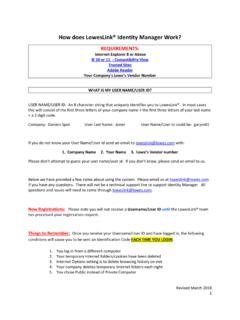
2 SOS Processing & VENDOR Requirements Trading partners must be approved by Lowe s Merchandiser to supply Lowe s SPECIAL ORDER product. All SOS Item Data must be setup in Lowe s SOS electronic catalog formats before moving to production. SOS webform users must submit an SOS webform Registration Form. See Getting Set-Up section. Hardware/Software requirements are outlined within the LowesLink registration process. Getting Set-Up on SOS WEBFORMS New users - go to , click on the Getting Started section and complete the registration. Users with a LowesLink profile - choose Change My Access after logging-in request the SOS WEBFORMS application. How to Log-in to SOS WEBFORMS after obtaining access to SOS WEBFORMS 1. Open and click Login on the top right-hand corner of the page, or select the Login to LowesLink key on the left-hand side of the page, next click OK on the LowesLink welcome screen.
3 2. LowesLink Applications screen - click EDI WEBFORMS . 3. Main menu - choose SOS WEBFORMS . SOS webform Screens There are four basic screens used in Production on SOS WEBFORMS . 1. View New SOS Purchase Orders used to view and print New Original SOS POs. 2. View Cancelled SOS Purchase Orders used to view, print, and accept Cancelled POs. 3. View SOS Purchase Orders Waiting for a Status used to apply ORDER Statuses throughout the lifecycle of the PO. 4. View Completed SOS Purchase Orders (Completed Within Past 90 Days) An SOS PO with shipped, delivered, or cancelled statuses is displayed for 90 days from the date it is moved to the Completed screen. Using the Create a Test SOS Purchase ORDER option displayed on the Main Menu is explained in SOS Purchase ORDER Testing . Transaction History and Notes - All screens, except the New Purchase ORDER screen, have an Options column for viewing ORDER Statuses submitted for a PO as well as for viewing notes the VENDOR enters for a PO.
4 Transaction History - The lifecycle of the PO is displayed when this option is selected, with Exceptions highlighted in red. Transaction Notes - To view or enter Notes , select the second icon in Options . These are not visible to Lowe s store. Additional SOS Information An SOS PO may include the same item number repeated more than once for an item in the same PO. Item Substitutions and Backorders - No replacement, substitution, or backordered items are allowed for SOS POs. Any change to the PO from Lowe s will require the Original PO to be cancelled and a new PO(s) created. Multiple shipments are not allowed - All of the ordered product must be shipped at the same time! Faxed/Phoned Orders - If a store phones/faxes an SOS PO, the VENDOR must verify with the store that the ORDER was not also sent via WEBFORMS . The store should be placing manual orders only when the model is not in the SOS catalog.
5 Invoicing VENDOR s will be able to turnaround invoices from the SOS POs or create invoices from scratch using webform Invoices. If preferred, invoice using Full-Integration EDI but process the SOS POs using SOS WEBFORMS . Data Integration SOS webform data cannot be integrated with any of the VENDOR s system applications. Using the webform Application After the user registers, completes testing, and the SOS catalog is approved, SOS POs can be accessed via WEBFORMS . SOS webform Instructions On-Line - Also located in the Options box on the bottom left-hand side of the SOS WEBFORMS screen is a link to this document. It is displayed in the box as SOS webform Instructions . Use these key documents to ensure ORDER Statuses meet requirements - ORDER Status Matrix and ORDER Status Milestones. Scrolling through the Screens A maximum of 20 POs are listed per screen.
6 Use the numbers in the lower right-hand corner of the screen to advance to the next screen to see additional orders. Use Prev or Next options to also scroll. Sorting the Purchase Orders Click on a column heading to sort the data in ascending or descending sequence. Using the Side Bar Menu - Scroll between screens by using the Side Bar Menu, or hide the Side Bar to enlarge the screen. 10/5/2015 3 SSOOSS WWeebbFFoorrmmss WWeellccoommee ttoo LLoowweessLLiinnkk SOS Purchase ORDER Testing Let s begin testing SOS WEBFORMS ! The following steps outline the four tasks to complete before moving to Production. Lowe s EDI will email the next step after you complete task 4. It is IMPORTANT to review all of the sections in this document on SOS WEBFORMS to become familiar with receiving Original and Cancelled SOS POs, applying ORDER Statuses, and knowing when to proceed with filling the PO or holding it because of ORDER Status Exception(s) that require a response from Lowe s store.
7 Log-In - Once access to SOS WEBFORMS is obtained, follow the log-in steps in How to Log-in to SOS WEBFORMS . Task 1: Review the Email Alert received on a New SOS ORDER for the test 1. Click Create a Test SOS Purchase ORDER . 2. This will generate the new PO email alert to be sent for the test. Print the email received. Task 2: Review a New SOS Purchase ORDER 3. Main Menu - Select View New SOS Purchase Orders . 4. Click anywhere on the line displaying the PO number to view the PO. 5. Click OK to print it. This is a generic test ORDER that contains bogus test item information. Select Return to List . Task 3: Submit One ORDER Status 6. Side Bar Menu - Click View SOS Purchase Orders Waiting for a Status . The test PO is listed with an Acknowledged status. Click anywhere on the line displaying the PO number to select it. 7. From the drop down box beside Select PO Status , select the Approved status.
8 Select Submit. 8. A confirmation screen shows the status submitted. 9. Select the Return to List button. The Waiting for a Status screen is displayed. The PO now has an Approved status. 10. Select the PO again from the Waiting for a Status screen, and print it using the web browser. Task 4: Notify Lowe s EDI Coordinator the test is completed (perform Task 4 only once for the VENDOR s company) 11. After reviewing the documents produced from the previous tasks, send an email to Lowe s EDI confirming the SOS webform Test is completed; include user and company names, and phone number. This completes testing SOS POs via WEBFORMS ! If multiple users complete the test, only one email is needed for Lowe s EDI. This will allow Lowe s to move the VENDOR to production when the first test is performed for SOS WEBFORMS . The VENDOR s users can conduct this PO test as often as needed to test submitting other ORDER statuses as explained in this document.
9 Test store 9781 and PO number 12345 will be used for each test, with the project number changing per test performed. Follow-up - Lowe s EDI will send an email when the VENDOR is moved to production on SOS webform POs and ORDER Statuses. Invoicing The VENDOR should contact Lowe s EDI to test Invoices. Deleting Test Data - Any tests created for the test store 9781 will be automatically deleted within 24-hours. Purpose of Testing The main purpose of this test is to make sure that we can communicate (send POs, send email notifications, and receive ORDER Statuses). The remainder of this document explains processing SOS POs in Production. We hope each user finds SOS WEBFORMS is an easy application for receiving SOS POs and submitting SOS ORDER Statuses. Thank you for completing the test! 10/5/2015 4 SSOOSS WWeebbFFoorrmmss WWeellccoommee ttoo LLoowweessLLiinnkk SOS Purchase Orders in Production Before a VENDOR can receive SOS POs via WEBFORMS , the test explained in SOS Purchase ORDER Testing must be completed.
10 View New (Original) SOS POs 1. PO Released - Once the PO is released through Lowe s SOS system, it is posted in SOS WEBFORMS . Each PO displays the a. PO Type as a New (Original) or Cancellation PO, and b. Delivery Type as a delivery to a Lowe s Store or direct delivery to the Customer/Installer. 2. Email Alert on new PO An email notifies the VENDOR when an Original PO or Cancellation PO is posted in WEBFORMS . 3. Login The SOS PO can be retrieved and printed after logging-in to LowesLink . 4. New POs - From the Main Menu or Side Bar, select View New SOS Purchase Orders . 5. New PO Status - one of these statuses is displayed a. NEW Shows the PO was released less than 24-hours from the PO being posted. b. OVERDUE NEW Indicates the PO was not reviewed timely and it has been more than 24-hours from the PO posting. If this occurs, except over the weekend, verify Email Alerts are being received to promptly take action on new POs.