Transcription of SPROG II DCC Decoder Programmer User Guide
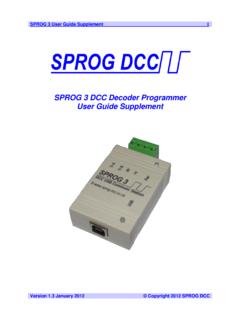
1 SPROG II User Guide 1 SPROG II DCC Decoder ProgrammerUser GuideFirmware version 2007 Version December 2007 Copyright 2007 SPROG DCCSPROG II User Guide 2 Table of the Java Runtime Environment (JRE)..6 Install the Power SPROG II USB DecoderPro the Programming Started With the DecoderPro Matching of Loco Started With Control with SPROG Command Station (one byte) Versus Extended (two byte) Many Locos Can Be Controlled?..39 Using an External Booster with SPROG and Using Multiple SPROG the SPROG II Firmware SPROG II With the Links ..45 Version December 2007 Copyright 2007 SPROG DCCSPROG II User Guide 3 Version December 2007 Copyright 2007 SPROG DCCSPROG II User Guide 4 IntroductionSPROG II is a DCC Decoder Programmer for connection to the serial port of a personal computer or similar device.
2 SPROG II is supported by DecoderPro and PanelPro, both part of the JMRI project ( ) which, by use of the java programming language, allows platform independent support of a wide range of DCC hardware. JMRI is shareware available as a free II is also capable of operating a small layout using the features of DecoderPro and PanelPro. A larger layout can be driven by using an external Java programming language JRE from Sun Microsystems http://java. DecoderPro from Regulated DC Power Supply (see Table 1) Short length or small oval of track for programming and/or test runningFeatures Programs virtually all NMRA compliant DCC decoders No extra hardware required for programming sound decoders ( QSI, Soundtraxx) Easy to use graphical interface with DecoderPro USB interface for easy connection to PC USB activity LED shows communication with the PC Power LED flashes when programming track power is liveVersion December 2007 Copyright 2007 SPROG DCCSPROG II User Guide 5 Specification/Operating ConditionsParameter MinimumNominalMaximumUnitsNoteDC Input supply voltage 10V15VV1 Vin supply current not programming 50mAVin supply current programming 300mA2 Vin supply current Operating Layout1A3 Operating Temperature Range 25 COutput Load - programming 250mA2 Output Load Operating Layout1A3 Notes: supply voltage depends upon the requirements of the de coder being programmed.
3 In general it is safer to use as low a voltage as possible in case of problems with a newly installed II will remove track power if output current exceeds 250mA as measured 100ms after applying power. Surge current during de coder power-up may be considerably greater than upon required DCC current. II is protected against reverse polarity connection of the pow er supply but will not work unless the polarity is II is not protected against track and power connections being interchanged.!Table 1 Specification/Operating ConditionsVersion December 2007 Copyright 2007 SPROG DCCSPROG II User Guide 6 InstallationThe following steps are required to install SPROG II before you can use it for the first time: Install the Java Runtime Environment (JRE) Install DecoderPro Connect the Power Supply Install SPROG II USB drivers Edit DecoderPro preferences Connect the Programming TrackFor a successful installation, the JRE must be installed before DecoderPro is installed.
4 !This document gives brief installation instructions for the Windows Operating System. For full instructions and for instructions to install the JRE and DecoderPro on Linux or MACOS, please refer to the Install Guides on the JMRI website at Look out for the animated SPROG II Show Me How! guides on the SPROG II website in the near future.!Install the Java Runtime Environment (JRE)The Java Runtime Environment is not required for MACOS, which has Java support as standard. For Windows and Linux it must be installed first, either from the CD-ROM supplied or from a downloaded install from the CD-ROM, use My Computer or Windows Explorer to browse to the directory specific to your operating December 2007 Copyright 2007 SPROG DCCSPROG II User Guide 7 Double click the j2re executable file and follow the on-screen instructions to DecoderProDecoderPro should then be installed from the CD-ROM or a downloaded copy.
5 A newer version of DecoderPro than that supplied on the CD-ROM may be available from the JMRI download page versions with an even sub-version number, , , are stable production releases that have been well tested and should have no major issues. Odd sub-version numbers, , , are test releases that are generally stable but may exhibit issues, especially with new features that may still be under install from the CD-ROM, browse to the directory specific to your operating system (as per the previous step). Double click on the file and follow the on-screen instructions to the Power SupplyObserve the correct polarity (marked as 0V and +V) when connecting the power supply to the pluggable terminal block. SPROG II is protected against reverse polarity connection of the power supply but will not work unless the polarity is power LED will illuminate steadily when the SPROG II is powered up and Version December 2007 Copyright 2007 SPROG DCCSPROG II User Guide 8 the USB connected to the host computer (next step).
6 The power LED will flash when the programming track is powered SPROG II USB driversUse the supplied USB cable to connect SPROG II to the host computer. The power LED should be lit. The first time you do this you will see the Found new Hardware Wizard . Follow the steps below to install the SPROG II drivers and then the USB Serial port DriversClick No, not this time then Next > .Version December 2007 Copyright 2007 SPROG DCCSPROG II User Guide 9 Click Install from a list or specific location then Next > .Click Search for the best driver in these locations then Include this location Version December 2007 Copyright 2007 SPROG DCCSPROG II User Guide 10 in the search and then click the Browse button to find the driver directory on the CD-ROM supplied with SPROG II.
7 Click Next > .Click Continue Anyway .Version December 2007 Copyright 2007 SPROG DCCSPROG II User Guide 11 Click Finish USB Serial Port DriversClick No, not this time then Next > Version December 2007 Copyright 2007 SPROG DCCSPROG II User Guide 12 Click Install from a list or specific location then Next > Version December 2007 Copyright 2007 SPROG DCCSPROG II User Guide 13 Click Search for the best driver in these locations then Include this location in the search and then Browse to find the driver directory on the CD-ROM supplied with SPROG II. Click Next > Click Continue Anyway Version December 2007 Copyright 2007 SPROG DCCSPROG II User Guide 14 Click Finish Edit DecoderPro PreferencesThe next step is to the DecoderPro preferences in order to allow the software to connect to the SPROG you must ascertain which COM port was assigned to SPROG II during the driver installation.
8 Open the System Properties from the Windows Control Panel (you may need to switch to classic view. Alternatively, right click on the Desktop My Computer Icon and select the Hardware tab:Version December 2007 Copyright 2007 SPROG DCCSPROG II User Guide 15 Click Device Manager Click the + to open the Ports (COM & LPT) category and note the COM port assignment for the SPROG II (COM4 in this example).Version December 2007 Copyright 2007 SPROG DCCSPROG II User Guide 16 Now start DecoderPro by double clicking the icon that was placed on the Windows desktop during the the Edit -> Preferences dialog from the menuClick the arrow in the Layout connections field and scroll down to select SPROGV ersion December 2007 Copyright 2007 SPROG DCCSPROG II User Guide 17 Click the arrow in the Serial Port field and select the COM port noted in the earlier step.)
9 Select the desired GUI the Comprehensive Programmer FormatClick Save Click Yes . DecoderPro will save the new settings and the Programming TrackThe programming track MUST be isolated from all other DC or DCC control systems and connected only to the SPROG II. Damage may result to the SPROG II or other equipment if this rule is not followed.!Version December 2007 Copyright 2007 SPROG DCCSPROG II User Guide 18 Connect the SPROG II to the programming track using the Track terminals of the pluggable terminal block. There is no requirement to observe any particular polarity when connecting the programming track. The DCC output voltage will be approximately 1V below the power supply programming the track current is sensed 100ms after the programming track is powered up. If the current exceeds 250mA then the programming track power is removed to avoid potential damage to an incorrectly installed December 2007 Copyright 2007 SPROG DCCSPROG II User Guide 19 Getting Started With DecoderProSee the DecoderPro website for updates and latest the JMRI Yahoo group for help from other DecoderPro users and the team who develop that all software and drivers are installed and that DecoderPro preferences have been DecoderPro.
10 The main window will open and show the current connection method as set by the preferences. In the following example Connected via SPROG on COM4 :Click Service Mode (Programming Track) Programmer to open the Programmer Setup window. The new window shows a list of Decoder December 2007 Copyright 2007 SPROG DCCSPROG II User Guide 20 Clicking the control or double clicking the folder icon next to a manufacturer name will open a list of Decoder types from that manufacturer. You can always manually select a Decoder type in this way. In most cases, DecoderPro can determine the manufacturer and Decoder type a Decoder equipped loco on the programming track and click on Read type from Decoder . In the example below, DecoderPro has identified a QSI Industries BLI F7. Sometimes DecoderPro can identify the manufacturer but not exact model of Decoder fitted.