Transcription of Step 1 Logging into SV Remote - Access Optimal
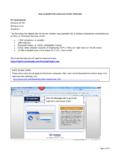
1 Accessing SVREMOTE. To remotely Access the Electronic Medical Record for St. Vincent's Medical Center Riverside, Southside, or Clay, go to Internet Explorer, type in the address window and click enter. Step 1: Logging into SV Remote Enter in your internet browser. Log in using your Username and Password provided. If Citrix is already loaded, proceed to Step 2. If the current version of Citrix is not installed on the device, the INSTALL button pop-up will appear. Check the I Agree box and click INSTALL . Next they will need to select RUN.
2 December 2014 Page 1. If User Account Control is enabled, select YES . Select INSTALL . The Installation begins . December 2014 Page 2. Once the install completes, they should see a Green Checkmark indicating that the installation was successful. If the password needs to be changed, the Change Password Screen will open. Password requirements are: Password length is being standardized to a minimum length of 8 characters. Password complexity will be enabled; meaning 3 of the following 4 attributes identified below must be used: - At least one lower case letter - At least one upper case letter - At least one numeric digit (0-9).
3 - At least one special character ( Passwords cannot be part of your name, part of your user ID, or a common dictionary word Password expiration will be set to 365 days and cannot be repeated over a 4-year period. Passwords will lock out after 10 failed password attempts December 2014 Page 3. Step 2: Selecting PowerChart Select the PowerChart icon. The application will launch. Click on Patient List to see your list. If this is not available, contact EMR support for assistance. Click the Search icon to look for a particular patient.)
4 Enter the patient name. The patient's chart will open. December 2014 Page 4.