Transcription of Student Portal Training Guide - LACCD
1 SIS Modernization Student Portal Training Guide Created on 3/27/2016 Training Guide Student Portal Table of Contents Introduction to the New Student Portal and the My Profile Menu .. 1 Logging into the Student Portal and changing Your 1 Navigating the Student Portal .. 8 Viewing Your Student Ed Plan .. 26 Using Self-Service to Update Your Information .. 30 Using the Academics Menu .. 36 Browsing the Course Catalog .. 36 Enrolling from Planner .. 41 Enrolling from Requirements .. 43 Searching a Class .. 45 Enrolling from Class Search.
2 48 Adding a Class .. 52 Adding to a Waitlist .. 55 Adding a Class by Using a Permission Code .. 57 Dropping A Class .. 60 Swapping Classes .. 62 Viewing Term Information .. 66 Requesting an UnOfficial Transcript .. 67 Requesting Official Transcript .. 70 Viewing Student Staff Schedule of Classes .. 72 Submitting a Graduation Petition .. 75 Using the Finances Menu .. 77 Viewing a Financial Aid Award .. 77 Accepting or Declining Financial Aid Awards .. 79 Add a Payment Profile to Your Account .. 81 Page ii Training Guide Student Portal Introduction to the New Student Portal and the My Profile Menu Logging into the Student Portal and changing Your password Procedure In this lesson you will learn to Log into the Student Portal and Change Your password .
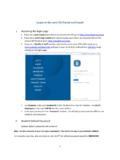
3 Begin by logging into the Portal at Step Action 1. Open your favorite browser window to begin the process for logging into the SIS Modernization Portal . Browsers that work with SIS Modernization are: > Internet Explorer > Safari > Mozilla Firefox > Chrome Step Action 2. In your browser window, type into the address field. 3. Press [Enter] to advance to the SIS Modernization login page. Page 1 Training Guide Student Portal Step Action 4. Enter your Student ID Number into the first/top field. 5. Enter your password into the second/bottom field.
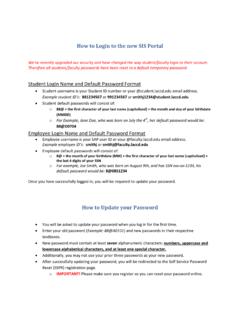
4 6. Passwords The first time you enter the SIS Modernization site, you will be required to enter a predetermined password . The Student default passwords will consist of: 88@ + the first character of your last name (capitalized) + the month and day of your birthdate (MMDD) For example, Jane Doe, who was born on July the 4th, her default password would be: Once in the system, you will be prompted to change your password . Page 2 Training Guide Student Portal Step Action 7. Passwords Once you have successfully logged in, for your account s security, you will be transferred to the update password page to change your default password .
5 > Enter your Student ID Number into the appropriate field. > Enter your old password and new passwords in their respective text boxes. > Your new password must contain at least seven alphanumeric characters: numbers, uppercase and lowercase alphabetical characters, and at least one special character. > Additionally, you may not use your prior three passwords as your new password . > After successfully updating your password , you will be redirected to the password registration page. Page 3 Training Guide Student Portal Step Action 8.
6 password Registration The password registration page defines questions that will be used to retrieve and reset your forgotten password . On the password registration page, enter your Student ID Number and new password into the appropriate fields. Page 4 Training Guide Student Portal Step Action 9. password Registration Select questions that you know and will remember the answers to. After you have completed the question and answer page, you will be redirected to the SIS Modernization home page. Page 5 Training Guide Student Portal Step Action 10.
7 To change your password , navigate to the Change My password page. To do this, click the Main Menu link under the Dashboards Menu. 11. Click the Change My password menu link. Step Action 12. Click in the Current password field and enter your current password . 13. Press [Tab] to advance to the *New password : field. 14. Enter your new password into the New password field. Important: > Your new password must contain at least seven alphanumeric characters: numbers, uppercase and lowercase alphabetical characters, and at least one special character.
8 > Additionally, you may not use your prior three passwords as your new password . Press [Tab] to advance to the *Confirm password : field. 15. Re-enter your new password into the Confirm password field. Page 6 Training Guide Student Portal Step Action 16. Click the Change password button. Step Action 17. On the password Saved page, click the OK button to complete the password change. 18. Please review the additional topics to learn how to perform further tasks in the Student Portal . End of Procedure. Page 7 Training Guide Student Portal Navigating the Student Portal Procedure In this lesson you will learn to Navigate the Student Portal .
9 Begin by logging into the Portal at Step Action 1. Upon entering the Student Portal , you will immediately notice that you have many views to find your information. 1 - Menu buttons (Dashboard, Academics, Finances, My Profile, Actions) 2 - Quick links (Assessment, Orientation, Student Educational Plan, Find a Class, Make a Payment, Manage Awards, My Schedule, My Advisors) 3 - Quick view information (Holds, To Do Checklist, My Account, My Grades, My Class Schedule, Financial Aid Awards) Page 8 Training Guide Student Portal Step Action 2.
10 Click the Academics Menu link to view and access important information such as: > My Classes > Records > Graduation > Term Information > Planning and Progress > Find Courses > Enrollment Page 9 Training Guide Student Portal Step Action 3. The My Classes section of the Academic Menu allows you to view information pertaining to your Class Schedule and Grades that have been posted by your instructors Page 10 Training Guide Student Portal Step Action 4. The Records section of the Academic Menu allows you to access information such as Transfer Credit Report, Unofficial Transcript, Request Office Transcript and Enrollment Verification.