Transcription of STUDENT QUICK START GUIDE LockDown Browser and …
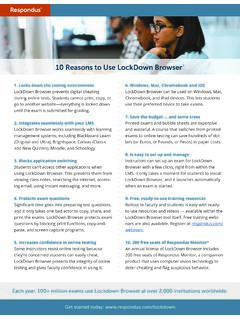
1 STUDENT QUICK START GUIDE LockDown Browser and Respondus Monitor CANVAS (Classic Quizzes) WHAT IS RESPONDUS LockDown Browser ? LockDown Browser is a locked Browser for use with quizzes in Canvas. It prevents you from printing, copying, going to another URL, or accessing other applications during an assessment. If a Canvas quiz requires that LockDown Browser be used, you will not be able to take the quiz with a standard web Browser . LockDown Browser should only be used for taking Canvas quizzes. It should not be used in other areas of Canvas. INSTALLING LockDown Browser If LockDown Browser has already been installed, skip to the next section.
2 If not, LockDown Browser must be installed to each computer being used for a test. > Your institution or instructor will provide the link for downloading and installing LockDown Browser . This URL is unique to your institution. > Follow the onscreen instructions to complete the install. BEGINNING A QUIZ 1. Close all programs, unless one is used to connect you to the Internet. 2. Locate the LockDown Browser shortcut on the desktop and double-click it. (For Mac users, launch LockDown Browser from the Applications folder .) 3. If prompted, either close a blocked program ( screen capture, instant messaging) by choosing Yes. Or, close LockDown Browser and close the blocked program before restarting.
3 4. Log into Canvas. 5. Navigate to the quiz within the course and begin the quiz. Note: Once a quiz has been started with Respondus LockDown Browser , you cannot exit until the quiz has been submitted for grading. USING WITH A WEBCAM (Respondus Monitor) You may be required to use LockDown Browser with a webcam, which will record you during an online, nonproctored exam. (The webcam feature is sometimes referred to as Respondus Monitor. ) Your computer must have a functioning webcam and microphone. A broadband connection is also required. If a quiz requires LockDown Browser and a webcam, follow the steps in the previous section. At this point, the Startup Sequence for the webcam begins.
4 > You will first need to review and agree to the Terms of Use > The Webcam Check will confirm that your webcam and microphone are working properly. > The remaining steps of the Startup Sequence will depend on settings chosen by your instructor. Follow the instructions and note your progress along the left side of the screen. > If you encounter a problem, select the it s not working link for troubleshooting tips and access to 24/7 Live Chat Help. The quiz will begin after the Startup Sequence is complete. PROBLEMS? If you have problems downloading, installing, or taking an assessment with Respondus LockDown Browser , contact your instructor or your institution s help desk.
5 Respondus, LockDown Browser and Respondus Monitor are registered trademarks of Respondus, Inc. All other trademarks are the property of their respective owners. Copyright 2021 Respondus.