Transcription of SYSTEM USER GUIDE
1 SYSTEM USER GUIDEXR series CONTROL PANELHOW TO HANDLE AN ALARME nter your user code or present your credential to the keypad if it has a built-in proximity reader. You will see:IS THIS A FALSE ALARM? YES NO or CANCEL VERIFYReal Alarm Press NO or VERIFY to notify to the emergency monitoring SYSTEM will remain AlarmPress YES or CANCEL to cancel the alarm. Your SYSTEM will OF CONTENTSGet to Know Your SYSTEM ..1 Use Your Keypad ..3 LCD Keypad ..3 Graphic Touchscreen Keypad ..4 Type in Your Keypad ..7 Standard Keyboard ..7 Number Your SYSTEM Type ..9 Area (A) ..9 All/Perimeter (All Perim) ..9 Home/Sleep/Away (with Guest) ..10 Arm Your SYSTEM .
2 11 Area (A) ..11 All/Perimeter (All Perim) ..11 Home/Sleep/Away (H S A) ..11 More Arming Options ..12 Disarm Your SYSTEM ..14 How to Handle an Alarm ..14 Disarm Your SYSTEM ..14 User Menu ..15 Alarm Silence ..15 Sensor Reset ..16 Lockdown ..16 Door Lock/Unlock ..17 Door Access ..17 Armed Areas ..17 Outputs On/Off ..18 Favorites ..18Z-Wave Setup ..20Wi-Fi Setup ..22 Zone Status ..23 Bypass Zones ..24 Zone Monitor ..24 SYSTEM Status ..25 SYSTEM Test ..25 User Profiles ..26 User Codes ..30 Ambush Code ..31 Schedules ..32 Time ..35 Display Events ..35 Service Request ..36 Fire Drill ..36 Appendix ..38 User Authority a User Code ..40 Change a User Code.
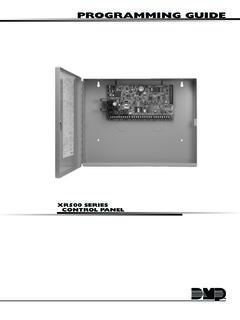
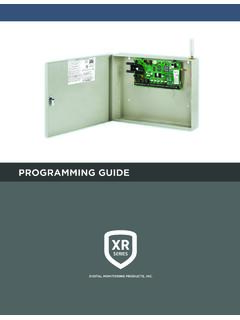
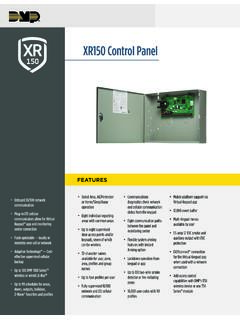
3 41 Common Keypad Displays ..42 Glossary ..44 Notes ..45 SYSTEM User GUIDE | XR150/XR550 1 GET TO KNOW YOUR SYSTEMC ontrol PanelThe control panel acts as your SYSTEM s brain. It communicates with the keypad and all the other SYSTEM devices throughout the keypad allows you to control your SYSTEM from one place. You can use it to arm and disarm your SYSTEM , add user codes, verify alarms, and many other KeyA prox key is an impact resistant credential that fits on a standard key ring. It allows for codeless arming, disarming, and door access when it is presented to a are small devices that monitor motion, temperature, flooding, breaking glass, and know when windows and doors have been Fob RemoteDepending on how your key fob remote is set up, it provides an easy way to arm and disarm your SYSTEM or send a panic alarm.
4 Your SYSTEM may not include all of the equipment and functions found in this :52PM1 2 3 45 6 7 89 0 CMDACBDFEGIHJLKVXWSUTPRQMONYZENTERBACKTO DAY8298 77 CURRENTHI LO98 77HI LOPanicChimeResetFavoritesDISARMEDTUESDA Y2 XR150/XR550 | SYSTEM User GUIDE SirenThe siren emits sound when your SYSTEM goes into and Carbon Monoxide (CO) DetectorThese detectors notify you when smoke or carbon monoxide is present. Some detectors have an integrated synchronized sounder. If they are installed in groups, they will all sound devices allow you to control the lights, small appliances, garage doors, thermostats, and locks from the keypad, Virtual KeypadTM App, and.
5 SecureComTM VideoSecureCom Video allows you to add wired or wireless cameras inside or outside the building. You can easily record clips or view live video feed at any time using the Virtual Keypad App or Keypad App and Virtual Keypad App and allow you to control and monitor your SYSTEM on the go. The app is available for Apple and Android devices. SYSTEM User GUIDE | XR150/XR550 3 USE YOUR KEYPADP roximity Card ReaderThe keypad may have a built-in proximity card reader that allows you to arm or disarm your SYSTEM when you present a and Armed LEDsThe AC Power and Armed LEDs indicate your SYSTEM s power and armed status.
6 Select KeysUse the select keys to type and navigate in the keypad. See Type in Your Keypad for more information. 7/0 Panic Feature (Hardwired systems only)Press and hold the 7 and 0 keys at the same time to send a fire, emergency, or panic report to the emergency monitoring station. Power/Armed LEDsFRI2:52PM1 2 3 45 6 7 89 0 CMDACBDFEGIHJLKVXWSUTPRQMONYZENTERBACKP roximityCard ReaderSelect KeysLCD Keypad4 XR150/XR550 | SYSTEM User GUIDE TODAY8298 77 CURRENTHI LO98 77HI LOPanicChimeResetFavoritesDISARMEDTUESDA YP ower/Armed LEDsProximity Card ReaderNavigation ArrowsInteractiveShieldLocalWeatherCarou selMenuGraphic Touchscreen KeypadOptionsOn the LCD keypad, press and hold the CMD and back arrow keys at the same time to access the Options Menu.
7 On the Graphic Touchscreen Keypad, press Options in the carousel menu. From here, you can adjust the keypad brightness, tone, and volume. If the keypad brightness is set to 0, the keypad and LED will turn off when not in use. Brightness level 1 turns off the keypad when not in use but the LED remains on. Interactive ShieldOn the Graphic Touchscreen Keypad, press the shield to display your arming options. Disarm your SYSTEM by pressing the shield and entering your user code. Carousel Menu On the Graphic Touchscreen Keypad, use the navigation arrows or press and drag to scroll through the carousel menu User GUIDE | XR150/XR550 5 Carousel Menu Options for Graphic Touchscreen KeypadsPanicPress Police, Emergency, or Fire to send a panic report to the emergency monitoring station.
8 ChimePress Chime to turn the chime feature on and off. If chime is on, the keypad will sound an alert and display a notification when external doors and windows (with sensors installed) are Reset to reset fire and panic sensors after they have triggered an displays a list of your Z-Wave favorites. Press a Favorite to activate ExitWhen your SYSTEM is armed, press Easy Exit to allow you to leave through an exit door without triggering the alarm or needing to disarm and re-arm your SYSTEM . OptionsPress Options to display the Setting Options screen. From here, you can adjust the keypad screen brightness, tone, and volume. You can also choose what you want to display in the carousel menu.
9 KeypadPress Keypad to display a standard DMP keypad. Use this option to access the User Menu. See Type In Your Keypad for more XR150/XR550 | SYSTEM User GUIDE Carousel Menu Options for Graphic Touchscreen KeypadsUser CodesPress User Codes to add, edit, or delete user codes in your SYSTEM . SchedulesPress Schedules to add, edit, or delete schedules. You can also use it to assign schedules to outputs and favorites, as well as auto-arming and allows you to view up to 12,000 past events that occurred on your SYSTEM over the last 45 days. ThermostatsPress Thermostats to display the Z-Wave thermostats screen. From here, you can adjust the temperature or select ON, OFF, HEAT, COOL, or Doors to lock or unlock Z-Wave locks.
10 You can also open and close Z-Wave-equipped garage doors. LightsPress Lights to turn ON, turn OFF, or DIM Z-Wave User GUIDE | XR150/XR550 7 TYPE IN YOUR KEYPADBoth keypads offer the number pad, but only the Graphic Touchscreen Keypad offers the standard keyboard. Use the table and the keypad select areas that are shown in the graphics below to enter characters using the number pad. Follow the directions to enter characters using the standard Keyboard Press ABC to access uppercase letters. Press abc to access lowercase letters. Standard Keyboard and Select Areas1234567890 CMDABCDEFGHIJKLMNOPQRSTUVWXYZabc!@#123 QWERTYUIOPASDFGHJKLZXCVBNMCMDArea1 Area2 Area 3 Area 4 Press !