Transcription of User Guide - T-Mobile
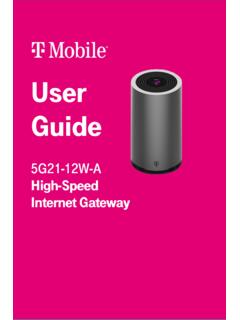
1 User Guide TM-RTL0102 LTE wifi Gateway LTE wifi GATEWAY Welcome Your new T-Mobile LTE wifi Gateway is custom built for fast Wi-Fi with T-Mobile s LTE network that reaches further and faster than ever before. With easy-to-use Parental Controls and data-usage features to manage your family s connectivity as well as dual -band wifi with QoS for smooth Web surfing, streaming, gaming and wifi calling your wireless T-Mobile experience just got a whole lot better. 1. What s in the box 1 2.
2 Getting to know your LTE wifi Gateway 2 3. Installation 5 Positioning your wifi gateway 6 Setup requirements 6 4. Configure your LTE wifi Gateway 7 Connect by Smartphone 7 Connect by computer 9 5. Basic Settings 11 Dashboard 12 Network 13 Network Map 14 Status 19 Traffic Query 21 LTE 22 wifi 23 Parental Control 24 6. Expert Settings 26 Dashboard 27 Network 28 Network Map 29 Status 34 Traffic Query 36 LTE 37 LAN 39 wifi 41 Client List 44 SMS 44 New Message 45 Inbox 45 Drafts 45 Outbox 45 NAT Forwarding 46 DMZ 47 UPnP 48 ALG 48 Virtual Servers 51 Parental Control 53 Diagnostic 55 Security 56 Firewall 57 IP / MAC Binding 58 Access Control 59 Device Settings 60 Administration 61 Date & Time 62 Backup / Restore 63 Firmware 64 System Log 65 Quality of Service 66 7.
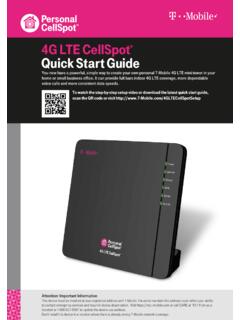
3 Troubleshooting 67 8. Tips & tricks 68 9. Technical Specification 70 Need help? Visit or call T-Mobile customer service at 1-844-275-9310. 1 1. What s in the box Contact T-Mobile if any item is missing or damaged. Need help? Visit or call T-Mobile customer service at 1-844-275-9310. 2 2. Getting to know your LTE wifi Gateway The wifi gateway includes a battery which can power the wifi gateway temporarily in case of emergency power loss. Need help? Visit or call T-Mobile customer service at 1-844-275-9310.
4 3 LEDs The LEDs indicate the wifi gateway s power, connection and battery status. Need help? Visit or call T-Mobile customer service at 1-844-275-9310. 4 LTE Button Press the LTE button on the front of the wifi gateway to display the LTE signal strength. 5 3. Installation If you are replacing an existing router, disconnect it from your network first. 1. Plug the wifi gateway into a power outlet using the included power adapter. 2. Switch the wifi gateway s power switch on, then head to 4.
5 Configure your LTE wifi Gateway to setup your wifi help? Visit or call T-Mobile customer service at 1-844-275-9310. 6 Positioning your wifi gateway For the best wireless signal transmission between the wifi gateway and your network devices: - Place the wifi gateway in a central area. - Keep the wifi gateway away from metal obstructions and away from direct sunlight. - Keep the wifi gateway away from or 20 MHz only wifi devices, computer peripherals, Bluetooth devices, cordless phones, transformers, heavy-duty motors, fluorescent lights, microwave ovens, refrigerators, and other industrial equipment to prevent signal interference or loss.
6 Setup requirements To configure your wireless network via computer, you need a computer that meets the following system requirements: - Ethernet RJ-45 (LAN) port (10 Base-T/100 Base-TX/1000 BaseTX) - IEEE wireless capability - An installed TCP/IP service - Web browser such as Internet Explorer, Firefox, Safari, or Google Chrome Need help? Visit or call T-Mobile customer service at 1-844-275-9310. 7 4. Configure your LTE wifi Gateway You can configure your wifi gateway s network settings using the Web User Interface (Web UI) by computer or mobile app.
7 First connect to your wifi gateway, then access the Web UI, as shown below. Your wifi gateway is pre-set with the WPA2 security, but you should immediately change the default wifi password, as well as the Web UI login password. Connect by Smartphone 1. On your smartphone, scan available wifi networks. 2. Select either of the T-Mobile networks named: or TMobileWiFi-5G 3. Enter the unique password found on the white sticker on the back of your wifi gateway. Need help? Visit or call T-Mobile customer service at 1-844-275-9310.
8 8 Login to the Web User Interface 1. Log in using the default username: admin and password: admin 2. Go to Basic > Network > wifi to change your wifi password and Expert > Device Settings > Administration to change your Web UI login password, and remember to save your settings. 3. Check 5. Basic Settings and 6. Expert Settings in this Guide for more information. Need help? Visit or call T-Mobile customer service at 1-844-275-9310. 9 Connect by computer 4. On your computer, scan available wifi networks.
9 5. Select either of the T-Mobile networks named: or TMobileWiFi-5G 6. Enter the unique password found on the white sticker on the back of your wifi gateway. 7. If preferred, you can use an Ethernet cable to connect your computer to the wifi gateway s LAN port for configuration (instead of wifi ). Need help? Visit or call T-Mobile customer service at 1-844-275-9310. 10 Login to the Web User Interface 1. Open a web browser and enter the wifi gateway s default address in the address bar. 2. Log in to the Web UI using the default username: admin and password: admin 3.
10 Go to Basic > Network > wifi to change your wifi password and Expert > Device Settings > Administration to change your Web UI login password, and remember to save your settings 4. Check 5. Basic Settings and 6. Expert Settings in this Guide for more information. Need help? Visit or call T-Mobile customer service at 1-844-275-9310. 11 5. Basic Settings Your wifi gateway comes with an intuitive Web User Interface (Web UI) that allows you to easily setup its Basic & Expert features. Menu Select the Basic tab in the menu: Save Remember to save your settings with the save button after making changes.