Transcription of Using Your TiVo® Remote Control
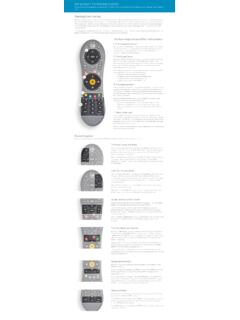
1 Swap 2010 TiVo Inc. Reproduction in whole or in part without written permission is prohibited. All rights reserved. TiVo, the TiVo logo, and TiVo Central are trademarks or registered trademarks of TiVo Inc. or its subsidiaries, 2160 Gold Street, Box 2160, Alviso, CA 95002-2160. Using Your TiVo Remote ControlYour TiVo Remote Control can be used for much more than meets the eye, from setting your recordings and managing your TiVo services, to streaming and down-loading videos from the web. This guide shows how to program your Remote , and offers some tips and shortcuts on Using it while watching live TV or recordings, finding shows Using the TiVo program guide, and navigating the TiVo your TiVo Remote controlSome buttons on your TiVo Remote Control are programmable:1 TV POWER2 INPUT4 VOLUME 5 MUTE (use VOLUME and MUTE to Control sound on your TV or A/V receiver).Programming your Remote control1. Press the TiVo button to go to the TiVo Central screen and select Messages & Settings > Set-tings > Remote , CableCARD, & Devices > Remote Control > Remote Control Setup.
2 2. Follow the instructions on the Remote Control Setup screen. You have options to Control power, volume, and mute on your TV; volume and mute on your A/V receiver (stereo system); and input selection on your sure to press and hold the buttons indicated on the screen for about five seconds until the ACTIVITY LIGHT on the Remote lights up and stays Try entering the first code listed on the screen. The ACTIVITY LIGHT on the Remote flashes to indicate it received the code. Test the button you are trying to program. If it doesn t work, repeat the steps Using the next : Due to the wide variety of brands and models available, some TVs and A/V receivers are not compatible with the TiVo Remote Control . Resetting the programmable buttonsYou can reset all the programmable buttons (TV PWR, INPUT , VOLUME and MUTE) at once. All the buttons will return to their default settings. To reset the buttons:1. Point the Remote Control away from your Press and hold the TV PWR and TiVo buttons simultaneously until the ACTIVITY LIGHT on the Remote lights, and remains lit when you release the Press 6 THUMBS DOWN three times, then press 7 ENTER.
3 Learning remoteYour TiVo Remote Control is a learning Remote . This means that it can read and store certain func-tions from other remotes. If you were unable to find a code that works Using the programming procedure, try this method:1. Press the TiVo button and 3 SELECT buttons simultaneously, and hold them for three to five seconds, until the ACTIVITY LIGHT remains lit. The Remote is now in learning mode. 2. On the TiVo Remote , press and release the button you want it to learn from the TV or A/V receiver Remote (for example, TV PWR). The ACTIVITY LIGHT will flash once to acknowledge the button press, then remain Point the remotes directly at each other, no more than four inches Press the corresponding button on the TV or A/V receiver Remote (for example, Power).5. If learning is successful, the ACTIVITY LIGHT will flash four times. If it is not successful, it will blink 10 times very Repeat steps 2-4 for any additional buttons.
4 NOTE: In learning mode, VOL UP and VOL DOWN are separate When done, press the TiVo button to exit learning mode and return to normal 245637 TiVoACTIVITY LIGHTSwap 2010 TiVo Inc. Reproduction in whole or in part without written permission is prohibited. All rights reserved. TiVo, the TiVo logo, and TiVo Central are trademarks or registered trademarks of TiVo Inc. or its subsidiaries, 2160 Gold Street, Box 2160, Alviso, CA 95002-2160. Your TiVo Remote Control operates three ways While watching live TV or recordings While Using the TiVo on-screen menus In the TiVo program guideUsing your TiVo Remote Control while watching live TV or recordingsWhen you re watching live TV or a recording, the Remote Control buttons do the following:TiVo button/ACTIVITY LIGHT: Press the TiVo button once at any time to go to TiVo Central . TIP: Press it twice to go to My Shows or the Now Playing List your list of recorded TV PWR: If programmed, TV PWR turns your TV or A/V receiver LIVE TV/SWAP: When you are watching live TV, the LIVE TV/SWAP button switches tuners (each press will toggle back and forth between the two tuners).
5 While watching a recording, pressing the LIVE TV/SWAP button takes you to live INPUT: The INPUT button selects the device (such as the TiVo box, a DVD player, or a game system) your TV INFO: Press INFO to find out more about the show you re : Turn on Closed Captioning when watching TV by pressing INFO and selecting the CC SELECT: Use the SELECT button to choose menu options or shows to LEFT ARROW: If you re watching live TV, the LEFT ARROW button will bring you back to the menu you were previously viewing. This can be particularly helpful when updating your channel list. If you re watching a recording, the LEFT ARROW button stops where you are and returns to the RIGHT ARROW: Pressing the RIGHT ARROW button cycles through the three banner ZOOM: Press the ZOOM button once to display the TV s current Aspect Correction mode. Press it again to change the Aspect Correction mode to Full, Panel, or Zoom.
6 Use this feature to quickly adjust the picture to your GUIDE: Press the GUIDE button to see the TiVo program guide. J DOWN ARROW: If you re watching a recording, use the DOWN ARROW button to toggle through the resolution options (480i/480p/720p/1080i).K VOLUME: Adjusts the volume of the show you re CHANNEL UP/DOWN: Use the CHANNEL UP/DOWN button to change the MUTE: Mutes the show you re 3624579L8 J K M TiVoACTIVITY LIGHTSwap 2010 TiVo Inc. Reproduction in whole or in part without written permission is prohibited. All rights reserved. TiVo, the TiVo logo, and TiVo Central are trademarks or registered trademarks of TiVo Inc. or its subsidiaries, 2160 Gold Street, Box 2160, Alviso, CA 95002-2160. 1 RECORD: Press the RECORD button to begin recording the show you re currently : TiVo automatically records up to a half hour of a tuned channel, so you can press the RECORD button to record a show up to 30 minutes after it s THUMBS UP/DOWN: Use the THUMBS UP and THUMBS DOWN buttons to rate shows for TiVo Suggestions.
7 You can give up to three THUMBS UP (great!) or three THUMBS DOWN (terrible!). 3 PLAY: Plays a paused BACK (REWIND): Press the BACK button up to three times for three : When a show is paused, press BACK to go back FORWARD (FAST FORWARD): Press the FORWARD button up to three times for three : When a show is paused, press FORWARD to advance PAUSE: Pause the show currently being SLOW: Plays a paused show in slow INSTANT REPLAY: Replays the last eight seconds of a : Press and hold the INSTANT REPLAY button to jump to the beginning of a ADVANCE: The ADVANCE button moves forward in 30-second increments; press and hold to jump to the end of the show. TIP: While viewing a recorded show, press the ADVANCE button to jump to the next tick mark when fast-forwarding or A, B, C, D BUTTONS: When watching video in TiVo with HD menus, check the on-screen tips about the A, B, C, and D NUMBER BUTTONS: Use the NUMBER buttons to enter a channel CLEAR: Press the CLEAR button to remove an on-screen display.
8 This can be helpful if you ve paused a program and want to see something behind the status ENTER/LAST: Use the ENTER/LAST button to go back to the previous channel from the one you re currently your TiVo Remote Control while watching live TV or recordings (continued)When you re watching live TV or a recording, the Remote Control buttons do the following:1 348 JKL67259 MSwap 2010 TiVo Inc. Reproduction in whole or in part without written permission is prohibited. All rights reserved. TiVo, the TiVo logo, and TiVo Central are trademarks or registered trademarks of TiVo Inc. or its subsidiaries, 2160 Gold Street, Box 2160, Alviso, CA 95002-2160. 1 CHANNEL UP/DOWN: Use the CHANNEL UP/DOWN button to page up or down through lists of menu THUMBS UP : In TiVo with HD menus, you can use the THUMBS UP button to mark any video provider, category, or collection as a PLAY: Highlight a recording in My Shows or the Now Playing List and press the PLAY button to start viewing : To watch all shows in a folder in order, from oldest to newest, highlight a folder in My Shows or the Now Playing List and press the PLAY INSTANT REPLAY: In Search, press the INSTANT REPLAY button at any time to start a new search.
9 In TiVo with HD menus, press the INSTANT REPLAY button to go back a ADVANCE: Use the ADVANCE button to jump-to-end/jump-to-beginning of long lists such as My Shows or the Now Playing List. When in the channel list, use the ADVANCE button to enter a dash for channel numbers that contain a dash. In Search, press the ADVANCE button to skip straight to the first item in the results A, B and C buttons (where applicable; check for the on-screen tips): Depending on which menu you re in, pressing the A button will bring up an options : To find only HD movies, go to Find TV, movies, & videos > Browse TV & movies > Mov-ies, pick your favorite category, then press the A button and change HD only to Yes. To find only 4-star movies, go to Find TV, movies, & videos > Browse TV & movies > Movies, pick your favorite category, then press the A button and change Rating to 4 Stars. Depending on which menu you re in, pressing the B button will toggle through sort : Press the B button in My Shows or the Now Playing List to switch between sorting your shows by name and by date.
10 Depending on which menu you re in, pressing the C button will toggle through filter or grouping NUMBERS BUTTONS: Press the 1 button while in TiVo Central to quickly jump to the Season Pass Manager. Press the 2 button while in TiVo Central to jump to the To Do List. Press the 3 button while in TiVo Central to jump to WishList Search. Press the 4 button while in TiVo Central to jump to Search. Press the 5 button while in TiVo Central to jump to Browse TV & CLEAR: Press the CLEAR button to delete a title in a list (such as the To Do List).TIP: To delete whole groups of shows, highlight a folder in My Shows or the Now Playing List and press the CLEAR ENTER/LAST: In Search, press the ENTER/LAST button to filter or sort the search for Using your TiVo Remote Control in the TiVo menusWhen you re Using the TiVo menus, the Remote Control buttons do the following:346781259 Swap 2010 TiVo Inc. Reproduction in whole or in part without written permission is prohibited.