Transcription of Vectorworks 2021 Keyboard Shortcuts
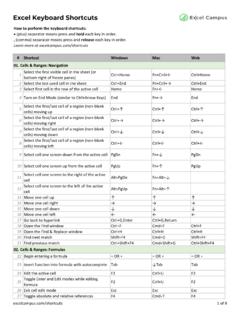
1 Vectorworks 2021 shortcutsVectorworks has several Keyboard and mouse Shortcuts for commonly used functions. Many Shortcuts can be customized, as indicated in the headings below. These tables list the default Shortcuts for all workspaces; your workspace may not have all of the tool sets, tools, menus, and commands Shortcuts (modify in Workspace Editor)Basic paletteToolWindowsMacSelectionXXPanHHMov e PageAlt+ZOption+ZFlyoverShift+CShift+CZo omCCText11 CalloutAlt+1 Option+12D Locus0 (zero)0 (zero)Symbol InsertionAlt+0 (zero)Option+0 (zero)Line22 Double LineAlt+2 Option+2 Rectangle44 Rounded RectangleAlt+4 Option+4 Circle66 OvalAlt+6 Option+6 Arc33 Quarter ArcAlt+3 Option+3 FreehandAlt+5 Option+5 Polyline552D Polygon88 TriangleShift+TShift+TDouble-line PolygonAlt+8 Option+8 Regular PolygonAlt+Shift+ROption+Shift+RSpiralAl t+Shift+SOption+Shift+SEyedropperShift+E Shift+EVisibilityVVAttribute MappingShift+AOption+AReshape- (hyphen)- (hyphen)RotateAlt+=Option+=Mirror==Split LLConnect/Combine.
2 (semi-colon)Option+LTrimAlt+Shift+LOptio n+Shift+LFillet77 ChamferAlt+7 Option+7 OffsetShift+- (hyphen)Shift+- (hyphen)ClipShift+NOption+CMove by PointsShift+MShift+MBuilding Shell tool setToolWindowsMacWall99 Round WallAlt+9 Option+9 Wall JoinAlt+JOption+JComponent JoinAlt+Shift+JOption+Shift+JDoorAlt+Shi ft+DOption+Shift+DWindowShift+DOption+Sh ift+W3D Modeling tool setToolWindowsMacFlyoverShift+CShift+CSe t Working PlaneShift+1 Shift+1 Align PlaneAlt+Shift+1 Option+Shift+1 Push/PullShift+RShift+R3D LocusShift+0 (zero)Shift+0 (zero)NURBS CurveShift+7 Shift+7 SphereShift+3 Shift+3 HemisphereAlt+Shift+3 Option+Shift+3 Fillet EdgeShift+FShift+FChamfer EdgeShift+JShift+JShell SolidShift+GShift+GLoft SurfaceShift+KShift+KExtractShift+LShift +LCreate ContoursShift+HShift+HProjectShift+; (semi-colon)Shift+; (semi-colon)AnalysisShift+ (apostrophe)Shift+AVisualization tool setToolWindowsMacFlyoverShift+CShift+CWa lkthroughShift+UShift+UTranslate ViewShift+VShift+VRotate ViewShift+WShift+WLightShift+ZShift+ZAtt ribute MappingShift+AOption+ADims/Notes tool setToolWindowsMacConstrained Linear DimensionNNAngular Dimension.
3 (period). (period)Radial Dimension, (comma), (comma)Building Shell tool setCommand Shortcuts (modify in Workspace Editor)File menuCommandWindowsMacNewCtrl+NCmd+NOpenC trl+OCmd+OCloseCtrl+WCmd+WSaveCtrl+SCmd+ SPage SetupCtrl+Alt+PCmd+Option+PPrintCtrl+PCm d+PQuitAlt+F4 or Ctrl+QCmd+QEdit menuCommandWindowsMacUndoCtrl+ZCmd+ZRedo Ctrl+YCmd+YCutCtrl+XCmd+XCopyCtrl+CCmd+C PasteCtrl+VCmd+VPaste in PlaceCtrl+Alt+VCmd+Option+VDuplicateCtrl +DCmd+DDuplicate ArrayCtrl+Shift+Alt+DCmd+Shift+Option+DS elect AllCtrl+ACmd+AView menuCommandWindowsMacZoom Normal ScaleCtrl+3 Cmd+3 Zoom Fit to Page AreaCtrl+4 Cmd+4 Zoom Fit to ObjectsCtrl+6 Cmd+6 Class Options Active OnlyCtrl+Shift+Alt+3 Cmd+Shift+Option+3 Class Options Gray OthersCtrl+Shift+Alt+4 Cmd+Shift+Option+4 Class Options Gray/Snap OthersCtrl+Shift+Alt+5 Cmd+Shift+Option+5 Class Options Show OthersCtrl+Shift+Alt+6 Cmd+Shift+Option+6 Class Options Show/Snap OthersCtrl+Shift+Alt+7 Cmd+Shift+Option+7
4 Class Options Show/Snap/Modify OthersCtrl+Shift+Alt+8 Cmd+Shift+Option+8 Layer Options Active OnlyCtrl+Alt+3 Cmd+Option+3 Layer Options Gray OthersCtrl+Alt+4 Cmd+Option+4 Layer Options Gray/Snap OthersCtrl+Alt+5 Cmd+Option+5 Layer Options Show OthersCtrl+Alt+6 Cmd+Option+6 Layer Options Show/Snap OthersCtrl+Alt+7 Cmd+Option+7 Layer Options Show/Snap/Modify OthersCtrl+Alt+8 Cmd+Option+9 Standard views Top/PlanCtrl+5 Cmd+5 Rendering WireframeCtrl+Shift+WCmd+Shift+WRenderin g SketchCtrl+Shift+SCmd+Shift+SRendering Sketch OptionsCtrl+Shift+Alt+SCmd+Shift+Option+ SRendering OpenGLCtrl+Shift+GCmd+Shift+GRendering Final Quality RenderworksCtrl+Shift+FCmd+Shift+FRender ing Hidden LineCtrl+Shift+ECmd+Shift+ERendering Dashed Hidden LineCtrl+Shift+DCmd+Shift+DRendering Final Shaded PolygonCtrl+Shift+PCmd+Shift+PEnable Multiple View PanesMMSet 3D ViewCtrl+0 (zero)Cmd+0 (zero)Unified ViewCtrl+Alt+LCmd+Option+LCreate Multiple ViewportsCtrl+Shift+MCmd+Shift+MNext ViewCtrl+Shift+.
5 (period)Cmd+Shift+. (period)Previous ViewCtrl+Shift+, (comma) Cmd+Shift+, (comma)Modify menuCommandWindowsMacMoveCtrl+MCmd+MMove 3 DCtrl+Alt+MCmd+Option+MSend to FrontCtrl+FCmd+FSend ForwardCtrl+Alt+FCmd+Option+FSend to BackCtrl+BCmd+BSend BackwardCtrl+Alt+BCmd+Option+BAlign to GridCtrl+- (hyphen)Cmd+- (hyphen)Align/DistributeCtrl+=Cmd+=Align /Distribute 3 DCtrl+Shift+=Cmd+Shift+=Rotate Left 90 Ctrl+LCmd+LRotate Right 90 Ctrl+Shift+RCmd+Shift+RFlip HorizontalCtrl+Shift+HCmd+Shift+HFlip VerticalCtrl+Shift+VCmd+Shift+VSet Working PlaneCtrl+ \Cmd+ \TrimCtrl+TCmd+TJoinCtrl+JCmd+JJoin and FilletCtrl+Alt+JCmd+Option+JJoin (no Trim)Ctrl+Shift+JCmd+Shift+JAdd SurfaceCtrl+Shift+Alt+ACmd+Shift+Option+ AClip SurfaceCtrl+Shift+Alt+CCmd+Shift+Option+ CIntersect SurfaceCtrl+Shift+Alt+I (uppercase i)Cmd+Shift+Option+I (uppercase i)
6 ComposeCtrl+Shift+Alt+PCmd+Shift+Option+ PConvert to GroupCtrl+KCmd+KConvert to MeshCtrl+Alt+RCmd+Option+RConvert to 3D PolysCtrl+Alt+OCmd+Option+OConvert to NURBSCtrl+Alt+NCmd+Option+NGroupCtrl+GCm d+GUngroupCtrl+UCmd+UEdit <editing mode>Ctrl+[Cmd+[Exit <editing mode>Ctrl+]Cmd+]Show GuidesCtrl+Alt+GCmd+Option+GHide GuidesCtrl+Shift+Alt+GCmd+Shift+Option+G Unrotate 3D ObjectsCtrl+Shift+0 (zero)Cmd+Shift+0 (zero)View menuOther Shortcuts (modify in Workspace Editor)Arrow key Shortcuts (modify in Vectorworks Preferences, Edit tab)Model menuCommandWindowsMacAdd SolidsCtrl+Alt+ACmd+Option+ASubtract SolidsCtrl+Alt+SCmd+Option+SIntersect SolidsCtrl+Alt+I (uppercase i)Cmd+Option+I (uppercase i)Section SolidsCtrl+Alt+TCmd+Option+TExtrudeCtrl+ ECmd+EMultiple ExtrudeCtrl+Alt+ECmd+Option+EExtrude Along PathCtrl+Alt+XCmd+Option+XTapered ExtrudeCtrl+Alt+UCmd+Option+USweepCtrl+A lt+WCmd+Option+W3D Power Pack Create Fillet SurfaceCtrl+Alt+YCmd+Option+Y3D Power Pack Create Planar CapsCtrl+Alt+QCmd+Option+Q3D Power Pack Create Surface from CurvesCtrl+Alt+KCmd+Option+KAEC menuCommandWindowsMacEnergos Project SettingsCtrl+Shift+Alt+ECmd+Shift+Option +ESpotlight menuCommandWindowsMacSpotlight NumberingCtrl+Shift+Alt+NCmd+Shift+Optio n+NAuto Number PositionsCtrl+Shift+Alt+OCmd+Shift+Optio n+OFocus InstrumentsCtrl+Shift+Alt+FCmd+Shift+Opt ion+FReplace InstrumentCtrl+Shift+Alt+RCmd+Shift+Opti on+RFind and ModifyCtrl+Shift+Alt+MCmd+Shift+Option+M Refresh InstrumentsCtrl+/Cmd+/Label Legend
7 ManagerCtrl+Shift+Alt+LCmd+Shift+Option+ LTools menuCommandWindowsMacOrganizationCtrl+Sh ift+OCmd+Shift+OUser OriginCtrl+9 Cmd+9 SmartCursor SettingsCtrl+8 Cmd+8 Plug-in ManagerCtrl+Shift+ZCmd+Shift+ZEdit Current WorkspaceCtrl+Shift+Alt+WCmd+Shift+Optio n+WText menuCommandWindowsMacFormat TextCtrl+Shift+TCmd+Shift+TWindow menuCommandWindowsMacPalettes SnappingCtrl+Shift+CCmd+Shift+CPalettes AttributesCtrl+Shift+ACmd+Shift+APalette s Object InfoCtrl+I (uppercase i)Cmd+I (uppercase i)Palettes Working PlanesCtrl+Shift+KCmd+Shift+KPalettes Resource Manager Ctrl+RCmd+RPalettes NavigationCtrl+Shift+NCmd+Shift+NPalette s VisualizationCtrl+Shift+Alt+VCmd+Shift+O ption+VPalettes Activate Object Info PaletteCtrl+` (back quote)Cmd+Option+CPalettes Hide Enabled Palettesnot applicable Cmd+Shift+Option+HCycle through modes on Tool bar1st groupU2nd groupI (uppercase i)3rd groupO4th groupP5th group[6th group]Miscellaneous keysToggle SmartCursor CuesYToggle Angles Relative to Prior Segment/Set DatumGSnap LoupeZSet Smart Point, Edge, or Vector Snap LockTToggle Automatic Working Plane\Suspend Snapping` (back quote)X-ray Select ModeBCoincident SelectionJClose 2D Polygon, Polyline, Polygonal Wall Network, or Path-based ObjectsKToggle Multiple View PanesMLaunch Quick SearchFToggle Snapping palette settingsSnap to GridA (AA = Set Grid dialog box)Snap to ObjectQ (QQ = 3D Snapping dialog box)Snap to AngleS (SS = Angle Snaps dialog box)Snap to IntersectionWSmart PointsD (DD = Smart Points dialog box)
8 Snap to DistanceE (EE = Snap Distance dialog box)Snap to Tangent (2D only)RFunctionWindowsMacSwitch active layer/classCtrl+Arrow (up and down for layers, left and right for classes)Cmd+Arrow (up and down for layers, left and right for classes)Pan drawingArrowArrowNudge objectsShift+ArrowShift+ArrowMove objectsShift+Ctrl+ArrowShift+Cmd+ArrowWi ndow menuMiscellaneous key Shortcuts (cannot be modified)Mouse Shortcuts (cannot be modified)*The mouse wheel zooms by default, and scrolls with a modifier key. You can swap these functions in the Vectorworks Preferences, Edit activate another toolPress and hold Space bar, while you select and use another toolPress and hold Space bar, while you select and use another toolTemporarily activate Selection toolPress and hold Alt while you select objects (Rotate, Mirror, Offset, Clip, and Move by Points tools)Press and hold Cmd while you select objects (Rotate, Mirror, Offset, Clip, and Move by Points tools)Temporarily activate Flyover toolPress and hold Ctrl+mouse wheel buttonPress and hold Ctrl+mouse wheel buttonTemporarily activate Zoom toolPress and hold Space bar+Ctrl (zoom in) or Space bar+Ctrl+Alt (zoom out)Press and hold Space bar+Cmd (zoom in) or Space bar+Cmd+Option (zoom out)
9 Increase zoom by a factor of 2 Ctrl+1 Cmd+1 Decrease zoom by a factor of 2 Ctrl+2 Cmd+2 Increase zoom by a factor of 4 Ctrl+Alt+1 Cmd+Option+1 Decrease zoom by a factor of 4 Ctrl+Alt+2 Cmd+Option+2 Increase zoom by a factor of 2 CCCCD eselect all selected objectsXXXXC ancel the current operationEscEscExit text editing modeEscEscEdit GroupCtrl+[Cmd+[Exit GroupCtrl+]Cmd+]Exit Group (must be enabled from the Data Bar and Edit Group Options)Esc EscEsc EscWhile drawing walls, polys, NURBS, etc., undo the last clicked pointBackspaceDeleteDisplay additional tooltip informationWith tooltip displayed, press and hold ShiftWith tooltip displayed, press and hold CmdExpand/Collapse all widget groups in the Object Info paletteAlt-click a disclosure buttonOption-click a disclosure buttonEdit a selected field in a list box rowF2 Space barFunctionWindowsMacRefresh the drawing viewDouble-click Pan toolDouble-click Pan toolSet the print page origin to the user originDouble-click Move Page toolDouble-click Move Page toolIncrease zoom by a factor of 2 Double-click Zoom tool Double-click Zoom toolDecrease zoom by a factor of 2 Alt-double-click Zoom toolOption-double-click Zoom toolOpen or edit a Resource Manager objectCtrl-double-click the resource name or thumbnailCmd-double-click the resource name or thumbnailActivate a class, design layer.
10 Or sheet layerDouble-click the item name in the Navigation paletteDouble-click the item name in the Navigation paletteSwitch to a saved viewDouble-click the view name in the Navigation paletteDouble-click the view name in the Navigation paletteChange visibility for all classes or layersAlt-click a Visibility column in the Navigation paletteOption-click a Visibility column in the Navigation paletteEdit a saved viewAlt-double-click the view name in the Saved Views paletteOption-double-click the view name in the Saved Views paletteActivate Selection toolDouble-click anywhere in the drawing (works for many, but not all tools)Double-click anywhere in the drawing (works for many, but not all tools)Duplicate an objectWith Selection tool selected, Ctrl-click and drag an objectWith Selection tool selected, Option-click and drag an objectCreate a similar object (activate tool and attributes)Ctrl+Alt-click an existing objectCmd+Option-click an existing objectSwitch to Next or Previous view in historyOn Windows, with a 5-button mouse, click button 4 or 5 (same as Back or Forward for web browsers)not applicable Pan the drawing viewWith a wheel mouse, press and hold the wheel buttonWith a wheel mouse, press and hold the wheel buttonZoom in and out* With a wheel mouse, roll forward to zoom in and backward to zoom outWith a wheel mouse, roll forward to zoom in and backward to zoom outScroll* With a wheel mouse, Ctrl-roll (up and down); Shift-roll (left and right)With a wheel mouse, Option-roll (up and down).