Transcription of Windows 7 - University of Wolverhampton
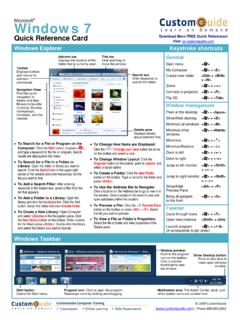
1 Microsoft Windows 7 Quick Reference Card Windows Explorer Keyboard shortcuts General Start menu <> My Computer <> + <E> Create new folder <Ctrl> + <Shift> + <N> Zoom <> + <+> Connect to projector <> + <P> Flip 3D <> + <Tab> Window management Peek at the desktop <> + <Space> Show/Hide desktop <> + <D> Minimize all Windows <> + <M> Minimize other <> + <Home> Windows Maximize <> + < > Minimize/Restore <> + < > Dock to left <> + < > Dock to right <> + < > Jump to left monitor <> + <Shift> + < > Jump to right monitor <> + <Shift> + < > Show/Hide <Alt> + <P> Preview Pane Bring all gadgets <> + <G> to the front Taskbar Cycle through icons <> + <T> Open new instance <Shift> + click Launch program <> + <1-9> (# corresponds to pin order) To Search for a File or Program on the Computer: Click the Start button, or press <>, and type a keyword for the file or program.
2 Search results are displayed in the menu. To Search for a File in a Folder or Library: Open the folder or library you want to search. Click the Search box in the upper right corner of the window and enter keyword(s) for the file you want to find. To Add a Search Filter: After entering keywords in the Search box, select a filter from the list that appears. To Add a Folder to a Library: Open the library and click the locations link. Click the Add button. Select the folder and click Include folder. To Create a New Library: Open Computer and select Libraries in the Navigation pane.
3 Click the New library button on the toolbar. Enter a name for the library press <Enter>. Double-click the library and select the folders you want to include. To Change How Items are Displayed: Click the Change your view button list arrow on the toolbar and select a view. To Change Window Layout: Click the Organize button on the toolbar, point to Layout, and select a layout option. To Create a Folder: Click the New Folder button on the toolbar. Type a name for the folder and press <Enter>. To Use the Address Bar to Navigate: Click a location on the Address bar to go to view it in the window.
4 Click a location s list arrow to view and open subfolders within the location. To Preview a File: Click the Preview Pane button on the toolbar or press <Alt> + <P>. Select the file you want to preview. To View a File or Folder s Properties: Select the file or folder and view properties in the Details pane. Windows Taskbar Search box Enter keywords to search the folder. Details pane Displays details about selected files. Title bar Click and drag to move the window. Toolbar Displays buttons and menus for common commands. Navigation Pane Provides quick navigation to folders and files.
5 Browse to favorite locations, libraries, homegroups, Computer, and the network. Address bar Displays the location of the folder that is currently open. Notification area: The Action Center, clock, and other system icons are located here. Window preview: Point to the program icon on the taskbar. Click a preview thumbnail to view the window. Start button: Opens the Start menu. Program icon: Click to open the program. Rearrange icons by clicking and dragging. Show Desktop button:Point or click here tomake open Online Learning Courseware Online Learning Skills Assessments 2012 CustomGuide | Phone Aero Jump Lists To See Through Windows with Aero Peek: Point to the Show Desktop button on the right edge of the taskbar or press <> + <Space>.
6 To View Open Windows with Aero Peek: Point to the program icon on the taskbar that contains the file or window you want to view. Click the thumbnail preview to view the window. To Minimize Other Windows with Aero Shake: Click and drag a window's title bar quickly from side to side. Or, press <> + <Home>. To Compare Windows Side by Side with Aero Snap: Click and drag a window's title bar to the right side of the screen, and drag the other window to the left side of the screen. Or, press <> + < > and <> + < >. To Maximize an Open Window with Aero Snap: Click and drag the window's title bar to the top of the screen or, drag the bottom border of the window down to the taskbar.
7 Or, press <> + < >. To Flip through Windows with Flip 3D: Press <> + <Tab>; continue to hold down the <> key while pressing <Tab> to scroll through the open Windows . Personalization To Personalize Windows 7 Appearance and Sounds: Right-click the desktop and select Personalize. The Personalization window appears. Click the appropriate links to personalize these settings: Themes Change menus, icons, backgrounds and sounds all at once. Desktop Background Choose built-in colors and pictures, or use your own. Select more than one picture to start a slide show.
8 Window Color Change window color and transparency. Sounds Change which sounds play when you perform different tasks. Screen Savers Adjust what it displays and when it appears. Desktop Icons Add icons to the desktop, such as Computer and Network. Mouse Pointers Change how the pointer looks and acts, reverse buttons. Maintenance To Defragment your Hard Disk: Open the Computer window (click the Start button and select Computer). Right-click the disk you want to defragment and select Properties from the contextual menu. Click the Tools tab and click the Defragment now button.
9 To Use Disk Cleanup to Free Space on Your Hard Drive: Open the Computer window (click the Start button and select Computer), right-click the hard disk, select Properties from the contextual menu and click the Disk Cleanup button. To Uninstall a Program: Click the Start button and select Control Panel. Click the Uninstall a program link under Programs. Select the program you wish to uninstall from your computer, and click the Uninstall button on the toolbar. Jump Lists are quick shortcuts to files and commands that a program uses frequently. The items that appear in a jump list change according to the program selected.
10 For example, Internet Explorer displays frequently visited pages, Microsoft Word displays frequently opened documents. To View a Jump List: Right-click an icon on the Windows 7 taskbar. Or, click the list arrow next to a program icon in the Start menu. To Pin a Program to the Taskbar: Open the program you want to pin, right-click the program icon on the taskbar and select Pin this program to taskbar from the jump list. To Pin an Item to the Jump List: View the program jump list. Right-click the item you want to pin and select Pin to this list. Or, point to an item on the jump list and click the Pin to this list button.