Transcription of Windows Driver Installation Guide - Boca Systems
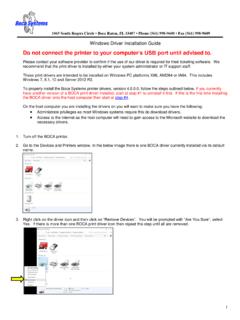
1 1065 South Rogers Circle Boca Raton, FL 33487 Phone (561) 998-9600 Fax (561) 998-9609. Windows Driver Installation Guide Please contact your software provider to confirm if the use of our Driver is required for their ticketing software. We recommend that the print Driver is installed by either your system administrator or IT support staff. These print drivers are intended to be installed on 64 bit Windows PC platforms from Windows 7 forward. This Guide will cover the more common Windows versions - 10 & 11. The ARM platform is not supported To properly download and install the Boca Systems printer drivers, you will want to make sure you have the following: Administrator privileges as most Windows Systems require this to download drivers.
2 Access to the internet as the host computer will need to gain access to the Microsoft website to download the necessary drivers. If connecting to your computer via USB, do not connect the printer to the computer until instructed to do so. Standard Installation NOTE: instructions for difficult and silent installations can be found later in this document. The following will Guide you through downloading the BOCA print Driver to your computer. 1. Click on the link below to download the zip file to your host computer. It should automatically be downloaded to the computer's Downloads folder. 2. Click on the Start icon. File Explorer icon on your taskbar. Above shows Windows 10 task bar Click on the File Explorer icon Above shows Windows 11 task bar 3.
3 You will want to go to the Downloads folder. There are many ways to get to said folder, the following is one example. Double click on the Downloads folder under Frequent folder, your quick access may look different. Double click on Downloads Icon 1. 4. When the Downloads pop up box comes up, click on file to highlight it. Click on 5. Click on the file name to highlight it and then click on Extract All . Click on Extract All . Click on Folder name and then right click 6. You will be asked where you want the files extracted to, recommend leaving as shown below. Click on the Extract button. Click on Extract button 7. When the below pop-up window shows up, double click on Boca_Systems folder.
4 Double click on Boca_Systems 2. 8. Double click on BOCAP rintDrivers folder. Double click on BocaPrinterDrivers 9. Click on to highlight it and then right click. Click on Run as administrator. Click on file name and then right click Click on Run as administrator 10. When the below pop-up box comes up, click on Yes button. 3. 11. Click on Next 12. Once the Driver package is done being installed the Window will show up. Click on the Finish button. Click on Finish button 13. The BOCA printer Driver package has now been installed onto your host computer. Please move onto the next section. Once the drivers have been downloaded on the computer, you may move forward with connecting your printer to the host computer.
5 Skip the silent and difficult Installation sections, if you have completed the Driver Installation wizard, shown above. 4. The instructions on this page are to be ignored, unless you require a special Installation . Silent Driver Installation NOTE: You must add the Boca Certificate to the Trusted Publishers Certificate store before performing a silent install. Follow steps 1 - 7 of the standard Installation and continue here: a. Right click on , then click on Run as administrator b. Click on Yes button. c. The below popup will be shown while the Installation is cleaning out old files Difficult Installation If the standard Installation fails, we suggest trying the following: 1.
6 Follow steps 1 - 7 of the standard Installation 2. Follow steps a - c from the silent Driver install. 3. Follow steps 8 - 12 from the standard install. 5. USB INTERFACE ONLY. 1. Below is one of many ways to get to the devices and printers' menu. Below is one of many ways to get to the devices and printers' menu. In the search bar type Control Panel. Click on the start icon. Click on the Start icon 2. In the Type here to search bar type in Printers & scanners and then click on Control Panel app. Type Printers & scanners Click on Printers & scanners System settings 5. 3. When Printer & scanners menu comes up it will show the printer drivers currently installed. The Driver 's name may vary from what is shown.
7 4. Connect the USB cable to the host computer and power on the printer. Windows operating system will automatically install the necessary drivers. 5. You should notice the Boca Driver icon show up in the Printer & scanners. Go to page 10. Your Driver icon may look different than what is shown 6. ETHERNET AND WI-FI ONLY. The self-test ticket that is printed when the printer's TEST button is pressed will show the IP address that the printer has. You will need this information later. 1. Below is one of many ways to get to the devices and printers' menu. Below is one of many ways to get to the devices and printers' menu. In the search bar type Control Panel. Click on the start icon.
8 Click on the Start icon In the Type here to search bar type in Printers & scanners and then click on Control Panel app. Type Printers & scanners Click on Printers & scanners System settings 2. When the Printers & scanners menu come up, click on Add device button that should be located at the very top. Click on Add device 3. The computer will start looking for a printer. Scroll down until you see The printer that I want isn't listed and click on Add manually Click on Add manually 4. When Add Printer popup comes up, click on Add a printer using IP address or host name radio button. Click on next. Click on This radio button Click on Next 7. 5. On next pop up: a. Change the Device type: Autodetect b.
9 In Hostname or IP address: enter the IP address that is shown on the printer's self-test ticket. When typing in the address don't include the leading zeroes (If IP= then type in ). You also have the option of typing in a specific Port name or leave as the IP address. c. Uncheck the Query the printer and automatically select the Driver to use box d. Click on the Next button. Select Autodetec t Uncheck Type this box Printer's IP address Click on Next 6. The Detecting TCP/IP port will be shown while the computer searches for the IP address you entered. 7. When the below pop up comes up, click on the Next button. Click on Custom radio button Click on Settings 8. 8. When the below pop comes up confirm the following: a.
10 Port Name: comes up it matches what you entered. Your name will be different than what is shown below b. Printer Name or IP Address: shows the IP address you entered. Your IP address will be different than what is shown c. Raw radio button is selected under Protocol. d. Click on the OK button. Confirm Port Name Confirm Printer's IP address Raw radio button is selected Click on OK. 9. When the below pop up comes up, click on the Next button. Click on Next 10. When the Install the print Driver menu comes up select Boca under Manufacturer and the appropriate Driver for your printer. Once done click on the next button. Click on Boca Select The Driver that matches your printer Click on Next 9.