Transcription of WorkAbility Portal Technical Support Guide
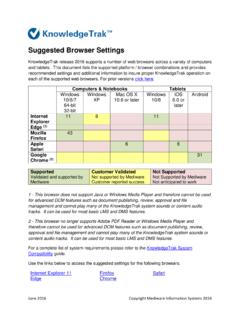
1 WorkAbility Portal Technical Support Guide We recommend the following browser and operating systems for using Aetna s Internet services: Microsoft Internet Explorer: Versions through as used on Windows XP or later. Mozilla Firefox: Current versions as used on Macintosh OS X or later, or on Windows. Apple Safari: Current version as used on Macintosh or on Windows. Google Chrome: Current version as used on Windows. Web browser must be configured to allow cookies to login to this website. Web browser must also allow pop-ups or must have an exception for Aetna websites.
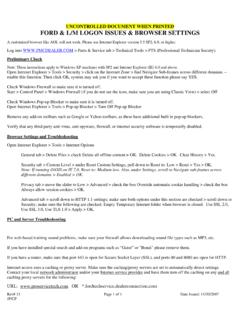
2 Directions are provided. Page set up instructions are also being provided for easy and accurate printing. browser Requirements Pop Up Blocker Settings Internet Explorer: With Internet Explorer open, select the menu "tools" and then "Pop Up Blocker Settings" In the box "Addresses of websites to allow:" enter the following *. *. Press 'Close' Microsoft Internet Explorer Pop Up Blocker Settings Google Chrome: Select the wrench to the right of the web address and select "settings" Press "Show Advanced Settings" and scroll to "Privacy" and then "Content Settings" Scroll to "Pop Ups" and select "Manage Exceptions" In the field "Add a new Hostname pattern" enter the following: Select "Allow" Press 'OK' twice and then close the Chrome browser and reopen it.
3 Google Chrome Pop Up Blocker Settings Mozilla Firefox Open the Firefox Options menu by selecting Tools" and then "Options" and then "Content". Press the button "Exceptions" to the left of the field "Block Pop Up windows In the field "Address of Website" enter the following: *. *. Select "Allow" and then "close" and then "OK" and then close Firefox and reopen. Mozilla Firefox Pop Up Blocker Settings Apple Safari Apple Safari does not allow configuration of pop ups for some web addresses while blocking it for others. Select the Safari menu by clicking the bolt icon at the right of the web address Uncheck "Block Pop Up Windows" and then close Safari and reopen.
4 Apple iPad Open the "Settings" menu on your Home screen. Tap the "Safari" tab on the Settings page. The Safari preferences screen loads. Scroll down the page to the "Security" section. Slide the "Block Pop-Ups" switch to the "Off" position. Press the "Home" button to return to your Home screen. Apple Safari Page Set Up Instructions Internet Explorer: Select "File" and then "Page Setup" Orientation should be set to Portrait Margins should be set as follows (in inches): Left = Right = Top = Bottom = Click on Enable-shrink-to-fit Press OK Mozilla Firefox Open the Firefox Options menu by selecting "Firefox" to the left of the web address, and then "Print" and then "Page Setup" Select the tab "Margins & Header/Footer" Orientation should be set to Portrait Margins should be set as follows (in inches).
5 Left = Right = Top = Bottom = Press OK Set Print Area Page Set Up Instructions Google Chrome: Select the wrench to the right of the web address and select "Print" In the field "Margins" select "Custom" Margins should be set as follows (in inches): Left = Right = Top = Bottom = Press OK Apple Safari: Show the tool Menu bar by selecting the Safari menu by clicking the bolt icon at the right of the web address and then pressing "Show Menu Bar" Select "File" and then "Page Setup" Orientation should be set to Portrait Margins should be set as follows (in inches): Left = Right = Top = Bottom = Press OK Set Print Area