Transcription of ZOOM VIDEO CONFERENCING: STEP-BY-STEP INSTRUCTIONS
1 zoom VIDEO CONFERENCING: STEP-BY-STEP INSTRUCTIONSIn this time of social distancing and because of the need to be sheltering at home as much as possible, it can be easy to disregard your social, spiritual, and emotional needs in order to protect your physical health. Christians believe that community and the health of an individual are directly related we need to keep up with each other and encourage each other in order to remain healthy human beings. Our church is promoting alternative ways to help you keep in touch with church members, family, and friends. These alternatives will also ensure that you remain at home so that you will in line with health guidelines and protect your physical health. One of the best resources we have come across is Google Hangouts, an application available to anyone with a smart phone or a computer.
2 We want to encourage all of our Sunday School classes, Bible studies, small groups, and other spiritual/social gatherings to utilize VIDEO platforms such as zoom and Google Hangouts for the foreseeable future as a way to continue spiritual maturity, to foster social connection and combat loneliness, and to encourage each other in faith, hope, and love. Technology can be intimidating and overwhelming, so we have created a simple guide on the following pages to help you set up and use zoom . For those who have questions related to zoom , Google Hangouts, or meeting virtually as a group, please email Rev. Reed McNitzky at 5084 De Zavala Rd. | San Antonio, TX 78249 | using zoom , you will need the following equipment/tools: A computer, tablet/iPad, or phone that has a camera, amicrophone, and Internet It is highly recommended that you either use WiFi or use adesktop computer with an Ethernet connection this willprovide you with the clearest and most consistentconnection to participate in a VIDEO meeting.
3 The zoom program software or zoom Cloud Meetings app downloaded onto your To download the zoom computer software for yourWindows or Mac computer, please visit this To download zoom on your iPad or iPhone, please look upthe zoom Cloud Meetings app on the App Store. The appicon looks like this:o To download zoom on your Android, download the ZoomCloud Meetings app, available on Google Play. The appicon looks like this:PRELIMINARY STEPS TO USE zoom Once you have downloaded the zoom software onto yourcomputer and it has finished installing, open up the Zoomprogram on your This will take you to a page that looks like this:GETTING STARTED WITH zoom ON YOUR WINDOWS OR MAC COMPUTER(For more detailed INSTRUCTIONS about starting a meeting immediately, see this page on zoom s website) If you are the leader/organizer/administrator of your group,then you are probably the one tasked with the assignment ofcreating a meeting.
4 That means you are going to host themeeting. To be the meeting host, you will first need to log in tocreate a To log in and create a meeting for your group, you willneed to click Sign in. To sign in to zoom , you can do thefollowing options: Sign in using your Google account Sing in using your Facebook account Sign in by creating a zoom account. To create aZoom account, click the Sign Up Free button,which is located to the right of the Sign In heading. You can also create a zoom account right now byclicking on this Once you have signed in, you will be taken to the homepage of the zoom software. It looks like this:CREATING zoom VIDEO MEETINGS FROM YOUR COMPUTERo On this home page, you can do the following things: You can start a new meeting for your groupimmediately by clicking the New Meeting icon,which looks like this:SCHEDULING A zoom VIDEO MEETING FOR LATER FROM YOUR COMPUTER(For more detailed INSTRUCTIONS about scheduling a meeting for a future start time, see this page on zoom s website.)
5 To schedule a meeting for later, you first need to sign in. Then, you will be taken to the home page of the zoom software, which looks like this: On that icon, there is a little arrow next to the word New Meeting. Click on that downwards arrow to immediately start a VIDEO session or to set up a VIDEO session using your Personal Meeting ID (your PMI). To read more about your Personal Meeting ID, read this article on zoom s website. On that home page, you will click on the Schedule icon, which looks like this: o Once you click on the icon, you will get a screen that has a lot of settings you need to establish, such as: the day & start time of the meeting, the duration of the meeting, whether it will use VIDEO and audio, and if you want to create a calendar option to add to people s calendars.
6 O Once you ve set up all of your settings for your meeting, click the Schedule button at the bottom right of the zoom VIDEO MEETINGS FROM YOUR COMPUTER CONTINUEDJOINING A MEETING FROM YOUR COMPUTER(For more detailed INSTRUCTIONS on how to join a meeting, see this page on zoom s website) If you are not the meeting host & you simply want to join a meeting that your leader/administrator has already set up for your group, then you will do the following: o You need to have downloaded the zoom software onto your computer first. Once it has finished installing, open up the zoom program on your computer. o This will take you to a page that looks like this: o On this page, you will click Join a Meeting, which is a blue button.
7 O Once you click that button, a new screen will pop up that looks like the image on the next page: o Once you ve scheduled a meeting, you will be taken to a new page titled meeting invitation. You can copy this invitation by clicking the button copy invitation at the bottom right of the page. Then, using email, text messages, or other forms of communication, you can paste the invitation and send it to the people you are inviting to participate in the A zoom VIDEO MEETING FOR LATER FROM YOUR COMPUTER CONTINUED o To find your group s meeting, you will need the ID number of the meeting. This is found in the invitation that your host sent you be email, text message, or whatever form of communication you use for your group.
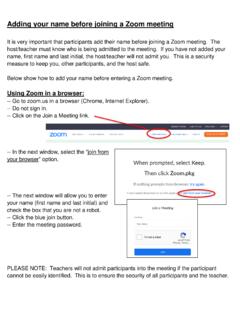
8 Your leader should have sent you the Meeting ID number. Type in the Meeting ID. o Then, type in the name you want to display to the other participants in the VIDEO session. Usually, this is your first and last name. o There are two check boxes below those text boxes. You will want to make sure that people will see you and hear you in the meeting, so make sure both of those check boxes are left unchecked. o Finally, click the Join button to join the STARTED WITH zoom ON YOUR ANDROIDJOINING A MEETING FROM YOUR COMPUTER CONTINUED The image below:Basic INSTRUCTIONS on Starting zoom VIDEO Meetings from Your Android(For detailed INSTRUCTIONS on how to get started with your Android, please see this page on zoom s website.)
9 First, download the zoom Cloud Meetings app on Google Play Next, open the zoom app and sign in to your account to access zoom s features. o If you do not have a zoom account, then you will need to click Sign Up at the bottom left of the screen and create an account with zoom . Once you have signed in, you will be taken to the home page of zoom , which looks like this:GETTING STARTED WITH zoom ON YOUR ANDROID CONTINUED Click on the orange Starting meeting button on the top left of your screen to immediately begin a meeting. o Once you have started a meeting, you will be taken to the VIDEO conference screen, where you will see a bar at the bottom that looks like this: Click on the Participants icon to invite people to your meeting.
10 After clicking Participants, click the button that says Invite button on the bottom left of your screen. That will pull up a list of options for you to invite participants o You can send an email to people, which has a link to join the zoom meeting. o You can send a text message to people, which has a link to join the zoom meeting. o You can copy the URL and then send that in an email or text message to your group members. Once people receive your message to join your meeting, then they can participate in your VIDEO conference call.(For detailed INSTRUCTIONS on how to schedule meetings, see this page on zoom s website) First, download the zoom Cloud Meetings app on Google Play.