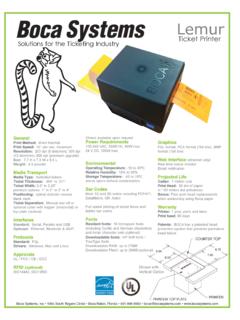
Ticket Printer - Boca Systems
Lemur Solutions nfor the T icketi g I dustry Ticket Printer Boca Systems, Inc • 1065 South Rogers Circle • Boca Raton, Florida • 561 998 9600 • boca@bocasystems.com • www.bocasystems.com
Download Ticket Printer - Boca Systems

Information
Domain:
Source:
Link to this page:
Documents from same domain
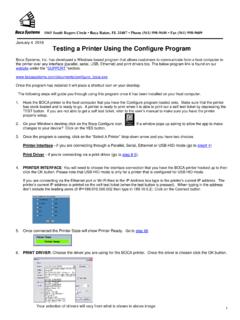
Testing a Printer Using the Configure Program
www.bocasystems.com1 1065 South Rogers Circle • Boca Raton, FL 33487 • Phone (561) 998-9600 • Fax (561) 998-9609 January 4, 2018 Testing a Printer Using the Configure Program Boca Systems, Inc. has developed a Windows based program that allows customers to communicate from a host computer to
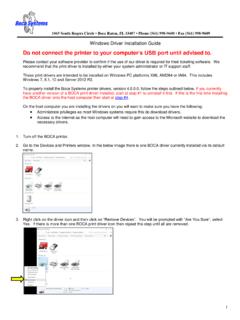
Do not connect the printer to your computer’s USB …
www.bocasystems.com1 1065 South Rogers Circle • Boca Raton, FL 33487 • Phone (561) 998-9600 • Fax (561) 998-9609 Windows Driver Installation Guide Do not connect the printer to your computer’s USB port until advised to.

Lemur-K - Boca Systems
www.bocasystems.comLemur-K Boca Systems, Inc • 1065 South Rogers Circle • Boca Raton, Florida • 561 998 9600 • boca@bocasystems.com • www.bocasystems.com

Mini MB Ticket Printer - Boca Systems
www.bocasystems.com4.0 Installation The Mini MB ticket printer is designed to be mounted on a counter top or shelf. However, prior to site preparation and installation, the printer should be powered up

New Lemur-S - Boca Systems
www.bocasystems.comBoca Systems, Inc • 1065 South Rogers Circle • Boca Raton, Florida • 561 998 9600 • boca@bocasystems.com • www.bocasystems.com General

Reverse Adjustable (RADJW & RADJ4) - Boca Systems
www.bocasystems.com1065 South Rogers Circle • Boca Raton, FL 33487 • Phone (561) 998-9600 • Fax (561) 998-9609 Turn the printer on and wait five seconds. The red CHECK PAPER led …
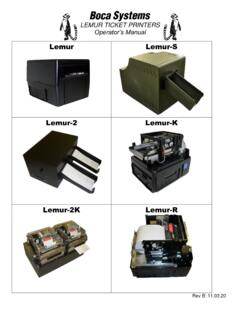
Lemur User Manaual - Boca Systems
www.bocasystems.comThe supply plug must comply with BS1363 (3-pin 13 amp) and be fitted with a 5A fuse which complies with BS1362. The mains cord must be <HAR> or <BASEC> marked and be of type H03VVF3GO.75 (minimum). Europe only: The supply plug must comply with CEE 7/7 …
Testing a Printer Using the Configure Program - Boca Systems
www.bocasystems.com1. Hook the BOCA printer to the host computer that you have the Configure program installed on. Make sure that the printer has stock loaded and is ready to go. A printer is ready to print when it is able to print out a self-test ticket by depressing the TEST button.

Windows Driver Installation Guide - Boca Systems
www.bocasystems.comIn the below example a Boca BIDI FGL 26/46 300 DPI (Copy1) is shown The driver’s name may vary from what is shown. 4. When the printer driver menu comes up, click on Print test page. …
Related documents

User Guide - DYMO
download.dymo.comSystem Requirements 3 The form-feed button on the front of the printer advances a single label. The reverse label button is used to remove labels from the printer when changing rolls.

ZP 505 Thermal Printer - FedEx: Shipping, Logistics ...
images.fedex.comQuick Installation Guide 3 ZP 505 Thermal Printer Install the printer labels as indicated in the steps below. The instructions can also be found in the inside of the top resting on the hangers and

Troubleshooting Thermal Transfer Printing Problems
www.barcode-solutions.comTroubleshooting Thermal Transfer Printing Problems SYMPTOM POSSIBLE CAUSE CORRECTIVE ACTION Excessive Noise During Printhead energy setting is too high Reduce printhead energy setting Printing “Strip plate” on printer Lower strip plate is not adjusted properly
LP 2844 Thermal Printer - FedEx
www.fedex.comQuick Installation Guide 3 LP 2844 Thermal Printer Install the printer labels as indicated in the steps below. The instructions can also be found in the inside of the top is minimal space between
TSP100LAN Hardware Manual - www.starmicronics.com …
www.starmicronics.com– 5 – 3-2. Connecting to a Peripheral Unit You can connect a peripheral unit to the printer using a modular plug. The following de-scribes how to install the ...
THERMAL PRINTER TSP700II SERIES - Star Micronics
www.starmicronics.com1-1. Unpacking After unpacking the unit, check that all the necessary accessories are included in the package. * Accessories vary depending on the model and the region where the printer was purchased.