Transcription of City of Glasgow College Student Login Process 2020/2021
1 1 City of Glasgow College Student Login Process 2020/2021 2 Contents 1. Introduction .. 3 2. System Login Overview .. 3 3. Logging into Systems for the 1st Time .. 4 Citrix and My City .. 4 Logging into College Systems for the 1st Time .. 4 Logging into Citrix for the 1st Time .. 4 Outlook Office 365 email .. 5 4. Logging into College IT Systems .. 9 Citrix .. 9 MyCity .. 11 Accessing Your Timetable .. 12 Resetting your MyCity password .. 13 Outlook Office 365 email .. 15 Changing your password .. 15 MyCity or Citrix .. 15 Outlook Office 365 email .. 15 5. Wi-Fi Connectivity on Campus .. 18 Android .. 18 IOS (Apple) .. 19 Windows .. 21 MAC/OSX .. 22 6. IT Support .. 23 3 1. Introduction This document provides a guide for students accessing College IT Systems including:- email (Outlook Office 365); the College VLE (virtual learning platform) MyCity ; and Citrix (this provides access to the College network.)
2 When you log-in remotely, you will be able to access your desktop and software within the College that you will need for your course). 2. System Login Overview Citrix and MyCity share the same Login \ password so if you change your password for either, it changes automatically for both. Email is a separate Login \ password , changing your email password won t affect Citrix or MyCity. Please Note: When you change either your MyCity or Citrix password , this will change the account password on both systems simultaneously, but it won t change your email account password . 4 3. Logging into College Systems for the 1st Time Citrix When you enrol at the College you will automatically be assigned a Login and password which will comprise of: Login /Username: Student reference number (This number can be found on your Student ID card and in the footer of emails from the College ).
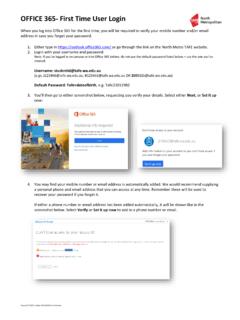
3 password : CityDDMMYY (the word City followed by your own date of birth). Logging into Citrix for the 1st Time Open a web browser on your device (usually Google Chrome/Microsoft Edge/Safari/Firefox).In the URL bar at the top of the browser, type: Login : Student number Initial password : CityDDMMYY (the word City followed by your own date of birth). If you have already set a new or changed your password on MyCity or Citrix, use this instead of CityDDMMYY. Access to My City Changing your password in Citrix will automatically change your My City password which provide you with access access to both systems (Citrix and My City). You won t be prompted to changed your My City password as you have already set this by logging into Citrix and both accounts are linked. For example if your Student number is 12345678 and your date of birth 21/11/70, your Login details would initially be: Username: 12345678 password : City211170 5 Outlook Office 365 email You will be provided with a College email account which is hosted within the College s Microsoft Office 365 environment and uses a slightly different Login name than both MyCity & Citrix, you have to add to the end of your Student number.
4 Open a web browser on your device (usually Google Chrome/Microsoft Internet Explorer/Safari/Firefox) In the URL bar at the top of the browser, type: Press return and you will see the Microsoft 365 website Select the account Login icon at the top right hand side of the screen 6 This will open up the sign in page below. (Sign in) Login : Student When you first Login , you will be forced to change your current password provided by the College which is currently CityDDMMYY. Enter current password : CityDDMMYY (the word City followed by your own date of birth). Set a new password for your email account. You will be asked to provide an alternative method of contact in case you forget or have to reset your password . 7 Please choose one option either your phone or email. Enter your phone number if you are choosing this as your recovery option Or provide your own personal email address if you are using email as your recovery option.
5 8 Next time you want to log onto your email, you use the same Login and the new password you have just setup. 9 4. Logging into College IT Systems Citrix Citrix is the College system that provides you with access to the College -based software required for your learning. Open a web browser on your device (usually Google Chrome/Microsoft Edge/Safari/Firefox).In the URL bar at the top of the browser, type: Login : Student number Initial password : CityDDMMYY (the word City followed by your own date of birth). If you have already set a new or changed your password on MyCity or Citrix, use this instead of CityDDMMYY. If promoted, please click on Use Light Version , and if you have College owned device, then please click on Detect Receiver as all the College devices have Citrix receiver (Citrix Client) installed and this receiver will launch the remote session in a new window.
6 10 If you haven t logged into either Citrix or MyCity before, you will be asked to change your password from the College default of CityDDMMYY Please type in your default password of CityDDMMYY (comprised of your Student number and date of birth) and set yourself a new password . This applies to both new and existing students for their initial Login . 11 MyCity MyCity is the College VLE (Virtual Learning Environment) which is integrated into the College Moodle platform. Open a web browser on your device (usually Google Chrome/Microsoft Internet Explorer/Safari/Firefox) In the URL bar at the top of the browser, type: If you haven t logged into any College Systems before and wish to access MyCity, please reset your default password first using the first option on the Login screen (highlighted in the screenshot below). Username: Student number Initial password : CityDDMMYY (the word City followed by your own date of birth).
7 If you have already set a new or changed your password on MyCity or Citrix, use this instead of CityDDMMYY. 12 Accessing Your Timetable students can view their timetable using MyCity. Please follow the instructions to access MyCity. Open a web browser on your device (usually Google Chrome/Microsoft Internet Explorer/Safari/Firefox). In the URL bar at the top of the browser, type: students are presented with the following default page which is like a portal to different sections. Please select My Timetable in order to view your current class timetable. After Selecting My Timetable , students are presented with the following page where all the current scheduled timetable will be listed for each Student . Your timetable will show the current week. Select next to view the week you wish to view. 13 Resetting your MyCity password . If you have previously successfully accessed the College Systems (inc.)
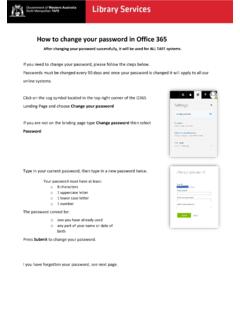
8 MyCity) however have forgotten your password or need to change it, this can be done from the second option on the Login screen (highlighted in the screenshot below). 14 Enter your Student number ( 12345678). Enter your date of birth. An email will be sent to your College email account ( and an alternative email account (your personal email address) you provided as part of the Student application\enrolment Process . Log into your College email account, open the email from MyCity and click the link to reset the password . 15 This will be your new password for both MyCity & Citrix (as they share the same Login \ password ). Outlook Office 365 email This is the same Process as detailed on page 3 except you won t be prompted for an alternative password reset address. Changing your password MyCity or Citrix You will be forced to change your default password when you first Login into Citrix or My City for the first time (only for one of the systems) using the details above.
9 You should make your password strong enough that no one else would be able to guess it and not make it obvious (such as the name of your pet etc.). We recommend that you select 3 random words (that you will remember) and use them as your password . For example, you may like coffee, travel to College by train and enjoy the gym, so putting these 3 words together would make your password 'coffeetraingym'. If you change either your Citrix or My City passwords, it will change both of them automatically but won t change your email account password . Outlook Office 365 email Open a web browser on your device (usually Google Chrome/Microsoft Internet Explorer/Safari/Firefox) In the URL bar at the top of the browser, type: 16 17 Sign in with your College Login At the enter password screen, select forgotten your password This will take you to an option to send a reset password link to either your personal email address or SMS text to your mobile, depending on the option you selected when you first changed your password at the College .
10 Click the link to reset your password . 18 5. Wi-Fi Connectivity on Campus The wireless network eduroam is available at our City and Riverside Campus sites, and the Halls of Residence. Eduroam is a secure wireless service which has been developed for the education community. College students and staff as well as visitors, from participating organisations, can use the eduroam wireless network which allows filtered Internet access. This network is filtered as per the College s Acceptable Use Policy. When you connect to the College network, you are agreeing to the terms of the Acceptable Use Policy and the Janet eduroam UK policy (copies are available on our website here). Android Tap Apps Settings Wireless and Networks WiFi Settings. (Ensure the checkbox next to Wi-Fi is ticked to enable wireless.) Select the wireless network eduroam to connect to this network.