Transcription of Online Application for State of Michigan Positions …
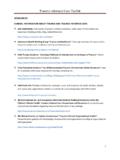
1 How to Apply for State of Michigan Positions Online : Instructions for the First- time User If you have an email address and internet access, you can apply for State of Michigan Executive Branch jobs Online . This user guide explains each step of the process. For technical support, please contact Important Note for Applicants: When applying Online , each applicant must have their own individual email account. Many websites such as AOL, Yahoo!, and Google allow you to create free email accounts. to your query in the Search box (Departmental Analyst, Accountant, etc.).You may also use the Filter button to adjust requirements for Location, Department, Category, and In the Job Title column, select a position. If your search did not provide the results you were seeking, click X in the search bar to clear the field. 4. Click the specific position listed under Job Title and review the job posting closely, noting closing date and time , duties, minimum qualifications, and other requirements and information.
2 5. If you meet or exceed the minimum qualifications and would like to apply for the position, be sure you also review the questions tab. It may be helpful to prepare your responses to these questions in advance to make the Application process easier. To begin the Application process, click Apply. Note: Some postings may not include questions. 6. If it is your first time applying, click Create an account, enter the requested information, and select Create. Each applicant must have their own individual user account. Email is a required field and cannot be the same as one already in use by another user. (See the first page of this document for websites where you can create a free email address.) Write down your login information and keep it in a secure place. If you ve previously created an account, enter your information, and click Sign In on the initial prompt.
3 Logging in, use the tab column to the left to add your profile information. Besure to read the instructions and answer any job-specific and entering your information, you will see your entire completed applicationunder Review. Review the information and make any necessary edits. Make sure none of the tabs to the left indicate unsaved information. When you are satisfied with your Application and would like to submit it, select Proceed to Certify and Submit at the bottom of the : This is your final opportunity to make any edits to your Application before you submit your Application . 9. Read the statement that follows and select Accept if you understand and agree to the statement. 10. A confirmation will appear verifying that your Application has been received. You will also receive an email confirmation. 11. To apply for another position, follow steps one through five to search for a position and begin a new Application .
4 After creating and completing your profile for the first time , applying for future Positions will be faster and easier because the profile can be used again every time you apply. 12. Remember to Sign Out when you are finished. For technical support, please contact Revised