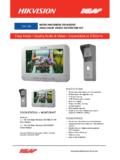
Transcription of Setting Up The HikVision Villa IP Intercom With …
1 Page 1 Setting Up The HikVision Villa IP Intercom with Hik-Connect Revision Introduction This tech note will step you though the steps to Setting up the HikVision Villa IP Intercom with the Hik-Connect app when using the hard wired room stations. Notes This tech note will only work when using the HikVision Villa IP Intercom firmware version Build 20170724. Only one Hik-Connect account can be used. Only the main room station can be connected to the Hik-Connect app. The sub room stations cannot be used with the Hik-Connect app. Before you begin Ensure you have your system working already.
2 Download the Hik-Connect app on your device and sign up. Page 2 Wiring Diagram Hardwired When Setting up the system as a hardwired system, then all indoor touch screens need to be hardwired to the video distributor. WiFi should be turned off on all touch screens. The video distributor then gets connected by either Lan1 or Lan2 on the video distributor to the customer s network. Wireless (WiFi) When Setting up the system as a WiFi system, then all indoor touch screens need to be connected to the customers WiFi network. The Door station will still need to be hardwired to the video distributor, then gets connected by Either Lan1 or Lan2 on the video distributor to the customer s network.
3 Page 3 Adding IP Intercom to Hik-Connect 1. Open the Hik-Connect app & sign into your account. 2. Tap on the + icon up the top right. iPhone Android 3. Tap on Manual Adding . 3. Tap on the pencil icon up the top right. 4. On the HikVision IP Intercom main room station, (not the sub room station) tap on the settings icon and then choose Maintenance from the right side menu. Page 4 5. Locate the Num as shown below and enter that in the app. (Note, it has been Blurred out in this screenshot) 6. In the Hik-Connect app enter in the number from step 5 above.
4 IPhone: Then tap the save icon. Android: Then tap the search icon. If you get a message saying The device has already been added by another account then this means someone else is already using this on their Hik-Connect account. Page 5 7. Tap on the Add button. 8. Enter in the verification code. This is the Psw from the Maintenance screen on the main room station. iPhone Android 9. Tap on Skip. 9. Tap on the Tick icon up the top right. 10. Setup is now complete and the app will now ring when the doorbell is pressed. Page 6 Additional Information: Customer Service Phone: 1300 551 991 (M-F 8:30am 5:00pm) Email: YouTube.