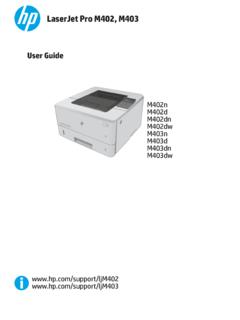
Transcription of HP LaserJet P1560 and P1600 User Guide - ENWW
1 LaserJet PROFESSIONAL P1560 and P1600 Printer series user LaserJet Professional P1560 and P1600printer seriesUser GuideCopyright and License 2010 Copyright Hewlett-PackardDevelopment Company, , adaptation, or translationwithout prior written permission is prohibited,except as allowed under the copyright information contained herein is subjectto change without only warranties for HP products andservices are set forth in the express warrantystatements accompanying such productsand services. Nothing herein should beconstrued as constituting an additionalwarranty. HP shall not be liable for technicalor editorial errors or omissions number: CE663-90901 Edition 1, 3/2010 Trademark CreditsAdobe , Acrobat , and PostScript aretrademarks of Adobe Systems Core is a trademark of IntelCorporation in the and other , Windows , Windows XP, andWindows Vista are registeredtrademarks of Microsoft STAR and the ENERGY STAR mark are registered used in this guideTIP:Tips provide helpful hints or :Notes provide important information to explain a concept or to complete a :Cautions indicate procedures that are recommended to avoid losing data or damaging !
2 Warnings alert you to specific procedures to avoid personal injury, catastrophic loss ofdata, or extensive damage to the Conventions used in this guideENWWT able of contents1 Product basicsProduct comparison .. 2 Environmental features .. 3 Product features .. 4 Product views .. 6 Front and left side view .. 6 Back view .. 7 Serial number and model number location .. 7 Control-panel layout .. 82 Software for WindowsSupported operating systems for Windows .. 10 Supported printer-drivers for Windows .. 10 Select the correct printer-driver for Windows .. 11HP Universal Print Driver (UPD) .. 11 Priority for print settings.
3 12 Change printer-driver settings for Windows .. 13 Remove software for Windows .. 14 Use the uninstall utility to remove Windows software .. 14 Use the Windows Control Panel to remove software .. 14 Supported utilities for Windows .. 15HP Web Jetadmin .. 15HP Embedded Web Server .. 153 Use the product with MacSoftware for Mac .. 18 Supported operating systems for Macintosh .. 18 Supported printer drivers for Macintosh .. 18 Remove software for Mac .. 18 Priority for print settings for Mac .. 19 Change printer-driver settings for Macintosh .. 19 Software for Mac .. 20HP Printer Utility for Mac.
4 20 Supported utilities for Mac .. 20 ENWWvHP Embedded Web Server .. 20 Print with Mac .. 21 Create and use printing presets in Macintosh .. 21 Resize documents or print on a custom paper size .. 21 Print a cover page .. 21 Print multiple pages on one sheet of paper in Macintosh .. 22 Print on both sides (duplex) with Mac .. 23 Automatic .. 23 Manual .. 234 Connect the productSupported network operating systems .. 26 Printer sharing disclaimer .. 26 Connect with USB .. 27HP Smart Install .. 27CD installation .. 27 Connect to a network .. 28 Supported network protocols .. 28 Install the product on a wired network.
5 28 Configure network settings .. 29 View or change network settings .. 29 Set or change the network password .. 29IP address .. 29 Link speeds and duplex settings .. 305 Paper and print mediaUnderstand paper and print media use .. 32 Special paper or print media guidelines .. 33 Change the print driver to match the media type and size .. 34 Supported paper sizes .. 35 Supported paper types .. 36 Tray and bin capacity .. 37 Load paper trays .. 38 Priority input slot .. 38 Main-input tray .. 38 Paper orientation for loading trays .. 386 Print tasksCancel a print job .. 42 Stop the current print job from the control panel.
6 42 Stop the current print job from the software program .. 42 Print with Windows .. 43 Open the Windows printer driver .. 43viENWWGet help for any print option with Windows .. 43 Change the number of print copies with Windows .. 43 Print colored text as black with Windows .. 44 Save custom print settings for reuse with Windows .. 44 Use a printing quick set .. 44 Create a custom printing quick set .. 44 Improve print quality with Windows .. 44 Select a page size .. 44 Select a custom page size .. 44 Select a paper type .. 45 Select the print resolution .. 45 Print the first or last page on different paper with Windows.
7 46 Scale a document to fit page size with Windows .. 46 Add a watermark to a document with Windows .. 46 Print on both sides (duplex) with Windows .. 47 Automatic .. 47 Manual .. 48 Create a booklet with Windows .. 49 Print multiple pages per sheet with Windows .. 49 Select page orientation with Windows .. 507 Manage and maintainPrint information pages .. 52 Configuration page .. 52 Supplies status page .. 52 Demo page .. 52 Use the HP Embedded Web Server .. 53 Open the embedded Web server .. 53 Embedded Web server sections .. 54 Information tab .. 54 Settings tab .. 54 Networking tab .. 54HP Smart Install tab.
8 54 Links .. 54 Economy settings .. 55 EconoMode .. 55 Auto-Off mode .. 55 Quiet mode settings .. 56 Manage supplies and accessories .. 57 Manage print cartridges .. 57 Print-cartridge storage .. 57HP policy on non-HP print cartridges .. 57HP fraud hotline and Web site .. 57 ENWWviiRecycle supplies .. 57 Replacement instructions .. 58 Redistribute toner .. 58 Replace the print cartridge .. 60 Replace the pickup roller .. 62 Replace the separation pad .. 65 Clean the product .. 68 Clean the pickup roller .. 68 Clean the paper path .. 69 Clean the print-cartridge area .. 70 Clean the exterior .. 71 Product updates.
9 72 Firmware updates .. 728 Solve problemsSolve general problems .. 74 Troubleshooting checklist .. 74 Factors that affect product performance .. 75 Restore factory settings .. 75 Interpret control-panel light patterns .. 76 Clear jams .. 80 Common causes of jams .. 80 Jam locations .. 80 Clear jams from the input trays .. 81 Clear jams from the duplexer .. 83 Clear jams from the output areas .. 85 Clear jams from inside the product .. 86 Solve repeated jams .. 89 Change the jam recovery setting .. 89 Solve paper-handling problems .. 90 Solve image-quality problems .. 91 Image defect examples .. 91 Light print or faded.
10 91 Toner specks .. 91 Dropouts .. 92 Vertical lines .. 92 Gray background .. 92 Toner smear .. 93 Loose toner .. 93 Vertical repetitive defects .. 93 Misformed characters .. 93 Page skew .. 94 Curl or wave .. 94viiiENWWW rinkles or creases .. 94 Toner scatter outline .. 95 Moisture .. 95 Optimize and improve image quality .. 96 Change print density .. 96 Solve performance problems .. 97 Solve connectivity problems .. 98 Solve direct-connect problems .. 98 Solve network problems .. 98 Solve product software problems .. 100 Solve common Windows problems .. 100 Solve common Macintosh problems .. 100 Appendix A Supplies and accessoriesOrder parts, accessories, and supplies.