Transcription of You have got SASMAIL! Simple SAS Macro for sending e-mails.
1 SAS Global Forum 2013 Quick Tips Paper 340-2013. You have got SASMAIL! Simple SAS Macro for sending e-mails. Rajbir Chadha, Cognizant Technology Solutions ABSTRACT.. As SAS software programs become complex, processing times increase. Sitting in front of the computer, waiting for the program to finish isn't something that everyone enjoys. This paper talks about a way to have SAS send out automatic e-mails once the process finishes and include the log, output or reports as an attachment. This function gives users the freedom to work on other pressing tasks rather than constantly checking the SAS process log for completion. The SASMAIL custom Macro function combines the functionality of FILENAME EMAIL, SAS Macros and the SQL.
2 Procedure to deliver the intended results. It sends out an e- mail with a copy of the log (when available) as an attachment providing users with the flexibility to access required information even when mobile. SASMAIL detects the SAS session you are running, whether DMS or BATCH, and selects the attachment options accordingly. Although this has been designed for SAS running on UNIX, it can be easily tweaked to work on Windows version of SAS as well. The SASMAIL Macro uses a lookup for the user's login and e- mail address. This allows the Macro to work with minimum or no arguments. SASMAIL Macro can be used by novice and advanced SAS users with little or no modification. The function allows users to customize what they want to see in the e- mail including the e- mail list, attachment and even the e- mail content.
3 Users can even include a Microsoft Excel file or a summary report as the attachment. INTRODUCTION. This paper describes a custom Macro function that triggers an e- mail when invoked. The Macro function is driven by certain preset parameters which can be overridden by the users. This function can be used in batch programs as well as interactive SAS sessions, to e- mail the log file and/or output. Users don't have to sit and monitor long running programs and can view the log/output even from a mobile device (assuming they have access to their e- mail via mobile). BACKGROUND AND ASSUMPTIONS. This paper assumes that users are familiar with the UNIX environment ( file structure, environment variables and basic UNIX commands). The Macro has been designed for a UNIX based SAS system, but with some minor modifications, it can work in other SAS environments as well.
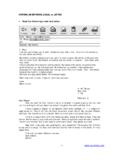
4 This code requires a user list with login ids and corresponding e- mail addresses (Figure 1) to send e-mails when no parameters are specified. Figure 1. SAS data set for the login to e- mail lookup 1. SAS Global Forum 2013 Quick Tips SASMAIL Macro . You can send electronic mail programmatically from SAS using the FILENAME EMAIL access method. This Macro simplifies the e- mail procedure and requires very less number or arguments to be supplied. The Macro is included in the autocall library and is accessible to all users (Autocall macros will be explained later in this paper). This Macro has various advantages: You can automatically send e- mail upon completion of a SAS program that you submitted for batch processing or interactive session.
5 This is achieved simply by calling the Macro without specifying any options. You can attach logs for the batch session or text based reports or outputs in the e- mail . Interactive session log can also be included but requires additional options to be specified (discussed later in this paper). Replies are sent to the from' e- mail and not to the UNIX account. The SASMAIL Macro uses 6 parameters to achieve the desired functionality. All the parameters are optional and may be omitted by users if the pre-requisites are met. Parameter description and default values are described below. %sasmail(to= <e- mail list> , from= <e- mail list , subject= <text> , type= < mail type , attach= <file location> , mail_text= <text> );. 1. To: is the e- mail address to which you want to send the message.
6 Address must be enclosed in quotation marks. In order to specify more than one address, enclose each of them in quotation marks and separate them with a space. You may include the list of addresses in parenthesis. If you omit to', SAS extracts the e- mail address from the user list on UNIX server, based on your login. 2. From: specifies the e- mail address of the sender. Default value is the e- mail address of the user who is running SAS. Use this option when the person who is sending the message from SAS is not the author. You must enclose the address in quotation marks. You can specify only one e- mail address. To specify the author's name along with the address, enclose the address in angle brackets (< >). Here are some examples: from="John Doe If you omit this parameter, SAS extracts the e- mail address from the user list on UNIX server, based on your login.
7 3. Subject: specifies the subject of the e- mail message. If the subject contains special characters or spaces, you must include the text in quotation marks. Here are some examples: subject=Sales subject="June $$ Sales Report". If you omit subject, the following default subject message will be included, mail from UNIX AIX -SAS. account . 4. Type: specifies the content type for the message body. If you do not specify any content type, SAS tries to determine the correct content type. You must enclose the value in quotation marks type='content/type'. The default value of this parameter is text/plain'. 5. Attach: specifies the name of the file (or files) to be attached with the e- mail . It also specified the options to modify attachment specifications.
8 The file name must be specified as a fully qualified path recognized by the operating system and should be enclosed in quotation marks. To attach more than one file, enclose the group of files in parentheses, enclose each file in quotation marks, and separate each with a space. Here are examples: attach=' ' | ATTACH= (' ' attachment-options). attach="/sas/apps/sas_prod/user/demo_ ". 2. SAS Global Forum 2013 Quick Tips attach=( /sas/apps/sas_prod/user/demo_ . /sas/apps/sas_prod/user/demo_ ). If you omit attach, the default attachment will be included. (SAS program log in case of batch session). The attachment-options include the following: a. CONTENT_TYPE='content/type': Specifies content type for the attached file. You must enclose this value in quotation marks.
9 If you do not specify a content type, SAS tries to determine the correct content type based on the filename. For example, if you do not specify a content type, a filename of is sent with a content type of text/html. CT=' and TYPE=' may be used as aliases instead of CONTENT_TYPE='. If SAS cannot determine a content type based on the filename and extension, the default value is text/plain. For Microsoft Excel files CT= application/excel . b. ENCODING='encoding-value': Specifies text encoding of the attachment that is read into SAS. You must enclose the value in quotation marks. c. EXTENSION='extension': Specifies a different file extension to be used for the specified attachment. You must enclose the value in quotation marks.
10 This extension is used by the recipient's e- mail program for selecting the appropriate utility to use for displaying the attachment. For example, the following results in the attachment being received as : attach=(" " name="index" ext="htm"). Note: If you specify extension="", the specified attachment will have no file extension. EXT=' may be used as alias for EXTENSION='. d. NAME='filename': Specifies a different name to be used for the specified attachment. You must enclose the value in quotation marks. For example, the following results in the attachment being received as : attach=(" " name="index"). e. OUTENCODING='encoding-value': Specifies the resulting text encoding for the attachment to be sent. You must enclose the value in quotation marks.