Transcription of Microsoft Teams Quick Reference Guide - CustomGuide
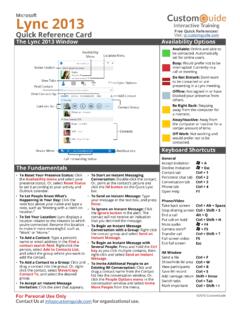
1 2022 CustomGuide , Inc. Click the topic links for free lessons! Contact Us: Microsoft Teams Cheat SheetThe Teams Program Screen Getting Started Sign In: Enter your email address in the Sign In field, then click Sign In. Enter your password in the Password field, then click Sign In. Sign Out: Click your account icon in the upper-right, then select Sign Out. Set Your Status: Click your account icon in the upper-right, click your current status, then select a new status from the menu. Available Online and available Busy On a call, in a meeting, or otherwise busy Do Not Disturb Online, but does not want to be disturbed Be Right Back Will return shorty Appear Away Currently away from computer or idle Set a Status Message: Click your account icon in the upper-right, then select Set Status Message. Enter a message into the text field, then click the Clear status message after list arrow and select when the message should expire.
2 Click Done. Chats Start a New Chat: Click the Chat button on the App bar, then click the New Chat button at the top of the list pane. Start typing the name of the person you want to chat with, then select their name from the search results. Enter a message in the Compose box, then click Send. Resume a Recent Chat: Click the Chat button on the App bar, then select a contact from under the Recent heading. Start a Chat with a Contact: Click the Chat button on the App bar. Click the Chat heading at the top of the list pane, select Contacts, then select someone from the Contacts list. Start a Group Chat: Click the Chat button on the App bar, then click the New Chat button at the top of the list pane. Start typing a person s name, then select their name from the search results. Start typing another name, then select another contact from the search results. Repeat until you have all the contacts you want.
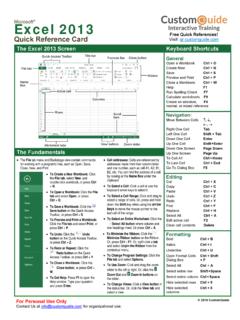
3 Format Text: Click the Format button below the Compose box. Select the text you want to format, then use the formatting options available. Click the More Options button to access additional formatting options. General Go to Search .. Ctrl + E Start a New Chat .. Ctrl + N Show Commands .. Ctrl + / Show Keyboard Shortcuts .. Ctrl + . Goto .. Ctrl + G Help .. F1 Settings .. Ctrl + , Zoom In .. Ctrl + = Zoom Out .. Ctrl + - Navigation Activity .. Ctrl + 1 Chat .. Ctrl + 2 Ctrl + 3 Calendar .. Ctrl + 4 Calls .. Ctrl + 5 Files .. Ctrl + 6 Messaging Go to Compose box .. C Expand Compose box .. Ctrl + Shift + X Send from Expanded Compose Box .. Ctrl + Enter Attach file .. Ctrl + O New Line .. Shift + Enter Meetings and Calls Accept Video Call .. Ctrl + Shift + A Accept Audio Call .. Ctrl + Shift + S Decline Call .. Ctrl + Shift + D Start Audio Call .. Ctrl + Shift + C Start Video Call.
4 Ctrl + Shift + U Toggle Mute .. Ctrl + Shift + M Toggle Video .. Ctrl + Shift + O Toggle Fullscreen .. Ctrl + Shift + F Toggle Background Blur . Ctrl + Shift + P Calendar Schedule a Meeting .. Alt + Shift + N Go to Current Time .. Alt + . Previous Day/Week .. Ctrl + Alt + Next Day/Week .. Ctrl + Alt + View Day .. Ctrl + Alt + 1 View Workweek .. Ctrl + Alt + 2 View Week .. Ctrl + Alt + 3 Keyboard Shortcuts Free Cheat SheetsVisit Pane App Bar New Conversation button Content Pane Search / Command Box Profile Icon 2022 CustomGuide , Inc. Click the topic links for free lessons! Contact Us: Chats Send Important and Urgent Messages: Click the Set Delivery Options button, then select Important or Urgent. Important messages will be marked with a symbol. Urgent messages will be marked with a symbol and will repeatedly notify the recipient until the message is read.
5 Insert an Emoji: Click the Emoji button and select an emoji from the menu. Insert a GIF: Click the GIF button, then search for a GIF. Select a GIF from the search results. Insert a Sticker: Click the Sticker button, select a sticker category or search for a sticker, then click a sticker. Invite People to a Group Chat: Click the Add People button at the top of a chat screen. Start typing a person s name, then select their name from the search results. Choose how much of the conversation they ll be allowed to see, then click the Add button. Pin a Chat to the Top of the List Pane: Hover your mouse over a chat in the list pane, click the More Options button, then select Pin. Mute a Chat s Notifications: Hover your mouse over a chat in the list pane, click the More Options button, then select Mute. Share a File: Click the Attach File button below the Compose box, select a file source, select a file, click Open, then click Send.
6 Teams Join a team : Click the Teams button on the App bar, then click Join or create a team at the bottom of the list pane. Select a public team , search for a team , or enter a team code in the Enter code field. Click a team s Join team button. Create a team : Click the Teams button on the App bar, then click Join or create a team at the bottom of the list pane. Click the Create team button, then click From scratch. Select a privacy level, enter a team name and description, then click Create. Add team members by searching for their names and selecting them from the search results, click Add, then click Close. View a team Channel: Click the Teams button on the App bar, then click a team channel in the list pane. Start a Channel Conversation: While viewing a team channel, click the New Conversation button. Enter a message in the Compose box, then click Send. Reply to a Channel Conversation: Click a conversation s Reply button, then enter a message and click Send.
7 Teams React to a Message: Hover your mouse over a message in a team channel, then click a reaction from the menu that appears. Save a Message: Hover your mouse over a message in a team channel, click the More Options button, then select Save this message. View Saved Messages: Click your account icon in the upper-right, then select Saved. Click a saved message to view it. Create a New Channel: Hover your mouse over a team in the list pane, click the More Options button, then select Add channel. Give the channel a name and description, set its privacy settings, then click Add. View a Channel File Library: While viewing a team channel, click the Files tab. Upload a File to a Library: While viewing a file library, click the Upload button, select Files, navigate to and select a file, then click Open. Create a New File in a Library: While viewing a file library, click the New button, select a file type, then enter a file name and click Create.
8 Share a Link to a Library: While viewing a file library, click the Copy Link button, select whether you want a Teams link or a SharePoint link, then click the Copy button. Meetings Schedule a Meeting: Click the Calendar button on the App bar, then click the New meeting button. Enter a meeting s name, date, and time, then choose a location or team channel. Click Save. Join a Meeting from a Channel: View the team channel the meeting is taking place in, locate the meeting in the Content pane, then click a meeting s Join Now button. Or, click the meeting to view its details and then click the Join button. Join a Meeting from the Calendar: Click the Calendar button on the App bar, click a meeting, then click the Join button. View a Meeting Conversation: While in a meeting, click the Show Conversation button on the controls toolbar. Show Meeting Participants: While in a meeting, click the Show Participants button on the controls toolbar to display the People pane.
9 Mute a Meeting Participant: While the meeting s People pane is displayed, click a participant s More Options button and select Mute Participant. Take Meeting Notes: While in a meeting, click the More Actions button on the controls toolbar and select Meeting Notes. Click the Take Notes button, then begin taking notes. Meetings View Meeting Notes: View the team channel that a meeting took place in, then click the Meeting Notes tab. Record a Meeting: While in a meeting, click the More Actions button on the controls toolbar and select Start Recording. Click the More Actions button again and select Stop Recording when you re finished. View a Meeting Recording: View the team channel that a meeting took place in, locate the meeting in the Content pane, click the recording, then click the Play button. Toggle Camera: While in a meeting or call, click the Camera button on the controls toolbar to turn it on or off.
10 Toggle Microphone: While in a meeting or call, click the Microphone button on the controls toolbar to turn it on or off. Change the Camera Background: While in a meeting or call, click the More Actions button on the controls toolbar and select Apply Background Effects. Select an effect, then click Apply. Change Audio and Video Devices: While in a meeting or call, click the More Actions button on the controls toolbar and select Device Settings. Click the list arrows for audio devices and the camera to select a device. Share Your Screen: While in a meeting or call, click the Share Content button on the controls toolbar. Select your whole screen, a specific window, or a PowerPoint presentation from the screen sharing pane. Click the Stop Sharing button when you re done. Calls Make a Call: Click the Calls button on the App bar. Enter a contacts name in the Type a name field, select them, then click the Call button; or click the Contacts tab in the list pane and click a contact s Call button.