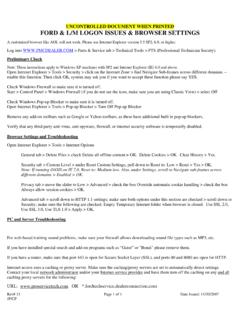
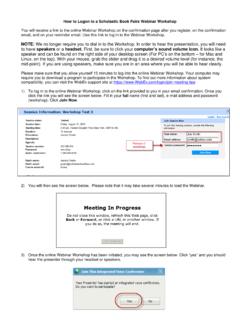
Transcription of LOG ON TO YOUR 401 K ONLINE PORTAL
1 HOW TO: log on TO your 401K ONLINE PORTAL . Page 0. Website: First Time Users: Enter your SS # in the Username field. (DO NOT use dashes, slashes, or spaces). Use the last 4 digits of your SS # in the Password field. Choose Participant in the Select Role dropdown. Now click Login . Return Users: If you have been on the web before, simply enter your Username & Password , choose Participant , & click Login . You will be taken directly to your account. ** NOTE: AOL & Mac are not supported for this web site. Page 1. First Time Users: You must supply an answer to 3 of the 8 Security Questions for security purposes. When finished the login procedure a cookie will be placed on your computer, which will allow you to bypass this step the next time you log in. *If you delete your cookies or try to log in from a different computer, you will be asked to answer one of the questions you selected, which will then create a new cookie on the computer.
2 The answers you supply are case sensitive. After you have typed in your answers please click Submit . Page 2. You will be brought to this screen where you MUST change your user ID & password. Please note the criteria for a valid ID & Password and choose appropriately. After you have entered your new password, click Submit . Page 3. You will be brought to the below screen. PLEASE NOTE: your password change has not yet been completed. If your email address is not showing, please click the Edit your Personal Information and supply an email address. Click on the Submit button at the bottom of the screen. A message will appear that your change has been submitted. Then click Back to Previous Page in the upper left hand corner to bring you back to this page. To confirm your password change click Continue . Page 4. You receive a pop-up similar to the example below. Please click on Continue.
3 You will receive a confirmation number when your password change has been accepted. Confirmation numbers are provided for all transactions or changes submitted on the web site. If you do NOT receive a confirmation number, your transaction or change did NOT go through. Please try to re-submit or contact your Plan Sponsor for additional help. Page 5. your Dashboard screen should look similar to the below. You can now navigate thru your plan account using the top menu bar. Please go directly to My Profile , then Personal Info and supply any missing information or make corrections if necessary. Any corrections must be shared with your employer to ensure personal information remains consistent. For more help: Representatives at Fulton Financial Advisors Retirement Services Information Center are available to answer questions about your retirement account, help you obtain forms, assist you with logging into the plan website, and can walk you through transactions such as changing investment elections and transferring fund balances.
4 Services are available in both English and Spanish, Monday through Friday, 8:00 AM to 8:00 PM EST at 1-800-452-4190. Fulton Financial Advisors operates through Fulton Bank, and other subsidiaries of Fulton Financial Corporation. Securities and Insurance Products: Not FDIC-Insured Not Insured by any Federal Government Agency No Financial Institution Guarantee May lose value Not a deposit Page 6.