Transcription of Accept Pop-ups to Automatically Resolve the Blank Screen Issue
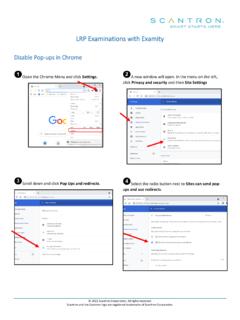
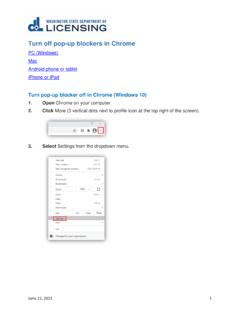
1 Accept Pop-ups to Automatically Resolve the Blank Screen Issue An update has been deployed to the USVI Health PAS-OnLine web portal to correct the Blank Screen Issue without trading partners needing to open the TPA or MyHealthPAS links HOWEVER for the hot fix to work trading partners MUST allow Pop-ups for Trading partner only needs to Accept the Pop-ups for once however this process will need to be completed for each web browser used (EDGE, Chrome, Firefox, Internet Explorer 11, etc.). Below are instructions on how to Accept Pop-ups for When a user first signs into the web portal, if popups are blocked, a message will display in the address bar indicating ' Pop-ups were blocked on this page'. Users will need to click the Pop-ups icon. A window will display requesting the user to either "Always allow Pop-ups and redirects from " or "Continue blocking". Users need to click the "Always allow" radio button then click Done . This process will allow the Health PAS-OnLine web portal to Automatically load the TPA and the MyHealthPAS tabs in the background.
2 Users will see this happen momentarily after signing in and before the signed in 'Home' page displays. If Pop-ups have been allowed and still receiving the Blank screens, it will be necessary to clear cookies and cached data, close all open web browsers then sign into the web portal. Once this process is complete users will be able to successfully click the various tabs without experiencing Blank screens. lf the Pop-ups were blocked on this page message does not display in the address bar, follow these directions to manually allow the Pop-ups for : go to the Control icon ( or or) located in the upper right-hand corner click Setting search for Pop-ups and redirect ( Pop-ups for Firefox) locate the section for Pop-ups and redirects ( Block pop-up windows for Firefox) locate the section to Add or Allow Pop-ups ( Exceptions for Firefox) click the Add button then enter in the address field then click Add (enter in the Address of website field then click Allow for Firefox) the Health PAS-OnLine web portal address will display in the list of websites allowed to display Pop-ups .
3 Please note the above directions will vary depending on the web browser used. After completing the above steps, it will be necessary to clear cookies and cached data, close all open web browsers, then open a fresh web portal page before signing back into the web portal. If you continue to receive the Blank Screen or need further assistance, contact the VI EDI Helpdesk at 855-248-7536 or email