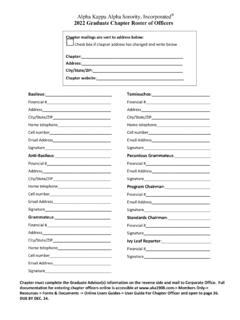
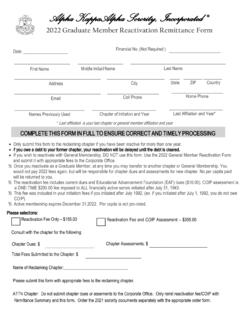
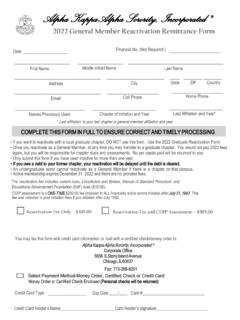
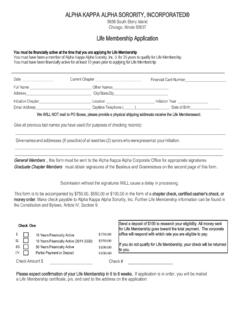
Transcription of Alpha Kappa Alpha Sorority, Inc. Web Users Guide for ...
1 Alpha Kappa Alpha sorority , Inc. Web Users Guide for Chapter Officers Page 1 Alpha Kappa Alpha sorority , Inc. Web Users Guide for Chapter Officers November 2018 Alpha Kappa Alpha sorority , Inc. Web Users Guide for Chapter Officers Page 2 When you access , the AKA public site will be displayed. This main site will scroll various pictures. To log onto the Members Only site, scroll to the bottom and click on the Read More button under the Members Only section on the right side of the screen. Alpha Kappa Alpha sorority , Inc. Web Users Guide for Chapter Officers Page 3 Please reference the 2018 Web Users Guide for Members document for information about the many features and functions of the AKA Members Only Web site. This document focuses on the additional functionality available to selected chapter officers (Basileus, Tamiouchos and Graduate Advisor), regional officers (regional directors) and international officers (chairman of international committees).
2 Notes about navigating the site: o After you have logged in, you can go to the main sections of the site by using the green menu at the top of the site (My Account, Resources, News and Events, Online Store, Inbox and UAC). The Home link takes you back to o Each section of this site will also display a secondary menu (to the left) that helps you navigate to content and functions for that section). o For the Resources Section of the site, if you hold one or more of the positions mentioned above, you will have additional options on the Resources Section left menu. Click on the Chapter Officers link on the Resources left menu. You chapter will be displayed, along with your position with the chapter. Alpha Kappa Alpha sorority , Inc. Web Users Guide for Chapter Officers Page 4 Click on your chapter name. Note: If you hold officer positions in two chapters ( Graduate Advisor for UG chapter and officer for your own chapter), both chapters will be displayed.
3 Select the chapter you need to access. Alpha Kappa Alpha sorority , Inc. Web Users Guide for Chapter Officers Page 5 Once you have accessed your chapter, a third menu will be displayed on the left of the screen. This menu provides you with links to various functions and reports available for your chapter. Some links (such as Mass Payment and Officer Management) will require a secondary login by another officer in your chapter. The page lists all current active members, all current certified graduate advisors, and all current chapter officers. Click on the Address: Edit link to update contact information for your chapter. Alpha Kappa Alpha sorority , Inc. Web Users Guide for Chapter Officers Page 6 This screen will be displayed to allow you to update your chapter mailing address and website URL. Click Save after entering updates. Alpha Kappa Alpha sorority , Inc. Web Users Guide for Chapter Officers Page 7 To access other chapter functions, select the option from the left menu.
4 Alpha Kappa Alpha sorority , Inc. Web Users Guide for Chapter Officers Page 8 By clicking on the Mass Payment link on the left menu, you will be prompted for a second chapter officer login. The second officer must be your chapter s active Chapter Tamiouchos. Have the Chapter Tamiouchos enter her ID and password. Click the icon under the password. Alpha Kappa Alpha sorority , Inc. Web Users Guide for Chapter Officers Page 9 If a second officer does not login successfully, this screen will be displayed with the following message: o The system cannot validate the second officer from your chapter. Please check the previous screen. If two officers are not listed under the Chapter Officers section of the previous screen, the system does not have up-to-date chapter officer information for your chapter. o If you have already updated your roster of officers for the current year, please access the Member Assistance Form by clicking the Contact Us link on the lower right side of the screen.
5 This will allow you to notify the membership department of the officer who is not listed. If you have entered an updated roster of officers, you can access that function by selecting the Officer Management. The Mass Payment function is not available until a second officer from your chapter successfully logs in. Alpha Kappa Alpha sorority , Inc. Web Users Guide for Chapter Officers Page 10 After a successful login by the active Chapter Tamiouchos, this screen will be displayed. Click on the pink button to Retrieve Open Invoices for all Members. Alpha Kappa Alpha sorority , Inc. Web Users Guide for Chapter Officers Page 11 The list of open invoices for members in your chapter will be displayed. It will include per capita invoices for members and EAF invoices for Life Members. Your chapter s chapter tax invoice will be listed first if it has not already been paid. The chapter tax invoice should be the first invoice paid each year when you submit your first Mass Payment.
6 Click on the checkbox next to all members whose invoices you are paying. The Mass Payment function can be used multiple times during the year, as you collect and need to process member s per capita payment. Alpha Kappa Alpha sorority , Inc. Web Users Guide for Chapter Officers Page 12 Once you have checked all the members you want to pay for, scroll back to the top of the screen and click the Recalculate Actual button. This will update the control totals for count of invoices and total amount to be paid. The check amount will be displayed in the next section, based on the total amount for invoices checked. You cannot pay less than or more than the total amount on the first section of the screen. Enter your chapter s checking account routing number and account number. Each of these fields must be entered twice for confirmation purposes. Alpha Kappa Alpha sorority , Inc. Web Users Guide for Chapter Officers Page 13 An authorization screen for the ACH payment will be displayed.
7 Enter the last 4 digits of the Chapter Basileus ID to authorize the creation of the ACH payment. Alpha Kappa Alpha sorority , Inc. Web Users Guide for Chapter Officers Page 14 A processing screen will be displayed indicating the number of invoices payments are being applied to. Please do not close the window or interrupt the process. Once payments have been applied, the message will note that the payments were applied without error. Click the continue button. A screen will be displayed listing the invoices paid through this mass payment transaction. Please print this list and retain for your records. Alpha Kappa Alpha sorority , Inc. Web Users Guide for Chapter Officers Page 15 Alpha Kappa Alpha sorority , Inc. Web Users Guide for Chapter Officers Page 16 To access other chapter officer functions, select the option from the left menu. If you select Chapter Dues, the following screen will be displayed. It will include the current chapter status and expiration date, based on the payment of the chapter tax invoice.
8 If no information is displayed, you can expand the display area by clicking on the pink button on the chapter tax bar. Alpha Kappa Alpha sorority , Inc. Web Users Guide for Chapter Officers Page 17 Click on Chapter Payments on the left menu to see a list of the Mass Payment batches you have entered. The list will display the date, time and amount of the mass payment submitted online. Click View Report to see the details of the online payment. Alpha Kappa Alpha sorority , Inc. Web Users Guide for Chapter Officers Page 18 A variety of reports are available to an authorized chapter officer by clicking on the Chapter Lists option. An expanded list of reports is displayed. Click on the report you want to display. The report results will be displayed and you will have the option to print or download the report to Excel. Alpha Kappa Alpha sorority , Inc. Web Users Guide for Chapter Officers Page 19 Click on Active Members List to get a list of active members with address information.
9 It also notes their membership status, chapter expiration date and AKA expiration date (these dates should be the same). If the member has listed her e-mail address, you can click on any e-mail address and your e-mail program will be launched with the selected person s e-mail address pre-loaded. You can export the list to PDF or Excel format. Alpha Kappa Alpha sorority , Inc. Web Users Guide for Chapter Officers Page 20 This is an example of the Active Members printed report. Alpha Kappa Alpha sorority , Inc. Web Users Guide for Chapter Officers Page 21 This is an example of the Active Members Report exported to Excel Alpha Kappa Alpha sorority , Inc. Web Users Guide for Chapter Officers Page 22 Click on Inactive Members from the left menu to get a list of members who have become inactive within the last 5 years. It also notes their membership status, chapter expiration date and AKA expiration date (these dates should be the same). Note: If you chapter has manually submitted per capita payments (via mail) late for some sorors and the Corporate Office has not yet applied the payments, they will be included on the Inactive list.
10 As soon as payments are applied to the soror s record, her name will be moved from the Inactive list to the Active list. You can export the list to PDF or Excel format. Alpha Kappa Alpha sorority , Inc. Web Users Guide for Chapter Officers Page 23 Click on Life Member List to get a list of life members of your chapter. It also notes their membership status, chapter expiration date and AKA expiration date (these dates should be the same). You can export the list to PDF or Excel format. Alpha Kappa Alpha sorority , Inc. Web Users Guide for Chapter Officers Page 24 Click on Inactive Members in the Region to get a list of inactive members within the last five years in your region. It also notes their membership status, chapter expiration date and AKA expiration date (these dates should be the same). Use page number to page through the complete list. You can export the list to PDF or Excel format Alpha Kappa Alpha sorority , Inc. Web Users Guide for Chapter Officers Page 25 Click on Ivies Beyond the Wall List to get a list of deceased members from your chapter.