Transcription of Bluetooth Headset - Eutectics Inc.
1 USER GUIDEV oyager PRO UC v2 Bluetooth HeadsetBT300 Bluetooth USB Adapter 2 ContentsContentsContentsWelcome 3 voyager Pro UC next generation technology 3 System Requirements 3 What s in the Box 4 Adapter and Headset Basics 5 Bluetooth USB Adapter 5 Headset 5 Stowing the Headset 5 Headset Controls 6 Charge Your Headset 7 Charge Indicator Lights 7 Low Battery Warnings 7 Fit your Headset 8 Fitting the Headset 8 Quick-turn Adjustment for the left ear 9 Accessories and replacement parts 9 Pairing your Bluetooth USB Adapter 10 Initial Pairing 10To Re-Pair your Bluetooth USB Adapter 10 Auto Pair 10 Connect PC and Call 11 Bluetooth USB Adapter LED indicators 12 Pair Mobile Phone and Call 13 Placing a Call with your Headset and Bluetooth Mobile Phone 14 Answering and Ending Calls with your Headset and Bluetooth Mobile Phone 14 Call Button Behavior with PC and Mobile Connected (not on a call) 14 Advanced Features 15 Smart Sensor Features 15 Listening to Audio via A2DP (Advanced Audio Distribution Profile for Bluetooth ) 16 Transmission Range 16 Simultaneous Call Handling Behavior (PC & Mobile)
2 16 Headset Controls, Indicators and Voice Prompts 17 Optional plantronics Software 18 plantronics Control Panel 18 plantronics Update Manager 20 Troubleshooting 21 Troubleshooting Softphone Usage 21 Troubleshooting Mobile Phone Usage 22 3 WelcomeCongratulations on purchasing your new plantronics voyager PRO UC. This user guide contains instructions for setting up and using your voyager PRO UC Bluetooth Headset and BT300 Bluetooth USB adapter. voyager Pro UC next generation highlights and Smart Sensor technology: Auto answers calls by placing Headset on your ear Auto transfers calls between mobile phone and Headset When on a mobile or PC call, softphone presence is automatically updated Eliminates accidental dialling by locking call button when Headset is not worn Features PC wideband audio for best PC audio quality Integrated A2DP (Advanced Audio Distribution Profile for Bluetooth ) lets you listen to audio Automatically pairs Headset to PC and mobile phone when Headset is within range Voice prompts announce power on/off, battery level, connection statusSystem requirements Computer Supported operating systems: Windows XP SP3 or later, Windows Vista SP1 or later, Windows 7 SP1 or later recommended Processor.
3 400 MHz Pentium processor or equivalent (Minimum); 1 GHz Pentium processor or equivalent (Recommended) RAM: 96 MB (Minimum); 256 MB (Recommended) Hard disk: 280 MB (Minimum); 500 MB (Recommended) For your safety, do not use Headset at high volumes for extended periods of time. Doing so can cause hearing loss. Always listen at moderate levels. For more information on headsets and hearing, visit: 4 What s in the box 1 voyager PRO UC Headset with pre-installed medium ear tip 2 Bluetooth USB Adapter 3 Soft gel ear tips (small & large) and optional foam tip covers (small & medium)
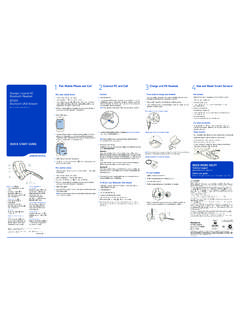
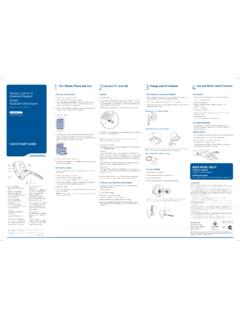
4 4 Carry case 5 AC charging cable 6 USB charging cable123456 Bluetooth USB adapter Headset 5 Adapter and Headset basics1 1 LED indicator light 1 Volume/Mute button 2 Call button 3 Micro USB charging port 4 Power button 5 LED indicator light34512 Stowing the Headset 6 Headset controls 345121 Volume/Mute buttonIncrease/decrease volumeMute/unmute mic during a callPause/play audioTap + or button to adjust listen volume1-second press of both + and buttons1-second press of both + and buttons2 Call buttonAnswer or end a call (PC or mobile)RedialInitiate mobile phone s voice-dialling*Reconnect lost connection* Feature not supported by all mobile phones1 tap2 taps2-second press until tone heard1 tap3 Micro USB charging port90 minutes for full charge 4 Power buttonOn or offTalk time voice alert/sensor checkerActivate pairing mode2-second press1 tapWith Headset off, press until LED flashes red/blue5 LEDC hargingBattery statusPairing mode Solid red.
5 When fully charged, LED is off. Low = 2 red flashes, Recharge = 3 red flashesFlashes red/blue 7 7 Charge your Headset before using. Plug in your Headset and place on a flat non-metallic surface. The Smart Sensors in your Headset fully calibrate while charging. When fully charged, the LED goes off.
6 NOTE Always charge at near room temperatures; never charge battery at temperatures below 0 C (32 F) or above 40 C (104 F).Check battery level and Smart SensorTo check the battery status, the Headset must be powered on. While wearing the Headset short press power button and a voice alert will advise you of the talk time you have remaining on your current charge. If you hear a beep after the remaining talk time your Smart Sensors are not calibrated properly. Remove Headset from your ear and place Headset flat on a non-metallic surface and connect to the AC charger or the USB cable charger for 10 seconds to recalibrate the Smart Sensors. While not wearing your Headset short press the power button and the indicator light flashes red to show the battery charge level as shown indicator lights Red flashes Battery level More than 2/3 full1/3 to 2/3 fullLess than 1/3 fullUSB cableA USB cable is supplied to allow you to charge the Headset from a PC s USB port.
7 The PC must be powered on to charge via USB or the battery charge is very low, a tone and voice prompt will automatically occur. Low battery warningsBattery levelToneVoice prompt30 minutes of talk time remaining (this alert only occurs during an active call) Double high tone every 15 minutes Battery Low repeats every 30 minutes10 minutes of talk time remaining Triple high tone every 30 seconds Recharge Battery repeats every 3 minutescharging time30 min ..Minimum charge before first hours .. Full charge Charge your Headset 8 Fitting the headsetThe Headset comes configured for the right ear, with the medium ear tip installed, however you can replace it with the small or large ear tip provided or configure the Headset to fit on the left ear.
8 For the best sound clarity and comfort, make sure you have a secure the ear tip for a better Grip the ear tip and gently push it into the speaker Rotate it a quarter turn to the left to unlock. 3 Pull the ear tip away from the a new ear Align the tabs on the ear tip with the slots on the speaker Gently push the ear tip into housing while turning it a quarter turn to the right. The ear tip will stop rotating when it is locked. You may want to add an optional foam ear tip cover for additional comfort. (small & medium)445 Wearing the headset1 Guide the ear loop behind your ear and position the Headset so that the speaker and ear tip rest comfortably in your Pivot the boom up to point the microphone toward the corner of your your Headset 9 Quick-turn adjustment for the left ear1 Pivot the boom into an upright Rotate the boom and speaker to the other side of the Headset and lower it before fitting your other and replacement partsYou can order additional accessories and replacement parts here.
9 PairingYour Bluetooth USB adapter comes pre-paired to your voyager PRO UC re-pair your Bluetooth USB adapterIn the event that your Headset and Bluetooth USB adapter are not paired or become unpaired do the following:1 Start with the Headset powered Remove the Bluetooth USB Place the Headset in pairing mode by pressing and holding the power button until the Headset LED flashes Insert the Bluetooth USB adapter directly into your PC USB port. The LED will flash and then turn solid blue to indicate the Headset is connected to the Bluetooth USB Headset will exit pairing pairThe Bluetooth USB adapter and the Headset will automatically pair Headset to mobile phone and PC when Headset is on and within range of devices. Voice prompt will announce you are connected. Voice prompts will also prompt you when you are out of range of devices.
10 10 Pairing your Bluetooth USB adapter 111 Power Headset Insert Bluetooth USB adapter directly into your PC USB port. The LED will flash and then turn solid blue to indicate the Headset is connected to the PC. The LED remains solid blue when not on an active Do not insert directly into a docking station or It is normal to see the LED flash at start-up before connection is Load plantronics Enterprise software by visiting and click on 4 Check your audio settings.