Transcription of Census Tract Map Lookup Instructions
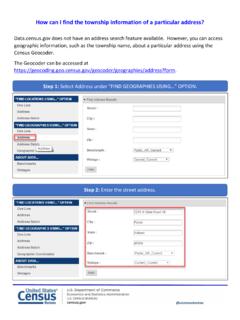
1 Census Tract Map Lookup Instructions 1. Go to the American Fact Finder site at 2. On the left hand side of the site, click on Geographies. A dialogue box will appear. 3. In the Geographies dialogue box, select the all geographic types radio button in the List tab. 4. To look for a particular Census Tract (in this case, Census Tract 25 in Fulton County, GA), in the Geographies dialogue box, use the drop down boxes to select, in order: a. Census Tract 140. b. State c. County d. Census Tract number (Note: if you have your Census Tract number in the six-digit format, ignore the leading zeros. The last two numbers are the decimals. For more information, go to page 10-7 of In this case, the six-digit number would be 002500.). 5. Click Add to Your Selections at the bottom of the dialogue box. The selected state, county, and Census Tract should then appear in the Your Selections box in the upper left corner of the window. 6. At the top of the dialogue box, click on the Map tab.
2 Give the site time to process. Eventually, the site will display the Census Tract on a map. 7. To select multiple Census tracts to map, repeat steps 3 to 6 for the other Census tracts you wish to select (in this case, Census Tract 26 in Fulton County, GA). 8. On the map, you may Zoom In and Zoom Out to see where the Census Tract is in relation to major roadways and other jurisdiction boundaries. a. Zoom in drag the white object circled in red toward the + sign on the scale. Alternatively, you can also click on the + sign magnifying glass circled on the blue tool bar. b. Zoom out drag the white object circled in red toward the - sign on the scale. Alternatively, you can also click on the - sign magnifying glass circled on the blue tool bar. 9. The map also gives you the options to a. Print the Census Tract map: click on the printer icon, select orientation and paper size on the pop-up window that appears, and click OK.. b. Download an electronic picture of the Census Tract : click on the paper icon with the orange down arrow, select a download format from the pop-up window that appears, and click OK.
3 C. Create a bookmark or save the query for future reference: click on the paper icon with an orange bookmark and choose create bookmark or save query on the pop-up window that appears. d. Download a shapefile of the map for use with Geographic Information Systems (GIS): click on the download icon, select the shapefiles radio button on the pop-up window that appears, and click OK.