Transcription of CLONING SOFTWARE CS-51PLUS2 READ - Icom
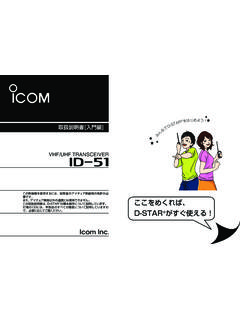
1 1 A-7332-1EX 2016 Icom Inc. transceiver An ID-51A or ID-51E with a serial number label that has PLUS2 printed on The illustration below is for the ID-51A version. Operating System (OS) Microsoft Windows Vista (32/64bit) Microsoft Windows 7 (32/64bit) Microsoft Windows (32/64bit)* Microsoft Windows 10 (32/64bit) * Except for Microsoft Windows R T. Others Required items differ, depending on the setup using a microSD card microSD card (User supplied) Memory card reader (User supplied) or Memory card slot built into the PC to read the microSD cardLSee page 3 for detailed using an optional data cable OPC-2218LU data cable or OPC-2350LU data cable A USB or portLSee page 6 for detailed MANUALCLONING SOFTWARECS-51 PLUS2 Thank you for choosing this Icom product.
2 READ ALL INSTRUCTIONS carefully and completely before using this requirementsThe CS-51 PLUS2 is a SOFTWARE application to setup the ID-51A or ID-51E from your can set Memory channels, scan settings, call signs, repeater list, and other use the SOFTWARE , a computer system and some items described in System requirements are instructions are based on using Microsoft Windows 7. 2 A-7332-1EX 2016 Icom Log in as the BE SURE no other applications are Insert the CD into a CD Double-click on the Depending on the PC setting, the Menu screen shown below is automatically screenInstalls theCS-51 PLUS24.
3 Click CLONING SOFTWARE Installer. L If User Account Control is displayed, click <Yes> to Choose Setup Language is displayed. Select English or Japanese, and then click <Next>>.L In this document, English is language6. Welcome to the InstallShield Wizard for CS-51 PLUS2 is displayed, and then click <Next>>.Click7. Choose Destination Location is displayed, and then click <Next>>.L If desired, click < > to select another destination folder before clicking <Next >>.ClickConfirm8. After the installation is completed, InstallShield Wizard Complete is displayed, and then click <Finish>.
4 Click9. Click Quit on the Menu Eject the A program group CS-51 PLUS2 is created on the program menu, and a CS-51 PLUS2 shortcut icon is created on the You can uninstall the CLONING SOFTWARE using Uninstall a program in the Windows Control :See the Help file of the CLONING SOFTWARE for assistance with the functions or open the Help file, click Help in the top menu of the CLONING SOFTWARE and select Contents, or simply push the [F1] key of the PC s the CLONING SOFTWARE 3 A-7332-1EX 2016 Icom setup from a PC using a microSD card, follow the steps described 1 Insert a microSD card into your PC s card reader or card 2 Make the Initial 3 Setup.
5 (p. 5)Setting up from a PC using a microSD cardNOTE:The microSD and microSDHC cards are not available from has checked the compatibility with the following microSD and microSDHC cards.(As of September 2016)BrandTypeMemory sizeSanDisk microSD2 GBmicroSDHC4 GB8 GB16 GB32 GBL Through the rest of this document, the microSD card and a microSDHC card are simply called microSD The microSD cards listed to the left are usable with the ID-51 series transceivers, but their specifications are not guaranteed by Icom. DAbout a microSD card DProcedure outline DSetting up precautions To prevent data loss, you should first copy the transceiver 's setting data from the microSD card to the PC.
6 After copying, read the data into the CLONING SOFTWARE , and enter or edit parameters using the CLONING SOFTWARE . Before editing or entering new data, make a backup file onto your PC. A backup file enables easy restoring even if the setting data in the microSD card is accidentally deleted. BE SURE to turn OFF the transceiver before inserting or removing the microSD card. DO NOT remove the microSD card, detach the battery pack, or turn OFF the transceiver , while reading or writing data to or from the microSD card. Otherwise, the data could be lost or 2016 Icom Inc.
7 4 Setting up from a PC using a microSD card (Continued) DBefore starting the CS-51 PLUS2 setup1. Make a backup Save the transceiver s setting data onto the microSD card. Open the Save Setting on the transceiver s MENU screen to save. (MENU > SD Card > Save Setting)2. Turn OFF the transceiver , and remove the microSD Insert the card into the microSD card slot of the PC or the microSD card reader, as shown Copy the transceiver s setting data (ICF file), stored in the Setting folder of the card to a PC local folder. About the microSD card s folder compositionTo the Card readerTo the Card slot PCPC microSDcardTr ansceiverorThe folder composition on the microSD card is shown to the transceiver s setting data (ICF file) is stored in the Setting DMaking the Initial setupWhen you start the CS-51 PLUS2, the Initial Setup window is displayed.
8 Before using the SOFTWARE , follow the steps below to make the initial setup to send the transceiver version : When the transceiver version information is not correctly sent to the SOFTWARE , some items may not be displayed on the Click the microSD radio Click < > to display the data file selection window. 3. Select the setting data (ICF file) copied from the transceiver in step 4 of Before starting the CS-51 PLUS2 setup, as described Click <OK> to open the SOFTWARE and read the selected : If you use a brand new microSD card, first format the card using the section 2 of the ID-51A and ID-51E Basic manual for details.
9 5 A-7332-1EX 2016 Icom Inc. DHow to setup the transceiverFollow the steps below to write the setting data that is edited with the CS-51 PLUS2 to the transceiver using the microSD Set Memory channels, scan settings, call signs, repeater list, and other settings using the Save the setting data in an Icom CLONING Format (ICF) file format in a folder on your See the Help file of the CS-51 PLUS2 for Copy the setting data (ICF file) into the Setting folder in the ID-51 folder on the microSD card, as shown to the Insert the microSD card that includes the setting data (ICF file)
10 Into the slot of the transceiver , then load it to complete the set up. (MENU > SD card > Load Setting)NOTE: After loading, the contents of the setting data overwrites the current data. The loading contents can be selected between ALL, Except My Station, and Repeater List Only. When you want to load only the repeater list into the transceiver , select Repeater List Only. The original skip settings in your repeater list can be kept when loading. When Keep USE (FROM) settings in the Repeater List? is displayed, select <Yes> to keep the skip settings in the repeater list.