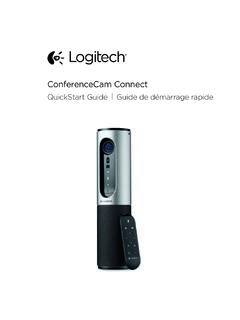
Transcription of ConferenceCam Connect Quick Start Guide
1 ConferenceCam ConnectQuickStart GuideEnglish 3 Deutsch 13 Fran ais 23 Italiano 33 Espa ol 43 Portugu s 53 Nederlands 63 Svenska 73 Dansk 83 Norsk 93 Suomi 103 113По-русски 123 Magyar 133 esk verze
2 143Po polsku 153 Logitech ConferenceCam ConnectEnglish 3 What s in the box1. Main unit with camera and speakerphone2. Remote control3. Power cable and regional plugs4. USB Cable5. User documentation12354 ConferenceCam ConnectQuickStart Guide | Guide de d marrage rapideLogitech ConferenceCam Connect4 EnglishKnow your product231564791151214768131510 ZEISSHD 1080p, 4x Zoom1. Camera, 1080p and 90-degree FOV2. Camera LED3. Tilt wheel for tilting camera lens4. Microphones5. Volume Up6. Mute7. Volume down8. Battery indicator9. Speakerphone10. Speakerphone/Battery LED11.
3 Pan and Tilt12. Zoom In13. Zoom Out14. End Call15. Make/Answer CallLogitech ConferenceCam ConnectEnglish 53142651. Microphone2. NFC3. Kensington Lock4. USB connector5. Power6. HDMI connector (wireless screen mirror mode)Logitech ConferenceCam Connect6 English 1. Wireless screen mirror mode2. Power On/Off button3. Bluetooth mode4. Video conferencing mode1324 Logitech ConferenceCam ConnectEnglish 7 Setup your product 3 Bluetooth modeWireless ScreenMirror ModeVideoConferencingMode12On / O 1. Connect ConferenceCam Connect to external power. Although ConferenceCam Connect comes with rechargeable battery, it must first be plugged into external power and charged till the green battery light displays.
4 Note: The device can also be charged through USB on your PC or Mac (charging times may vary.)2. Press and hold power On/Off button to turn on the device. A sound will play and the device LEDs will light for 2-3 seconds, with the last used mode LED staying lit when Select the following modes and follow the instructions to get ConferenceCam Connect8 English1. Video Conferencing Mode:1. Connect the USB cable to the device and to your USB port. 2. To Start a call from your PC or Mac application, select Video Conferencing Mode on ConferenceCam Connect . The camera and speakerphone LEDs will flash to show that connection is taking place, and when completed, the camera LED will light steady for a few seconds and the speakerphone will play a sound.
5 If these activities do not take place, try again and then consult Troubleshooting or call technical Ensure that ConferenceCam Connect is selected as the default video and audio device in your OS settings and in your conferencing application. Start your video or audio call from your application. The LEDs on the camera and speakerphone will alight when Bluetooth Mode To Connect ConferenceCam Connect speakerphone to your mobile device:1. Select Bluetooth mode on the ConferenceCam If your device is NFC enabled, touch the mobile device to the NFC icon on the speakerphone, which should enable Bluetooth acceptance on the mobile device, or hold down the Bluetooth button until the LED on the speakerphone starts blinking blue rapidly.
6 3. On your mobile device, go to settings and turn on Bluetooth to Connect . The ConferenceCam Connect will also play a sound to acknowledge ConferenceCam ConnectEnglish 93. Wireless Screen Mirror Mode (Screen share content from your mobile device):1. Connect the HDMI cable from your display to the back of the ConferenceCam Connect device. 2. Select Wireless Screen Mirror Mode on the ConferenceCam Connect . 3. On your mobile device, go to Settings, and then select your mobile device s option for screen mirroring. The listed option name will differ from device to device. For help with your mobile device setting, please consult for list of tested devices.
7 Note: Only Bluetooth mode and Wireless Screen Mirror Mode may operate at the same time. Wireless performance may ConferenceCam Connect10 EnglishUse your product Video Starting the video: The video is controlled by the application and will Start once the camera is selected and the video is started in the application. Camera LED will light when the video is streaming. Pan, tilt and zoom the camera using the controls on the remote control. Press once for incremental or press and hold for continuous pan or tilt. You can also pan and tilt the camera image first zoom in, and then pan the image or tilt the image. You may also tilt the actual camera with the tilt wheel on the unit.
8 Do not manually try to tilt camera itself. Doing so may damage unit. Saving pan, tilt and zoom settings: An optional application is available which includes a software interface to control camera settings. These can be saved so your camera settings remain next time you turn on the unit. You may download the software from Far end control: You may control the pan, tilt and zoom of a remote ConferenceCam CC3000e, ConferenceCam Connect or a ConferenceCam BCC950, in supported applications. Please visit the download page listed for more information. Audio Volume: Volume Up and Down adjusts volume. Mute: Mute audio with Mute button.
9 Calling: Run video conferencing software. Answer picks up call. Hang up ends call. For call waiting, select hang up to reject second call or answer button to toggle between calls Note: Answer and Hang up buttons may not work in some applications. Use video conferencing software to answer and end call. To enable answer and hangup buttons for Skype or Cisco Jabber, please download the plugin available from SpeakerPhone Activity light indicationsLogitech ConferenceCam ConnectEnglish 11 Blue: ConferenceCam is in active call. Blinking Blue: Call is being received or Bluetooth is in pairing mode. Bluetooth to Connect ConferenceCam Connect speakerphone to your mobile device for speakerphone broadcast of call: If your device is NFC enabled, touch the mobile device to the NFC icon on the speakerphone, which should enable Bluetooth acceptance on the mobile device OR Press the Bluetooth button on the speakerphone until connection is made to the mobile device Battery Light Indicator When the battery is fully charged, the battery light turns green.
10 The green turns off when the power dips below 75%. When the battery has 25% power left, a red battery light will alight continuously steady, indicating that the device needs to be plugged into external power very soon. When the battery has 10% power left, the red battery light will blink, indicating that the device will no longer operate unless plugged into external power immediately, and a sound will also play once. The ConferenceCam Connect battery indicator will blink green when the unit is being charged. When the device is completely charged, the LED will turn off until the device is unplugged from external power and running on battery.