Transcription of Consumer Direct Online TImesheet Instructions
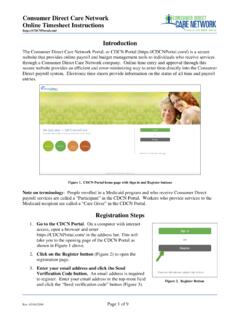
1 Online TImesheet Instructions . WELCOME! Figure 1: CDCN Portal home page with Sign In and Register Buttons The Consumer Direct Care Network Portal, or CDCN Portal Online time entry and approval through this secure website is a secure website that provides Online payroll and budget provides an efficient and error-minimizing way to enter time management tools to individuals who receive services directly into the Consumer Direct payroll system. electronic through a Consumer Direct Care Network company. time sheets provide information on the status of all time and payroll entries. Contents Note on Terminology: New User Page 2 People enrolled in a Medicaid program and who overview : Time Entry & Page 4 receive Consumer Direct payroll services are called a Caregiver Time Page 5 Participant in the CDCN Portal.
2 They may also be referred to as an "Employer". Participant Time Page 9. Workers who provide services to the Medicaid recipient Resetting A Page 13. are called a Caregiver in the CDCN Portal. They may Frequently Asked Page 15 also be referred to as an "Employee". page 1 of 17 CDCN 2018. Online TImesheet Instructions . Registration Steps Already registered? See page 5 for an overview of Time Entry and Approval 1. 1 Click on the Register button on the CDCN Portal (Figure 2) to open the registration page. 2 Enter your email address and click the Send Verification Code button. An email address is required to register. Enter your Figure 2: Register Button email address in the top-most field and click the Send verification code button (Figure 3).
3 2. 3 Retrieve and confirm your verification code. Upon clicking the Send verification code button, a code will be sent to the email address you provided in the box above the button from Microsoft. Check your email for the code. The code will be a numeric code, in an email similar to the one shown below. Figure 3: Registration Page Fields Figure : Verification Email from Microsoft. 3. Copy and paste the code, or type the code into the box that appears below the email address labeled verification code (Figure 4). If you did not receive the code in your email inbox, look in Figure 4: Verify Code your junk mail, for it may have been marked as spam.
4 You may also click on Send new code to have another code sent if both of the above fail. Continued next page page 2 of 17 EVERY LIFE. EVERY MOMENT. EVERY DAY CDCN 2018. Online TImesheet Instructions . Registration, cont. 4 Enter a password in the New Password field. Your password must be between 8 and 16 characters. It must contain a combination of lowercase, uppercase 4. and special characters and digits as explained in the accompanying red text above the password entry fields (Figure 5). 5. Figure 5: Enter Password Retype the same Password in the Confirm New Password field. 7. The password must match exactly the New Password.
5 6 Enter your name in the First Name and Last Name fields. As seen in Figure 2, on page 2. Figure 6: Select your Role 7 Select your Role. Click in the field labeled Role to receive a listing of roles in the system (Figure 6). Note: Workers providing care to program participants will select Caregiver . It is important that Participants, Caregivers and Designated Program participants will select Participant . Representatives all register on the An authorized or designated representative of a participant portal. who provides employer functions will choose Designated Representative.". 8. 8 Choose the state where service is provided.
6 Click in the field labeled State to receive a listing of states where Consumer Direct Care Network companies operate (Figure 7). Select the state where the Participant resides and service is delivered. Figure 7: Select your state page 3 of 17 EVERY LIFE. EVERY MOMENT. EVERY DAY CDCN 2018. Online TImesheet Instructions . TITLE. Registration, cont. 9 Enter your primary phone number in the bottom most field labeled Phone (Figure ). A Consumer Direct representative will contact you at this 9. number or by email to confirm your registration. This is a Figure : Phone Number entry field security step to prevent someone from impersonating you.
7 Please enter only numbers in this field. Do not enter any 10. parentheses ( ) or dashes/hyphens - . 10. Figure : Create button Click the Create button to finish the registration process (Figure ). Once you have completed all the necessary information, Important! click the Create button to finish your registration process Completing Registration is only the at first step towards using the Portal. See "Finalizing Account Setup," below. Finalizing Account Set Up Now that we've received your registration, setup can be finished. After registration, and all enrollment paperwork has been submitted, we can begin finalizing your portal account.
8 This typically takes between two and five business days. During this time, users can sign-in to check on their activation status. While incomplete, a message like the one below will be displayed (Figure ). Figure : Phone Number entry field page 4 of 17 EVERY LIFE. EVERY MOMENT. EVERY DAY CDCN 2018. Online TImesheet Instructions . TITLE. overview : Time Entry and Approval Upon completion of a scheduled shift, the employee (Caregiver) Time Legend will log onto the CDCN Portal and enter the shift worked. Time As you work through the next entry for each shift will include the Participant's name, the sections and learn about time entry, service provided (Service Code, if applicable), and beginning and the legend below will help explain ending shift times.
9 In some situations, tasks performed and other time entry statuses. service information must also be logged. The employee (Caregiver) submits their shift(s) for their employer's approval. The Participant (or their Designated Representative) will log into the CDCN Portal to review and approve the employee's time. Time may be approved at any point after caregiver submission, however time entered must be approved by the end of the work week for caregivers to be paid without delay. Once the time has been approved by the Participant (or their Designated Representative), entries can be processed and paid by Consumer Direct .
10 Time should be submitted by the Caregiver, and Approved by the Participant each Monday before midnight Figure : Portal Symbol Legend Notice For Caregivers Even though you have registered, you are NOT authorized to perform ANY work until you receive an official OK to work. page 5 of 17 EVERY LIFE. EVERY MOMENT. EVERY DAY CDCN 2018. Online TImesheet Instructions . Caregiver Time Entry Steps 1 Click on the Sign In button on the CDCN Portal home page. Click on the green Sign in button. Please remember, you must register and be completely verified in our system to enter time. Registration Instructions are on page 2. 2 Enter the email address and password you created at registration to enter the site (Figure ).