Transcription of ConsumerCellular
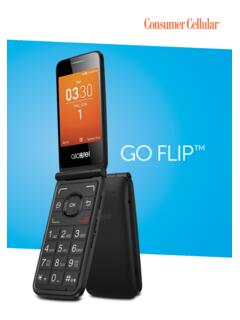
1 Consumer Cellular 101 User ManualFor more information about your phone, visit Cellular and the Consumer Cellular logo are trademarks of Consumer Cellular, 12 Introduction ..Thank you for choosing Consumer Cellular! We hope you enjoy your new Consumer Cellular screen Convenient at-a-glance view of Shortcut applications Menu shortcuts for quick accessPower media applications Music & Radio Video & Streaming WebcamBluetooth With Bluetooth you can enjoy hands-free Getting started .. Set-up .. Power on your cellphone .. Power off your cellphone ..82 Your Cellphone .. Keys and Connectors .. Status Bar icons .. Home Screen ..143 making a Call .. Placing a call .. Calling your voicemail .. Receiving a call .. During a call .. Conference calls ..174 messaging .. Access.
2 SMS/MMS ..185 Contacts .. Contacts .. Adding a contact .. Available options .. import contacts from SiM ..246 Call log .. Access .. Available options ..25347 media .. Camera .. Music player .. Picture viewer .. Video player .. FM Radio .. Voice recorder ..338 Files .. microSD card .. Managing audios, pictures, videos and others .. Formats and compatibility .. Memory status ..379 Internet .. Homepage .. Bookmarks .. Go to uRL .. Open file .. Last web address .. Recent pages .. Offline pages .. Service inbox .. Settings ..3810 applications .. News .. Weather .. SyncML .. Service ..4011 Tools .. Alarm .. Calculator .. Calendar .. Tasks .. Notes .. Bluetooth .. World clock .. Stopwatch .. unit converter.
3 4512 settings .. Phone settings .. Call settings .. Airplane mode .. Security settings .. Networks settings .. Connectivity .. GPS settings .. Text phone ..5313 making The most of Your Webcam ..5414 accessories ..5515 Troubleshooting ..56safety and use ..60support ..65 Warranty ..67561 Getting started .. set-upRemoving or installing the back coverInserting or removing the sIm cardThe SiM card and battery are normally pre-installed for you. Follow these instructions should you ever need to access them yourself. Please power off your phone and remove battery before inserting or removing the SiM the SiM card with the chip facing downwards and slide it into its housing. Make sure that it is correctly inserted. To remove the card, press and slide it out. product meets applicable national SAR limits of The specific maximum SAR values can be found in the RADiOWAVES section of this user carrying the product or using it while worn on your body, either use an approved accessory such as a holster or otherwise maintain a distance of 10mm from the body to ensure compliance with RF exposure requirements.
4 Note that the product may be transmitting even if you are not making a phone YOuR HEaRINGTo prevent possible hearing damage, do not listen at high volume levels for long periods. Exercise caution when holding your device near your ear while the loudspeaker is in or removing the batteryinsert and click the battery into place, then close the telephone cover. unclip the cover, then remove the the batteryConnect the battery charger to your phone and outlet respectively. LED light will illuminate when it is charging, and turn off when battery is fully charged. Charging may take about 20 minutes to start if the battery is low. Be careful not to force the plug into the socket. Make sure the battery is correctly inserted before connecting the charger.
5 The outlet must be near the phone and easily accessible (avoid electric extension cables). When using your telephone for the first time, charge the battery fully (approximately 3 hours). You are advised to fully charge the battery () each time. in order to reduce power consumption, you can do the following: disconnect the charger from the phone when the battery is fully charged, switch off Bluetooth , exit out of any background running applications when not in use, reduce the back light time-out, Power on your cellphoneHold down the key until the cellphone powers on, type in your PiN code if necessary and then confirm with the key. The Home Screen is the phone is searching for a network, "searching/Emergency" will be Power off your cellphoneHold down the key from the Home Your Cellphone.
6 Keys and Connectors*Left keyRight keyNavigation key/ OK keyEnd keyDelete keySend keyHeadset connectorCamera keyVolume keymicro-uSB connector Navigation key (1) Press to go left/right/up/down Press to access function uP: Call log DOWN: Contacts LEFT (2): Tools RiGHT (2): Media OK key: Press to confirm an option Answer/Send a call Enter Call log Long pressing the green Send button will launch the emergency dialer. Press: End a call Return to the Home Screen Press and hold: Power on/off Press: Delete characters in Edit mode Press: "#" key Press and hold: Switch between General profile and Vibration profile in Edit mode Press: Switch between ABC/Abc/abc Press and hold: Switch between Multi-Tap/Smart Press: "1" Key Press and hold: Access your voicemail in Edit mode Press: input "1" (input method in Number) input frequently-used symbols (Other input method) Press and hold: input "1"(1) You can personalize the navigation key in Settings.
7 (2) The ability to access the functions for the LEFT/RiGHT keys are only available when the shortcut bar is Press: "0" Key Press and hold: Switch between "+/P/W" in Edit mode Press: Enter a space Press and hold: input "0" Press: Take a picture Press and hold: Access Camera Press: Volume up/down in Camera mode Press: Zoom in/out in music playing mode when phone is closed Press and hold: Previous/Next song In Radio mode when phone is closed Press and hold: Previous/Next channel In Calendar mode Press: Previous/Next month Incoming call (phone is closed) Press: Mute Press and hold: End Alarm beep (phone is closed) Press: Snooze Press and hold: Stop Press: " * " Key in Edit mode Press: Change input method Press and hold: Access the Symbols status Bar Icons(1)Battery charge levelVibrate alert: your phone vibrates, but does not ring or beep with the exception of the alarm (see page 46)Bluetooth status (Activated) Bluetooth status (Connected to an audio device)Headset connectedCall forwarding activated: your calls are forwarded (see page 50)alarm or appointments programmed (see page 41, 42)level of network reception Voicemail message arrived missed calls Call in progressstopwatch is activeRadio is on(1) The icons and illustrations in this guide are provided for informational purposes messagesRoamingmicrosD card scanning completedGPRs connection status (Activated)GPRs connectingEDGE connectingEDGE attached3G network connecting3G network attachedmusic activemms receipt in progresssilence mode.
8 Your phone does not ring, beep or vibrate with the exception of the alarm (see page 46)message unread(Red) message list is full: your phone cannot accept any new messages. You must access the message list and delete at least one message on your SiM Home shortcut barShortcuts are Home Screen icons for your frequently used items, like Calls or barShortcut barYou can customize shortcut bar by selecting "settings\Phone settings\shortcut bar".To display a shortcut, press the key. To scroll through the shortcuts to select one, press the Navigation key right and add/remove a shortcut, select "Edit shortcuts" and use the key to mark the shortcuts you need, and then confirm by pressing "save". To reorder shortcuts, select "Reorder shortcuts" and choose one item by pressing the key, scroll up or down to the required position, and place it by pressing the key.
9 You aren't allowed to add more than five shortcuts. Two shortcuts cannot be removed: Calls, Messages. 15163 making a Call .. Placing a callDial the desired number then press the key to place the call. The number you entered can be saved to Contacts by selecting "save". if you make a mistake, you may press the key to delete the incorrect digits one by one, or you may press and hold the key to delete all at hang up the call, press the an emergency callif your phone has network coverage, dial the emergency number and press the key to make an emergency call. This works even without a SiM card and without typing the PiN code. Calling your voicemailYour voicemail is provided by your network to avoid missing calls. it works like an answering machine that you can consult at any time. To access your voicemail, hold down the the key does not access your voicemail, please call us at 888-345-5509 for further Receiving a callWhen you receive an incoming call, press the key to talk and then hang up using the key.
10 If the icon is displayed, vibrate mode is active and there is no ringtone. if the icon is displayed, the phone neither rings nor vibrates. The caller s number is displayed if it is transmitted by the network (contact your service provider to check service availability).If the cellphone is open To pick up a call, press the key. To mute the ringtone of the current incoming call, press the Right softkey. To reject a call, press the key or the Right softkey. To reject the call with SMS, press the Left the cellphone is closed To pick up a call, open the cellphone. To mute the ringtone of the current incoming call, press the Volume key. To reject a call, press and hold the Volume During a callDuring a call, following options are available: Mute (Turn the Mute function on/off during a call) Hold (Hold the current call) End (End the current call) New call (Hold the current call and dial another number) Contacts (Enter Contacts) Messaging (Enter Message) DTMF (Enable/Disable sending DTMF during the call) Calendar (Enter Calendar)17184 messaging.