Transcription of Copy Paste Method For Adding a Graphical Signature
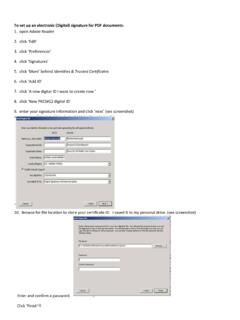
1 Copy Paste Method For Adding a Graphical Signature Scan your Signature using the tool of your choice Save your scanned image as a JPG file Open the image in the editor of your choice Crop the image so that is about 250(width) by 75(height) Save the file as, Important In order to add a Signature to a PDF document, the PDF document must have enabled Enable Usage Rights in Adobe Reader other wise, you will not be able to add a Signature . The only way to enable Usage Rights on a PDF document is to have Adobe Acrobat. Adobe Reader will not allow you to enable Usage Rights. You must have Adobe PDF Reader version and above in order to add a custom Signature to the PDF document. By using this Method , you will create a Graphical Signature that can be used to add to any document that allows Graphical files to be inserted. Graphical files can be in the format of: GIF, JPG, BMP, TIFF, PNG Adobe PDF Reader vs.
2 Adobe Acrobat Adobe PDF Reader: to read PDF documents to fill out editable fields of a PDF document, to add a stamp or Signature can not create PDF documents to copy or print PDF documents can not enable security features Adobe Acrobat: Create PDFs from MS Word, Presentations, images, web pages, etc; Read, edit & manipulate PDFs to create PDF forms, digitally sign documents with a key to copy or print PDF documents Allows document to add security features to prevent or allow editing, copying or deleting or images, text, pages, etc. to fill out editable fields of a PDF document, to add a stamp or Signature Copy Paste Method For Adding a Graphical Signature 1. Open Microsoft Word 1. Click on the Insert tab 2. Click the Picture button Copy Paste Method For Adding a Graphical Signature 1. Locate on your PC the location of your Signature 2.
3 Once you found it, either double click on the Signature file or select it and click the Insert button 1. Once the image has been inserted, resize the image so that it is smaller 2. The circles on the corner and small squares will allow you to resize the image Copy Paste Method For Adding a Graphical Signature 1. Once you have resized it, right click on the image, and select Copy or using your keyboard hold the CNTRL key and hit C 2. Now open your PDF document to sign 1. Go to the Edit menu and select Paste or using the keyboard, hold the CNTRL key and press V Copy Paste Method For Adding a Graphical Signature 1. Single left click on the Signature to resize it to fix into the Signature box 2. Use the corner square on the Signature to resize and than move into the Signature box 1. Once moved and resized, your Signature should like this.
4 2. In this example, we used the Signature Francis L. Castleman Copy Paste Method For Adding a Graphical Signature 1. Now save your document and you are ready to email, print or upload to any storage media of your choice.