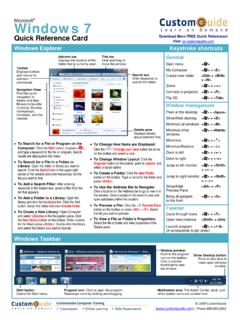
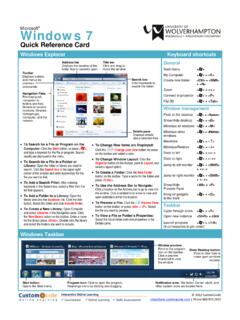
Transcription of Deque Quick Reference Guide: Narrator for Windows 10 ...
1 Copyright 2018 Deque Systems, Inc. All rights reserved. Version Quick Reference guide : Narrator for Windows 10 Anniversary Update Recommended browser: Microsoft EdgeGetting Started Narrator Views: Narrator has several navigation settings, called views. View types include items (default), characters, words, lines, paragraphs, headings, links, tables, and landmarks. Change view type using Caps Lock + Up or Down Arrows. Scan mode: Scan mode allows Quick navigation of a web page or application and enables specific keystrokes to navigate by elements such as headings, links, and landmarks. It also includes keystrokes for table navigation. Activate scan mode using Caps lock + Space Bar.
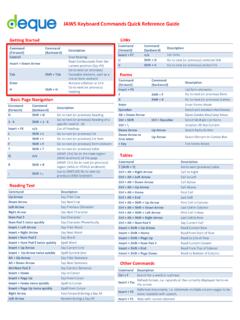
2 Developer mode: Developer mode masks the screen, highlighting only the objects and text exposed programmatically to Narrator . This offers a visual representation of the accessibility of the information on the screen and what is exposed to Narrator through UIA. The Basics Task Command Turn Narrator on and off Windows logo + Control + Enter (or Caps Lock + Escape to turn off)Stop reading Control Start reading continuously from this point on Caps Lock + MRead from beginning of page Caps Lock + Control + URead next item Caps Lock + Right ArrowRead current item Caps Lock + DRepeat last statement Caps Lock + VActivate link Caps Lock + EnterActivate button Caps Lock + EnterGo to next heading* H Go to next landmark/region* DGo to main content region Caps Lock + NGo to next table* TNavigate table cells Control + Alt + ArrowsGo to next link* KRotate between characters, words, lines, paragraphs, headings, links, tables.
3 And landmarks Caps Lock + Up or DownArrowsToggle Developer Mode Caps Lock + Shift + F12 Read title and contents of window Caps Lock + WSuggestions: text suggestions as you type. Appears in the Views rotation when in an edit box. Caps Lock + Enter Go to previous heading, landmark, table, focusable item, etc. Shift + [Command] Reading Text Task Command Say prior line Caps Lock + Shift + O Say next line Caps Lock + O Say current line Caps Lock + Control + O Go to start of document Caps Lock + Y Go to end of document Caps Lock + B Say prior character Caps Lock + Shift + [ (Left Bracket) Say next character Caps Lock + [ (Left Bracket) Say current character Caps Lock + Control + [ (Left Bracket)]]]
4 Say prior word Caps Lock + Shift + P Say next word Caps Lock + P Say current word Caps Lock + Control + P Next paragraph Caps Lock + I Previous paragraph Caps Lock + Shift + I Current paragraph Caps Lock + Control + I Spell item Caps Lock + S Scan Mode Task Command Toggle Scan Mode Caps Lock + Space Bar Activate an item Space Bar Perform secondary action Enter Next or previous line Control + Down or Up Arrow Next or previous character Right Arrow or Left Arrow Next or previous word Control + Right or Left Arrow Next (previous) paragraph or control P (Shift + P) or Down Arrow (Up Arrow) Next heading H Next table T Next link K Next landmark D Next cell in row Control + Alt + Right Arrow Next cell in column Control + Alt + Down Arrow Announce location in table Caps Lock + F5 Say column header Caps Lock + F9 Say row header Caps Lock + F10 Read current column Caps Lock + F7 Read current row Caps Lock + F8 Tables Task Command Go to next table Caps Lock + K Cell to right* Control + Alt + Right Arrow Cell to left* Control + Alt + Left Arrow Cell below* Control + Alt + Down Arrow Cell above* Control + Alt + Up Arrow Read row header Caps Lock + F10 Read current row Caps Lock + F8 Read column header Caps Lock + F9 Read current column
5 Caps Lock + F7 Touch Gestures Task Command Read what s under your finger Touch or drag a single finger Activate primary action Double tap Activate secondary action Triple tap Quick double (or triple) tap Hold with one finger, tap (or double tap) anywhere with another Next or previous item Flick left or right Change view Flick up or down Stop reading Two finger tap Change verbosity Three finger tap Show commands for current item Four finger tap Show context menu Two finger double tap Read text attributes Three finger double tap Open search mode Four finger double tap Show all Narrator commands Four finger triple tap Scroll Swipe with two fingers Tab forward or backward Three fingers swipe L or R Read current window Three fingers swipe up Read from this point on Swipe down with three fingers Toggle semantic zoom Four fingers swipe up or down Move Narrator cursor to beginning or end Four
6 Finger swipe left or right *Scan mode onlyFull list of commands.