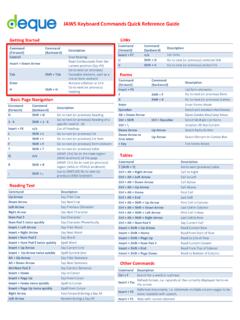
Transcription of Deque Quick Reference Guide: NVDA for Windows …
1 Copyright 2018 Deque Systems, Inc. All rights reserved. Version Quick Reference Guide: NVDA for Windows Keyboard Commands Recommended browser: Firefox or Microsoft Edge Getting Started Browse Mode: Browse mode is used when reading documents or web pages. Focus Mode: Focus mode is used when the user enters a form or other fields that require user input. NVDA automatically switches between Browse and Focus modes, but the user can toggle them using Insert + Space Bar. Turn on Speech Viewer: Enabling Speech Viewer opens a window that shows everything NVDA states. This is useful for sighted users learning NVDA for testing purposes. Enable it under Tools in the NVDA menu. To install NVDA: Go to and select skip donation this time to proceed with the installation. The Basics Task Command Turn NVDA on Control + Alt + N Turn NVDA off Insert + Q Stop reading Control Start reading continuously from this point on Insert + Down Arrow or Numpad Plus Read next item Down Arrow Read next focusable item ( link, button) Tab Activate link Enter Activate button Enter or Space Bar Go to next heading H Go to next heading of level [1-6] 1-6 List all headings Insert + F7 Go to next landmark/region D Show list of all links, headings, form fields, buttons, and landmarks Insert + F7 Go to next table T Navigate table cells Ctrl + Alt + Arrow Keys Go to next list L Go to next list item I Go to next graphic G List all links Insert + F7 Go to next link K Go to next unvisited link U Go to next visited link V Read entire foreground window ( for dialogs)
2 Insert + B Announce title of the current foreground window Insert + T Toggle between: radio buttons, <select> list items, tabs (ARIA widget), tree view items (ARIA widget), menu items (ARIA widget) Arrow Keys Go back to previous heading, landmark, table, focusable item, etc. Shift + [H, D, T, Tab, etc.] Reading Text Task Command Say prior line Up Arrow or Numpad 7 Say next line Down Arrow or Numpad 9 Say current line Insert + Up Arrow or Numpad 8 Start of line Shift + Numpad 1 End of line Shift + Numpad 3 Top line Shift + Numpad 7 Bottom line Shift + NumPad 9 Say prior character Left Arrow or Numpad 1 Say next character Right Arrow or Numpad 3 Say current character Numpad 2 Say character phonetically Numpad 5 twice quickly Say prior word Ctrl + Left Arrow or Numpad 4 Say next word Ctrl + Right Arrow or Numpad 6 Say current word Numpad 5 Say prior sentence Alt + Up Arrow Say next sentence Alt + Down Arrow Say current sentence Alt + Numpad 5 Next paragraph Ctrl + Up Arrow or Q Spell word Numpad 5 twice quickly Spell current line Insert + Up Arrow twice quickly Forms Task Command List all form elements Insert + F5 Next form F Next
3 Focusable item Tab Next button B Select and deselect Space Bar Next checkbox X Open combo box Alt + Down Arrow Browse/select options Down Arrow or First letter Select multiple options Shift + Down Arrow (or Up Arrow) Next <select> combo box C Toggle selection Up/Down Arrow Next radio button R Toggle between focus mode and browse mode* Insert + Space Bar * Focus mode allows you to enter data into form fields. Browse mode allows you to navigate the page using standard screen reader shortcuts ( to navigate headings, landmarks, links, etc.) Tables Task Command Go to next (previous) table T (Shift + T) Cell to right Ctrl + Alt + Right Arrow Cell to left Ctrl + Alt + Left Arrow Cell below Ctrl + Alt + Down Arrow Cell above Ctrl + Alt + Up Arrow Full list of commands.