Transcription of DStv REMOTE
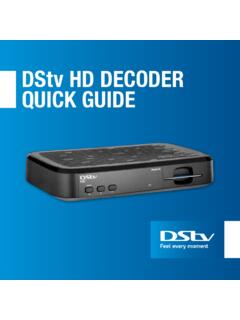
1 DStv REMOTE . (B5 MODEL). ABOUT THIS REMOTE . The DStv B5 REMOTE works with the following decoder models DStv HD Decoder Supports multiple modes (3). Compact and hardy, with raised buttons for ease of use Visual feedback when a button is pressed This REMOTE is not a universal REMOTE and cannot be programmed to control other audio/visual equipment 12-month warranty from date of purchase Information correct at time of going to print. For updated information, go to (the DStv Website ). In the event of conflict between this information and the information on the DStv Website, the information on the DStv Website will prevail.
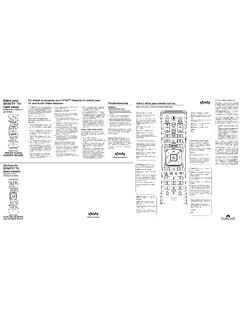
2 E&oe (August 2015, ). All about the DStv REMOTE (B5). 1. STANDBY. 2. PROFILE 1. 11. 3. TV GUIDE 2. 4. INFO. 3 12. 5. OK. 6. P+ / P- 4 13. 7. ALT. 8. OPTIONS 14. 9. 1 0 5. 10. ARC 15. 11. TV. 12. SEARCH. 13. BACK. 14. DStv 6 16. 15. GRID. 16. V+ / V- 17. 7. 17. MUTE. 18. HELP 8. 9. Note 18. This REMOTE is not a universal REMOTE and cannot be programmed to control other audio/visual equipment. 10. DStv REMOTE (B5 model) 3. Using the DStv REMOTE - Hotlinks 1 4. 2. You can use the hotlinks on your REMOTE to quickly access key features of your DStv HD Decoder.
3 1 Goes to the TV Guide 8 full days of programming information, allowing you to easily plan your viewing . 2 Goes to Search we have multiple search options available, making it easier for you to discover great entertainment. 3 Goes to DStv Central the DStv HD Decoder has ONE central menu with all content & settings. Press the DStv button at any time to go directly to DStv Central. 4 DStv REMOTE (B5 model). The REMOTE Buttons Name Description STANDBY Allows you to quickly put the DStv HD Decoder into standby (or bring it out of standby).
4 Quick tip: if you press and hold the STANDBY button, the DStv HD. Decoder will reboot. TV GUIDE Your hotlink to the TV Guide with 8 full days of programming information, allowing you to easily plan your viewing . You can also access the TV Guide by pressing the DStv button and going to Planner . SEARCH Your hotlink to Search. Get A-Z listings of sport, movies or search for a programme or for a range of programmes that meet your specific needs. You can also access Search by pressing the DStv button and going to Search . INFO Press INFO on any programme to see more information, including a detailed synopsis.
5 DStv Goes to DStv Central. All content, settings, information, schedules and more all at the touch of one button. BACK Press BACK to remove onscreen items or save your settings. PROFILE Not active TV If you are using the menus or apps, the TV button is your hotlink back to video. ARROWS Used to move the highlight on menus or select options. GRID Displays the channel grid which lists available channels in an easy to use grid. Use the arrows to move the highlight and see what's on other channels. This button also doubles up as the RIGHT arrow.
6 DStv REMOTE (B5 model) 5. The REMOTE Buttons OK OK allows you to select onscreen items, and also allows you to find out everything you can do with content. Quick tip: When highlighted, press OK on any programme to see the available actions (from setting a reminder, to even finding out when the programme is on again in the next 8 days.). ALT Switches between the last two viewed channels. MUTE Mutes the audio. Quick tip: Can also be set to half mute mode. See User Preferences . in Settings . OPTIONS Press OPTIONS on any screen to see the available choices.
7 When watching TV, you can change Language or Aspect Ratio (and more) and when in the menus, you can change the order of items on screen or change the display. P+ / P- Changes channels. Quick tip: when scrolling through a list, you can press P+/P- to scroll a page at a time, and in the TV Guide, to scroll one day at a time. V+ / V- Changes the volume (if audio is set to Variable). If you have set the audio to Fixed, pressing these buttons will NOT change audio. See User Preferences in Settings . Numbers / Used to change channels, enter/edit text and more.
8 SMS keyboard ARC Your hotlink to changing the aspect ratio on the fly. If you don't like the screen size, press ARC until you find a suitable aspect ratio. This does not change the default aspect ratio setting. HELP Where available, pressing HELP will display contextual support. 6 DStv REMOTE (B5 model). About the REMOTE Modes If you have multiple decoders in your home or even in the same room, you need to set the remotes (and the decoders) to different modes , so that the commands sent from one REMOTE , won't be picked up by the other decoder.
9 If you are using two DStv HD Decoders, you will need to set one REMOTE to TV1 mode (to operate the first decoder) and another REMOTE to TV2 mode (to operate the second decoder). This REMOTE has three modes and can be set to TV1, TV2 or TV3 mode. The default mode is TV1. You will see a green light blink every time you press a button on the REMOTE control. If the green light blinks below i, the REMOTE is in TV1 mode. To set the REMOTE to TV1 mode: press and hold the i button for 3 seconds or until you see the green light blink on TV1 (below the i button).
10 If the green light blinks below B ACK, the REMOTE is in TV2 mode. To set the REMOTE to TV2 mode: press and hold the B ACK button for 3 seconds or until you see the green light blink on TV2 (below the B ACK button). DStv REMOTE (B5 model) 7. About the REMOTE Modes If the green lights blink below both i and B ACK, the REMOTE is in TV3 mode. To set the REMOTE to TV3 mode: press and hold both the i and B ACK buttons for 3 seconds or until you see the green light blink on TV1 and TV2 (below the i and B ACK buttons). IMPORTANT. The DStv HD Decoder must be set up to listen for the correct mode.