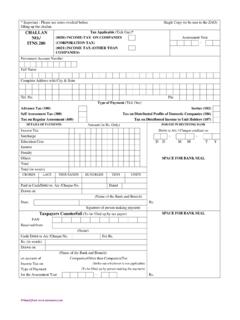
Transcription of ELECTRONIC CHALLAN – CUM – RETURN (Version 2.0)
1 ELECTRONIC CHALLAN CUM RETURN (Version ) PROCESS FLOW with SCREENSHOTS 1. Login into Unified web portal of EPFO (use your ECR portal credentials) 2. After log-in, please check your PF Code, Estt Name, Address and Exemption status are correctly shown. 3. Select PAYMENT Menu item for ECR Upload 4. Select Wage Month , Salary Disbursal Date in the ECR Upload Screen. 5. ECR File format can be seen from ECR Help File button available on the Screen. 6. Your ECR text file will look like the one below: 7. Select your ECR text file to be uploaded for the selected Wage month. 8. Also, select Rate of Contribution (either 12% or 10%, Default value is 12%). Then click on UPLOAD button. 9. Uploaded ECR file will be validated for predefined conditions. If successfully validated, the following screen will appear with a message File Validation Successful.
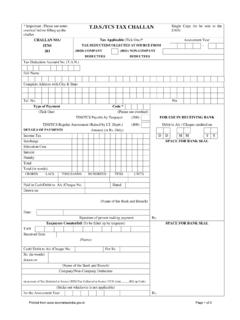
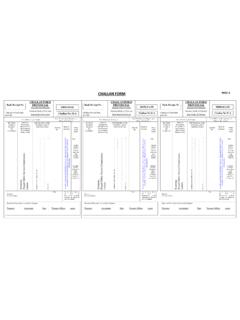
2 Otherwise, Error will come. 10. Now, TRRN will be generated for the uploaded ECR file. Click on Verify 11. Now, click on Prepare CHALLAN button to generate ECR summary sheet. 12. Here, please enter Admin/Inspection Charges for A/c & 22. Also, you can EDIT EDLI Contribution for A/c Then, click on Generate CHALLAN Button. 13. Now, the following screen will appear. At this stage also, you can EDIT the CHALLAN , if required. Click on Finalize button after verifying the CHALLAN amount. You can download Ack file and Receipt file from the In-Process CHALLAN List . 14. Your finalized ECR Statement and CHALLAN will look like this. 15. Now, your CHALLAN is ready for Payment. Click on Pay button. 16. Please select Online and select your Bank from the list of banks under Select Bank , then Click on Continue.
3 Then, you will get Payment Gateway for further process.