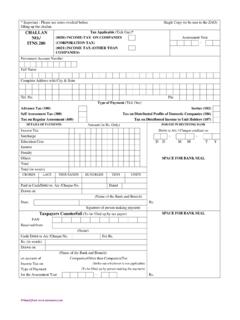
Transcription of IT Rollout Challan Generation Steps
1 IT Rollout IT Rollout Challan Generation StepsINTRODUCTION : IT ENABLEMENT IN ESIC INSTITUTIONS In order to provide hassle-free services to the stakeholders, ESIC is implementing an IT Roll Out Plan named Project Panchdeep , for which work hs been entrusted to M/s WIPRO under BOOT (Build, Own, Operate and Transfer) model. Necessary hardware, software, networking would be provided by the vendor and the project would be completed within the specified time limit in phases. The Project Panchdeep has five main components:- Task Description Pragati All services related to ERP modules. Pragati All services related to ERP modules. Pashan All services related hardware for data center, disaster recovery, desktops/PCs/laptops and middleware. Pehchan All services related to issues pertaining to identification, authentication and verification.
2 Dhanvantri all services related to the hospital and dispensary. Milap all services related to provision of networking, bandwidth, IT Telephony and video conferencing. The project Panchdeep includes the work relating to issue of two Identity Cards to the Insured Persons (one for Insured Person and one for his family) for availing of Cash and Medical Benefit from any institution of ESIC, anywhere in the country. After successful completion of the IT Roll Out Plan the following benefits will accrue to stakeholders: Direct connectivity with all employers through portal User id/password has been distributed Online payment of contribution by employers through portal of website Online registration of new employers and employees through portal of website Family can be treated separately at different locations Insured Persons can migrate without disruption of services All medical records of Insured Persons available for better diagnosis Defaulting employers identified on regular basis Since all the information is available on 24x365 basis, the information about contribution and entitlement would be accessible on real time basis and no certificate would be required either by Insured Person or by employer Training / Facilitation centres have been set up at RO/SRO/DO Delhi.
3 SCREEN FOR LOGIN AND REGISTRATION Employer will log in to ESIC official Web Site:- Enter username and password and click Login button. It will redirect to Employer Landing Page. Steps TO DO BEFORE SUBMITTING MONTHLY CONTRIBUTION AND Challan Generation : 1. Ensure all existing IP s having Insurance No. are registered for and mapped to the employer , if not listed and then Click Insert IP Details in Employer Landing page. 2. Ensure those employees(New Joinings ) entering insuarable employement for the first time, for filling Declaration Form , click Register New IP in Employer Landing first time, for filling Declaration Form , click Register New IP in Employer Landing Page for generating Insurance Fill all the required fields in Employees Registration Screens in Employment Registration Screens.
4 3. In case of Inter Region Migration of an IP from one region to another. Click Register New IP . There will be an option in the screen Is IP already registered , then select option Yes and fill all required fields and Submit . 4. Mandatory fields are marked in RED asterisk (*) and must be filled. 5. If all Employees inserted/registered then Click File Monthly Contributions LINK in the Employer Landing Page shown in next SCREEN. EMPLOYER LANDING PAGE Click File Monthly Contribution link to navigate to subsequent Monthly Contribution page, Monthly Contribution Details home page and Payment Details homepage for entering and uploading the due contribution. Click on Generate Challan link redirects to Monthly Contribution page Click on Modify Challan link redirects to Monthly Contribution > View History page.
5 MONTHLY CONTRIBUTION PROCESSING In order to process the payable contribution, provide the basic information like Contribution Period, type of contribution. We have two option for filing the Contribution :- 1) Through the upload excel file, for big Employers or in alternative 2) Online entry of contribution of all employees. MONTHLY CONTRIBUTION PROCESSING Click on Browse. Browse this sheet from Desktop and click on Upload . MONTHLY CONTRIBUTION PROCESSING Select Month, year and type of contribution whether Monthly Contribution or Supplementary contribution and click on Submit for entering online Days and Wages details of employees. EMPLOYER > Monthly Contribution page EMPLOYER > Monthly Contribution page Save : To save the entries in the screen. Reset : To clear the entries in the screen.
6 Cancel : To cancel the entries and revert to the landing page. Close : To redirect to Employer landing page Submit : For submission or uploading the data. MONTHLY CONTRIBUTION PAYMENT DETAILS On selection of month and year of contribution from dropdown, following screen will be opened to fill particulars employment and payment in Form 5 maintained online. 1. Furnish no of days worked, wages of the employees. 2. In case of left Employee, enter no of days and wages as 0 , Select Reason from dropdown and enter date of last working day. 3. Click Submit 3. Click Submit 4. The total of Employer/Employee Contribution will be calculated by the system on the basis of input. 5. EMPLOYER > Monthly Contribution>Monthly Contribution Details MONTHLY CONTRIBUTION PAYMENT DETAILS Click Preview to see the details of the due Contribution payable for confirmation before Generation of Challan .
7 1. EMPLOYER > Monthly Contribution>Monthly Contribution Details MONTHLY CONTRIBUTION PAYMENT CONFIRMATION A small window will appear showing Employees contribution + Employer contribution =Total Contribution, Total wages and SUBMIT 1. EMPLOYERR >Monthly Contribution>Monthly Contribution Details>Payment History MONTHLY CONTRIBUTION Challan Generation Click Create Challan in small window to generate the Challan 1. EMPLOYERR >Monthly Contribution>Monthly Contribution Details>Payment History MONTHLY CONTRIBUTION VIEW On Clicking View , it will redirect to Payment page. EMPLOYER > ONLINE Monthly Contribution > PAYMENT SELECTION OF CONTRIBUTION MONTH FOR PAYMENT 1. Enter the amount to be paid in TOTAL AMOUNT TO BE PAID box . 2. This amount should be less or equal to amount due mentioned.
8 This means Employer can make part payment. 3. Employer should select payment mode Online or Offline (by default Offline). 4. On Clicking Submit , Employer will be connected to Payment Gateway for payment using Credit/Debit card and internet Banking (facility yet to be extended) internet Banking (facility yet to be extended) 1. EMPLOYERR >Monthly Contribution>Monthly Contribution Details>Payment>Payment Details PAYMENT MODE SELECTION (CASH) 1. Select payment mode cash or cheque /Demand Draft from the drop down list. 2. For Cash as a PAYMENT MODE, fill the amount to be paid and then SUBMIT. In this case State Bank of India will be populated automatically for depositing it in that Bank. 1. EMPLOYERR >Monthly Contribution>Monthly Contribution Details>Payment> Challan Form PAYMENT MODE SELECTION (CHEQUE / DEMAND DRAFT) 1.
9 In case of Cheque/Demand Draft as PAYMENT MODE, fill the cheque/Demand Draft details as Cheque/DD No, Cheque/DD Date, drawn Bank name, Branch name. 2. Click SUBMIT. EMPLOYERR >Monthly Contribution>Monthly Contribution Details>Payment> Challan Form Challan CREATION After submitting the request, it will take 2-3 seconds to process and please wait till then. 1. EMPLOYERR >Monthly Contribution>Monthly Contribution Details>Payment> Challan Form Challan PRINTING To print the Challan , click Print Option. 1. EMPLOYERR >Monthly Contribution>Monthly Contribution Details>Payment> Challan Form Challan PRINTING Click on Option . It will direct to a pop-up window. 1. EMPLOYERR >Monthly Contribution>Monthly Contribution Details>Payment> Challan Form Challan PRINTING Select Allow pop-ups for and click Print Button.
10 1. EMPLOYERR >Monthly Contribution>Monthly Contribution Details>Payment> Challan Form Challan PRINTING You have successfully generated the Challan . Challan PRINTING Click on Export and select the file type as PDF . Again click on Print then it will be converted into PDF File in Landscape mode. Challan PRINTING Select All and click ok to print the report. Challan PRINTING 1. The Challan print is in twin (Bank Copy/Depositors Copy) for presenting it along with cash/cheque for payment before any branch of State Bank of India . 2. Depositors Copy of the Challan is payment instrument/receipt for further reference. 3. Henceforth system generated Challan will only be accepted by our Bankers. FLOW CHART OF ACTIVITIES FOR FILING OF MONTHLY CONTRIBUTION AND Challan CREATION PREACTIVITY Inserting of existing covered employees having Insurance no.