Transcription of Employ Florida
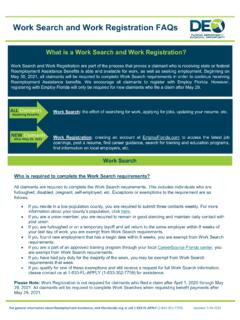
1 If you are a new Reemployment Assistance claimant, you must follow the steps below to receive your benefits. Florida law requires Reemployment Assistance claimants, unless otherwise exempt, to complete the work registration process in Employ Florida prior to requesting benefit payments. Employ Florida is a valuable resource that can assist you in securing employment and connect you with other resources. If you fail to complete all of the steps for the work registration process, you will be deemed ineligible to receive Reemployment Assistance benefits until your complete your work registration . IMPORTANT: The work registration process applies to all NEW claimants who apply for state or federal Reemployment Assistance benefit programs. To complete the full work registration process, you must: 1.
2 Complete the Reemployment Assistance Benefits registration 2. Provide your valid social security number 3. Ensure you provide a valid email address 4. Complete the Background Wizard 5. Create (or update) a resum through the R sum Builder work registration Exemptions: All claimants filing a new claim for Reemployment Assistance benefits are required by s. (1)(b), , to register for work through Employ Florida before claiming benefits unless, as provided in s. (1)(b)1-5, , the individual is: Unable to complete the online work registration due to illiteracy or a language impediment (for the purposes of this exemption, illiteracy includes the inability to effectively read, comprehend, and write in English or Spanish, or to effectively use a computer). Not residing in Florida . On an established temporary layoff of not more than 8 weeks from the date he or she last worked for employer.
3 A union member who customarily obtains employment through a union hiring hall. Participating in an approved Short-Time Compensation (STC) plan. Physically, mentally, or visually impaired which makes the individual unable to use a computer. Legally prohibited from using a computer. Employ Florida work Registra on Instruc ons Steps to complete the Employ Florida work registration process: Step 1. Access Employ Florida at or follow the link provided in the CONNECT system. Step 2. Under the Job Seekers menu, select the Reemployment Assistance link. Step 3. Begin the Reemployment Assistance Benefit registration process by determining if you have an Employ Florida account. If you already have an account with Employ Florida , select the sentence highlighted below. If you are not sure if you have an account, select Next.
4 If you already have an Employ Florida account, you will be redirected to enter your information so that it can be verified in the database. If your information can be verified, you will be directed to reset your password. If your information cannot be verified, you will be given next steps for receiving verification assistance. Once a team member is able to verify your information, you will be given a temporary password. You may reset the temporary password once you are logged into the system. Proceed to Step 4. If you do not already have an Employ Florida account, the system will walk you through the steps to create an account and complete your Reemployment Assistance Benefits registration . The following personal information is required to complete the Reemployment Assistance Benefit registration .
5 Social Security Number Date of birth Proof of citizenship If you are not a citizen, your alien registration number and work permit expiration date Highest education level achieved Current employment status Current work search status Desired job title and occupation Employment history as a farmworker (if applicable) for the past 12 months Information related to the current or prior military service of you or your spouse ( , Character of Discharge, Disabled Veteran status, service dates) Receipt of public assistance in the past 6 months ( Temporary Assistance for Needy Families (TANF) or Supplemental Nutrition Assistance Program assistance) If you have not worked in Florida during the last 24 months, you do not need to complete this registration . You can instead call the Reemployment Assistance customer service line at 1-833-352-7759 to determine what other options you may have.
6 Please select Cancel to back out of this process or select Next to continue. Step 4. Complete the Background Wizard. To access and complete the Background Wizard, select the Menu tab in the upper-left corner of the screen, then select My Portfolio . Under My Individual Profiles, select Personal Profile . Next, select the Background tab, then select Start the Background Wizard. Follow the on-screen instructions to complete all items that are applicable to you. When you have completed the Background Wizard, the Start the Background Wizard link appears again. NOTE: Do not click on this link again if you have already completed the wizard. Step 5. Complete the R sum Builder. After completing the Background Wizard, select the Menu tab in the upper-left corner of the screen.
7 Under Quick Menu, select R sum Builder , then select the plus (+) sign above Create new R sum in the center of the page. You will have the option to create your r sum step-by-step, upload an existing r sum or duplicate a r sum in the system (if you have previously created and saved a resume in Employ Florida ). Enter the R sum Title , select the option Allow employers to view my r sum online , choose Comprehensive , Upload or Duplicate a r sum in our system (if available), then select Save . If you select the Comprehensive r sum creation method, follow the prompts on the screen and complete all items that are applicable to you. NOTE: If you have previously created a r sum in Employ Florida , please update and activate your R sum through the R sum Builder.
8 Additional Information and Resources: When you have completed all of the steps mentioned above, you have completed the full work registration process as required to receive Reemployment Assistance benefits. It may take up to 24 to 48 hours after completion for the information to transfer to your CONNECT account. If you need further assistance, please contact the Reemployment Assistance Help Center.