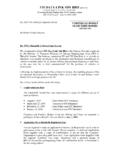
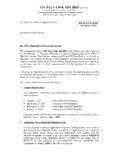
Transcription of FIS User ID Profile
1 Please fill in your particulars below and fax the form to 03-2602 4291. Once you get the user ID, please call our Customer Service Department at 03-2602 4288 to get passwords. FIS user ID Profile I. GENERAL DETAILS Mode (Please tick ) New/Addition (leave blank the user ID below) Deletion (insert the user ID below) Amendment (insert the user ID below) user ID Company Code Name Branch Code Name IC No. Old IC New IC user Name (Ms/Mr/Mrs) Place of Birth Mother s Maiden Name E-mail Address Designation II. JPJ APPLICATION (E-HAKMILIK) ACCESS PRIVILEGES No Access Privileges user Access(1) (Please tick ) Branch* Company** No Permission** 1 Perform Enquiry FIS503 FIS501 2 Ownership (New) Claim (New/Edit) FIS505 FIS504 3 Ownership (Used) Claim (New/Edit) FIS507 FIS506 4 Discharge Claim (New/Edit) FIS509 FIS508 5 Change Request (New/Edit) FIS527 FIS526 6 Delete Ownership (New) Claim FIS510 FIS510 7 Delete Ownership (Used) Claim FIS511 FIS511 8 Delete Discharge Claim FIS512 FIS512 9 Delete Change Request FIS529 FIS529 10 Submit Ownership (New)
2 Claim to JPJ FIS513 FIS513 11 Submit Ownership (Used) Claim to JPJ FIS514 FIS514 12 Submit Discharge Ownership Claim to JPJ FIS515 FIS515 13 Submit Change Request to JPJ FIS528 FIS528 14 Delete Verified Ownership (New) Claim FIS516 FIS516 15 Delete Verified Ownership (Used) Claim FIS517 FIS517 16 Delete Verified Discharge Ownership Claim FIS518 FIS518 17 Delete Verified Change Request FIS530 FIS530 18 Delete Requests Claims List View FIS525 FIS524 19 Upload Transactions FIS520 FIS519 20 Retrieve Reports FIS522 FIS521 21 View Statement of Account N/A FIS523 22 Manual - Ownership Claim (New/Edit/View) FIS532 FIS531 23 Manual - Delete Ownership Claim FIS533 FIS533 24 Manual - Submit Ownership Claim FIS534 FIS534 25 Manual - Resubmit Error Ownership Claim FIS535 FIS535 26 Upload manual records FIS537 FIS536 Note.
3 Please refer to explanatory notes for proper completion of this form (1) user Access (Tick , whichever is applicable) * Authorised to perform e-Hakmilik transactions by own Branch only. Please fill in under the Company column instead if you do not have any branch. ** Authorised to perform e-Hakmilik transactions by Company ** No permission allowed .. Authorised Signatory Company s Stamp (Branch Manager) Name : .. IC No : .. Date : .. Notes for the completion of the FIS user ID Profile Form I. GENERAL DETAILS 1.
4 Mode Tick either one of the following options with their respective purpose: New/Addition - to register a new or additional user . Deletion - to delete an existing user permanently. Amendment - to amend particulars of an existing user . 2. user ID A user ID will be assigned by FIS upon receiving the form. For deletion and amendment by the existing user , please insert the user ID. II. JPJ APPLICATION (E-HAKMILIK) ACCESS PRIVILEGES Please indicate the specific function to be allowed for this user . No Permission means that the user will not be able to perform that function. Refer to the following for the description of each access privilege:- 1.
5 Perform Enquiry The user can obtain Ownership Claim information for its company or the respective branches only. 2. Ownership (New) Claim (New/Edit) The user may have access to enter new records or make changes/editions to Ownership Claim transactions for new vehicles/motorbikes. 3. Ownership (Used) Claim (New/Edit) The user may have access to enter new records or make changes/editions to Ownership Claim transactions for used vehicles/motorbikes. 4. Discharge Claim (New/Edit) The user may have access to enter new records or make changes/editions to Discharge Ownership Claim transactions for vehicles/motorbikes. 5. Change Request (New/Edit) The user may have access to enter new records or make changes/editions to Change Request transaction for processed new or used vehicles/motorbikes.
6 6. Delete Ownership (New) Claim Before submitting to JPJ, the user can delete records previously entered under the Ownership (New) Claim. 7. Delete Ownership (Used) Claim Before submitting to JPJ, the user can delete records previously entered under the Ownership (Used) Claim. 8. Delete Discharge Claim Before submitting to JPJ, the user can delete records previously entered under the Discharge Claim. 9. Delete Change Request Before submitting to JPJ, the user can delete records previously entered under the Change Request. 10. Submit Ownership (New) Claim to JPJ The user can submit to JPJ those records entered previously through the Ownership (New) Claim.
7 11. Submit Ownership (Used) Claim to JPJ The user can submit to JPJ those records entered previously through the Ownership (Used) Claim. 12. Submit Discharge Ownership Claim to JPJ The user can submit to JPJ those records entered previously through the Discharge Claim. 13. Submit Change Request to JPJ The user can submit to JPJ those records previously entered through the Change Request. 14. Delete Verified Ownership (New) Claim After those records which have been submitted to JPJ through the Ownership (New) Claim and successfully verified by JPJ with Verified status, the user is allowed to perform a Deletion Request. 15. Delete Verified Ownership (Used) Claim After those records which have been submitted to JPJ through the Ownership (Used) Claim and successfully verified by JPJ with Verified status, the user is allowed to perform a Deletion Request.
8 16. Delete Verified Discharge Ownership Claim After those records which have been submitted to JPJ through the Discharge Ownership Claim and successfully verified by JPJ with Verified status, the user is allowed to perform a Deletion Request. 17. Delete Verified Change Request After those records which have been submitted to JPJ through the Change Request and successfully verified by JPJ with Verified status, the user is allowed to perform a Deletion Request. 18. Delete Requests Claims List View This should be given if one is allowed under any of the access privileges under 14, 15, 16 or 17. This is to enable the user to view the deleted verified records which they submitted previously through the delete verified entries.
9 19. Upload Transactions The user can submit transaction files extracted from his/her host system. 20. Retrieve Reports This user may have access to view or print reports. The user with a company-wide access may retrieve all reports of the company and all its branches while the user with a branch-wide access can only retrieve his own branch reports. 21. View Statement of Account The user can retrieve, view or print specific billing statement from FIS system. 22. Manual - Ownership Claim (New/Edit/View) The user may have access to enter new records /make changes/editions or view to Ownership Claim Manual transactions for used vehicles/motorbikes.
10 23. Manual - Delete Ownership Claim Before submitting to JPJ, the user can delete records previously entered under the Ownership Claim Manual. 24. Manual - Submit Ownership Claim The user can submit to JPJ those records entered previously through the Ownership Claim Manual 25. Manual - Resubmit Error Ownership Claim The user can resubmit the record appear in Error page. 26. Upload manual records The user can submit transaction files extracted from his/her host system.