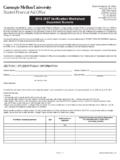
Transcription of General Ledger – Journal Entry - CMU
1 1 General Ledger Journal Entry TRAINING MANUAL Carnegie Mellon University Author: Amanda Perkins Creation Date: January 09, 2012 Last Updated: October 22, 2015 Version: 2 Table of Contents OVERVIEW .. 3 EXERCISE #1: CREATING A Journal BATCH AND ENTERING A Journal .. 8 Create a New Batch .. 8 Enter Journals in a Batch .. 9 Attaching Supporting Documentation to Journals .. 13 EXERCISE #2: ENTERING A SINGLE Journal Entry .. 20 Enter a New Journal .. 20 EXERCISE #3: ADDING ANOTHER Journal Entry TO A BATCH .. 23 Deleting Attachments .. 28 Journal Approval/ Journal Posting.
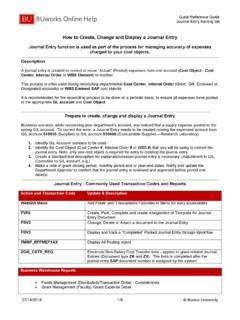
2 29 EXERCISE #4: Journal APPROVAL AND Journal POSTING .. 31 EXERCISE #5: REVERSING JOURNALS .. 37 USING THE GL Journal WIZARD .. 41 ENTERING DATA INTO THE Journal TEMPLATE .. 44 Header .. 44 Lines .. 48 Uploading the Journal .. 53 BASIC ACCOUNTING REMINDERS .. 56 3 Overview 4 Why enter a GL Journal ? To create GL entries for: Internal Charges Fax shared by departments Funding Dean s Office transfers funds to a dept Activity Change Changing the activity code only GL redistribution that can be done by campus users5 6 Journal Entries 7 8 Exercise #1.
3 Creating a Journal Batch and Entering a Journal Assume that you work in the MCS Dean s Office and you need to charge the Biological Sciences ($ ) and Chemistry ($ ) departments for copies they made on the MCS Dean s color copier. Below is the supporting documentation you will use to create the Journal Entry . Create a Journal batch and enter a Journal Entry to charge the Biological Sciences and Chemistry departments for their expenses. Create a New Batch 1. Choose the USA GL - Internal responsibility and navigate to: Journals>Enter Journals. 2. The Find Journals form opens.
4 To create a new batch, click the New Batch button. 3. The Batch form opens. Enter a batch name, beginning with your User ID (all caps), in the Batch field to identify the batch. Batch (YOUR USER ID) - INTERNAL CHARGES (CURRENT PERIOD) 9 4. The latest open period defaults. 5. Balance Type is a display-only field. It displays Actual to represent that you are entering journals with actual (as opposed to budget) amounts. 6. Enter a description for the Journal batch in the Description field. Description (CURRENT MONTH) INTERNAL CHARGES FROM MCS DEAN S OFFICE 7.
5 The Control Total field is optional and is used if there is a need to verify the total debits for the Journal batch against the batch control total. Leave this field blank for this exercise. 8. The Batch Totals Region (the total debits and credits entered for a batch) are display only and cannot be entered. These fields will be automatically populated by the system as journals are created in the batch. Enter Journals in a Batch 1. Click on the Journals button to add journals to the batch. 2. The Journals form will appear. 10 3. Enter a unique Journal name, beginning with your User ID (all caps), in the Journal field.
6 Journal (YOUR USER ID)-IC COPY CHARGES (DATE) Note: If you do not enter a Journal name, General Ledger automatically assigns a name using the following format: Source Journal ID Date Time. 4. Enter a Description for the Journal Entry . General Ledger uses this as the default description for each Journal Entry line. However, you can change the Journal Entry description on any selected Journal line as necessary. Description (CURRENT MONTH ) CHARGES FOR COPIES MADE ON MCS DEAN S COLOR COPIER 5. The Ledger is automatically populated with the official name of the Ledger associated with the responsibility you selected.
7 6. Enter a category in the Category field to describe the purpose of your Journal Entry . All lines in a Journal Entry share the same Journal category. A list of available categories can be found on the Financial Systems Website. Category INTERNAL CHARGES 7. The latest open Period defaults for the Journal Entry . You cannot change the period at the at the Journal level. All Journal entries within a batch must have the same period as the batch. 8. The date in the Effective Date can be changed to reflect the actual date of the transaction. However, the date must be within period selected in the Period field.
8 11 9. Source, Balance Type and Budget fields are grayed out and cannot be changed. 10. Clearing Company is not used by Carnegie Mellon. 11. Tax is not required in the USA Ledger . 12. Leave the Control Total field blank. Control totals are used if you want to verify the total debits for the Journal lines against the Journal control total. This field is not required. 13. Under Conversion section, Currency will automatically default to the functional currency of the Ledger (USA USD). To enter a foreign currency, use the List of Values to select one of the enabled currencies available in the GL.
9 A. If you select a foreign currency, it is necessary to have a currency exchange rate. To have the rate systematically entered into the Rate field, enter the actual date of the transaction into the Date field and select Corporate as the rate Type. Note: The date can be the present date or any date in the past and does not have to be within the period on the Journal . However, the date cannot be in the future. 14. Under the Reverse section, leave the Period field blank. The Period field is optional and is used if there is a need to reverse the Journal Entry . Note: Only posted journals can be reversed.
10 Unposted journals should be deleted. 15. Enter the following Journal lines. Line Account Debit Credit Object Code Funding Source Function Activity Organization Entity 1 88100 IC Copying 000001 General Unrestricted 001 -Instruction 000 - Unspecified 260100 -Biological Sciences 01 - General 2 88100 IC COPYING 000001 General Unrestricted 001 -Instruction 000 - Unspecified 260200 -Chemistry 01 - General 3 88100 - IC COPYING 000001 General Unrestricted 001 -Instruction 000 - Unspecified 260000 -MCS Dean s Office 01 - General 12 16. The Description from the header is defaulted to the Description of each line, but can be altered.