Transcription of Example Journal entries General Journal
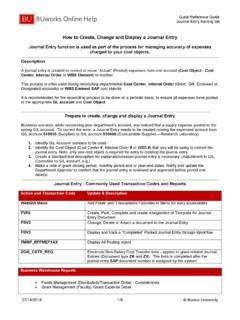
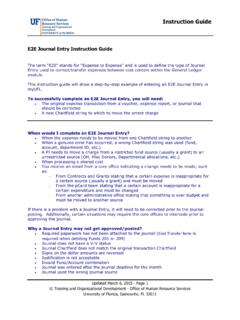
1 General November 5, 2013 Page 1 of 4 County Accounting Manual General Journal Contents: Accounts and effects Example Journal entries Create Journal entry Create Journal Report A Journal entry is a transaction record in which the amount in the Debit column equals the amount in the Credit column, and each amount is assigned to an account on the chart of accounts. Double- entry bookkeeping systems use this method. A transaction that is separated into debit and credit amounts is called a General Journal transaction. Debit and credit amounts must equal to maintain balanced bookkeeping records.
2 Use the General Journal transfer amounts from one income or expense account to another income or expense account, or from one class to another class. Assign a class code related to an original transaction in a prior closed year that did not include a class code or an incorrect class was assigned. Adjust payroll expense or liability accounts. Create end-of-year adjustments. In a double- entry bookkeeping system, for every transaction created by the bookkeeper, there are two transactions: the debit type transaction and the credit type transaction. The bookkeeper usually sees only one type: either the debit or credit.
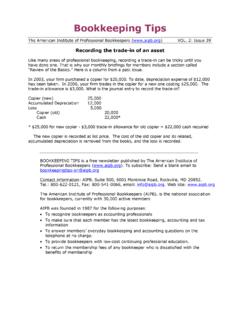
3 Consider the following examples. A check transaction created to pay a vendor for office supplies, results in the following debit and credit types. Debit Credit Effect 5100-Office Supplies Expense Supply expense is increased Cash (checking register) Cash is decreased A deposit transaction created to post receipt of money from a customer, results in the following debit and credit types. Debit Credit Effect Cash (checking register) Cash is increased 0920-Soil Testing income Soil income increased Accounts Debit Credit Effect Cash (bank or any asset acct) increase decrease Credit is reduction of cash Income account decrease increase Debit is reduction of Income Expense account increase decrease Credit is reduction of expense Liability account (payroll, accts Payable)
4 Decrease increase Debit is reduction of liability Receivable account increase decrease Credit is reduction of receivable General November 5, 2013 Page 2 of 4 More Examples Example : Accounts Receivable Debit Credit Effect 1900-Accts Receivable (Asset) Receivable is increased. Amount earned but not yet received. 0110-Non Credit Fee Income Non Credit Fee income increased. Debit Credit Effect 1499-Undeposited Funds (Asset) QB posts the amount to a Holding account. 1900-Accounts Receivable (Asset) Receivable is decreased.
5 Customer money received but not yet deposited. Debit Credit Effect Cash (bank account) (Asset) Cash is increased. 1499-Undeposited Funds (Asset) Undeposited Account is decreased. Customer money posted to Deposit screen. Example : Payroll Liability Debit Credit Effect 2870-State Unemp Tax Expense Expense is increased 9095-State Unemp Tax liability Liability is increased Debit Credit Effect 9095-State Unemp Tax Liability Liability is decreased Cash (bank account) Cash is decreased. Vendor paid. Create a General Journal entry Select Company from menu bar at top of screen. Select Make General Journal entries .
6 In the Make General Journal entries window, enter the appropriate date. Fil in the entry number. In the detail select the appropriate accounts that will be affected. Enter a class code when appropriate. Print and Save the Journal entry . Sample Journal entry : Transfer money from two classes to another class. Sample Journal entry : Transfer supply expense from one class to another class. Result: decrease supply expense in class 1000; increase supply expense in class 3315. Note: The Checking register also can be used to create transfers. General November 5, 2013 Page 3 of 4 Create a Journal Report Journal report for all transaction types 1.
7 Select Reports from menu bar at top of screen. 2. Select Accountant and Taxes 3. Select Journal 4. Select appropriate date range. 5. Memorize and Save in memorized report list. Journal report for only Journal transaction types 1. Select Reports from menu bar at top of screen. 2. Select Accountant and Taxes 3. Select Journal 4. Select appropriate date range. 5. Select Customize Report button. 6. Select Filters tab. 7. Under Choose filter on left side of screen, scroll down and select Transaction Type. 8. Under Transaction type (middle of screen), select down arrow, select Journal . 9. Select OK. columns on report as you desire.
8 And Save in memorized report list. Sample Journal Reports Or, open the above mentioned Journal report for all transactions. Begin at Step 5 here. Or, Select Memorize and New. Create a different Report Name. General November 5, 2013 Page 4 of 4