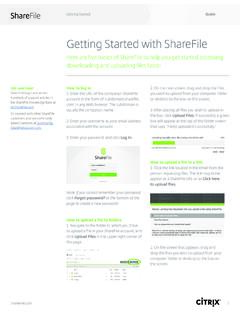
Transcription of Getting Started With Citrix ShareFile
1 Started With Citrix ShareFileLearn the basics of your ShareFile account. Plus, get the answers to some of our most frequently asked how-to Started With Citrix your unique ShareFile URLYour ShareFile has its own unique URL, generally in this format: The yourcompanyname section of this URL is your subdomain, which will always be followed by . When you sign up for ShareFile , you ll receive a welcome email that has your unique subdomain in it, but if you can t find that, there s another way to figure it out!Open a web browser and go to the upper right-hand corner of the webpage, click Sign In located next to the your email address and the password you chose when you set up your account, and click Sign you need help at anytime or have any questions, the ShareFile customer care team is available for you 24/7 by phone or : If you have multiple ShareFile accounts associated with your email address, you will need to select the specific account you want to this guide you ll learn how to:Learn your unique ShareFile URL and subdomain p.
2 2 Reset your password p. 3 Add employee and client users to your account p. 4 Share files p. 5 Request a file from anyone p. 5 Set up folders to organize your files p. 6 Share folders with existing users p. 7 Download and install the Plugin for Microsoft Outlook p. 8 Download and install the Desktop App p. 9 Welcome to ShareFileGetting Started With Citrix your passwordFor forgotten passwordsTo change a passwordGo to the login page of your ShareFile account. Under the Log In button, click Forgot password?On the next screen, enter your email address and select the item indicated to verify that you re your email. Click the link in the email to reset your your new password and select Reset the sidebar, select Settings, then Personal the profile page, click the Edit button underCurrent your old password, your new password and a confirmation of your new password, and click password was reset.
3 Select Back to Sign In to log into your : ShareFile passwords must have at least eight (8) characters, including at least one uppercase letter, at least one lowercase letter and at least one Started With Citrix employee and client users to your accountFrom your Dashboard, click the Create New User button. Or, in the sidebar, select People. Then, click Manage the new user s email address, which will serve as a username. Select Next : You must be an admin user or employee user with appropriate permission to do : By default, the password included here is only a temporary one, and does not need to be changed or reset. New users will be able to set up their own password via the welcome email they receive, unless you specify Create Employee if you want to add a Create Client if you want to add a new user out-side or your the user s first name and last name. You can enter a company name if it s different from your company.
4 Use the checkboxes in this section to determine the user s permissions. When you re finished, select Next ll see a list of the folders in your account. Select any folders that you d like to share with this user, and check the box for any permissions you want the user to have for those folders. When you re finished, click Add Users to you wish, you can also click Skip this one of the options for sending the free to edit the text in the message. To see a preview of the email, select Preview Email. When you re finished, select Send Started With Citrix a file or lots of themFrom your Dashboard, select the Share button. Choose Email with all recipients email addresses, a subject line, and a Send and the message will be emailed to the Edit Message Options if you want to customize your notifications and security options ( determine how many downloads are allowed).When finished, select files to share in one of three ways:a.
5 Select any file from your computer and drag it to the Drag files here Select Browse files and add from your Select Browse files and add from your ShareFile : You can review emails you have sent from ShareFile in your Inbox (located in the sidebar menu of the homes screen). To see a list of your sent emails and edit link expiration dates or notification settings, select the carat next to the Inbox, then select Started With Citrix a file from anyoneSet up folders to organize your filesIn the top navigation bar of your account, click Request and choose Email with the green Floating Action Buton and select Create a name for your folder. You may also enter a description for the folder, which will be displayed as a note attached to this folder in your account. Select Create all recipients email addresses, a subject line, and a a folder in ShareFile to which you d like the requested files added to.
6 ShareFile will default to sending files to your File Box, but you can select Edit to change the Edit Message Options if you want to customize your notifications and security options ( determine how many downloads are allowed). When finished, select Started With Citrix your folders with othersNavigate to the folder in your account that you d like to share. Click the People on this Folder Add People to Folder to grant a user access to this the user s email address, first name and last name. Select the right, you may adjust folder permissions and alert Add. The user now has access to this folder. You can adjust folder permissions and alert setting in this area any the user already exists in ShareFile , type the user s name in the Search window. If the user is not already in ShareFile , select Create New Started With Citrix and install the Plugin for Microsoft OutlookIn the upper right corner of your account, click you are in the Windows section.
7 If not, select the Plugin for Microsoft Outlook and select pop-up will appear on your computer. Click ShareFile Outlook Plugin window will appear on your desktop. You have 2 options upon install:a. Default settings (Recommended) - Your desktop will automatically be updated when a new Outlook plugin version is Customize settings You desktop will not automatically be up-dated when a new Outlook plugin version is ShareFile to Microsoft Outlook for faster file sharing. You will be able to share or request large, encrypted files directly from Started With Citrix the installation is complete, open Microsoft Outlook. Once Outlook is open, a ShareFile login window will appear. Enter your email and password and select Sign verify the Outlook Plugin is installed, create a new email message. In the new message, you should see ShareFile , Convert Attachments, Attach Files, and Request Files in the top configure the Outlook Plugin, click on the ShareFile Plugin Options (from home page of Outlook)6 Accept the License agreement and complete the rest of the Started With Citrix and install the ShareFIleDesktop AppIn the upper right corner of your account, click app lets Windows users access and use ShareFile without opening a web browser it s an easier way to access, share,request, upload and download your you are in the Windows section.
8 If not, select the Desktop App and select pop-up will appear on your computer. Click the License agreement. Go through the setup wizard to choose the installation location and complete the rest of the starting the Desktop App for the first time, you ll be prompted to enter your email and password. Select Sign you ve signed in, use the navigation drop-down menu to select the section of your ShareFile account you d like to Started With Citrix customer supportContact us anytimeYour ShareFile account has lots of tools and features to make sharing, storing, and your files as easy as possible. If you ever have questions or need help, our Care team is available 24/7!The Help section in your account is an easy way to contact our Care team. To access this section, log in to your account and select Help in the upper right-hand will find links to training videos, the ShareFile Knowledge Base (which has hundreds of articles and user guides) and tools for contacting Care via phone or submitting a request.
9 You can also reg-ister for one-on-one training if support is free for you and your clients. Have a question or need help? Call us: 1-800-441-3453 +1-919-745-6111 For enterprise needs, please call 1-800-4 Citrix or one of our International NumbersSubmit a Request: For enterprise needs, please open a customer service case through your thecommunity: theknowledge base: you for choosing ShareFile !About CitrixCitrix (NASDAQ:CTXS) enables the secure and reliable delivery of applications and data over public, private or hybrid clouds or networks, to virtually any type of device. With annual revenue in 2015 of $ billion, Citrix solutions are in use at more than 400,000 organizations and by over 100 million users globally. Learn more at 2016 Citrix Systems, Inc. All rights reser ved.
10 Citrix , ShareFile and other marks appearing herein are trademarks of Citrix Systems, Inc. and/or one or more of its subsidiaries, and may be registered in the Patent and Trademark Office and in other countries. All other trademarks are the properties of their respective owners.