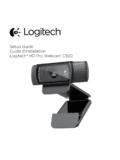
Transcription of Getting started with Logitech HD Webcam C270
1 Getting started with Logitech HD Webcam C270. Logitech HD Webcam C270. Contents English.. 3. Deutsch .. 13. Fran ais .. 23. Espa ol .. 33. Nederlands.. 43. Italiano .. 53. Svenska .. 63. Dansk .. 73. Norsk.. 83. Suomi .. 93. Portugu s .. 103.. 113. T rk e.. 123.. 142.. 143. 2 Logitech HD Webcam C270. Features 1. Microphone 2. Autofocus lens 3. Activity light 4. Flexible clip/base 5. Logitech Webcam Software 6. Product documentation Getting started with Logitech HD Webcam C270. mation infor rtant Impo nk iThi tech Logi ty warran , and pliance , com ! Safety ence differ ea ts mak men com Your English 3. Getting started with Thank you for buying a Logitech Webcam ! Use this guide to set up your Logitech Webcam and to begin making video calls.
2 If you have questions before you start, please visit the websites listed below to learn more about Logitech webcams and video calling. Setting up your Webcam 1 Place your Webcam 4 English Logitech HD Webcam C270. When prompted, 2 Install the software 3 connect your Webcam USB. Getting started with video calling Your Webcam comes with Logitech Vid HD. With Logitech Vid HD, video calling live over the Internet takes only a few, easy steps: Install Logitech Vid HD. Create an account Add a friend and make a video call Learn more: English 5. Getting started with Setting up Logitech Vid HD. Install Logitech Vid HD. 1 We recommend that you install both the Logitech Webcam and Logitech Vid HD software. Tip: If you prefer another video-calling application, you will need to download and install third-party software.
3 Learn more: Create an account 2 Follow the on-screen instructions to create your Logitech Vid HD account and to set up your Webcam for video calling. To make video calls with any application, both you and the person you call must have: A Webcam The same video-calling application ( , Logitech Vid HD). A computer with speakers and a microphone (or a headset with Video calling accounts a microphone; many Logitech webcams have a built-in microphone). A broadband Internet connection ( , DSL, T1, or cable). 6 English Logitech HD Webcam C270. Add a friend or make a practice call 3 Click on the Practice Call tile to test your settings. Tip: The Practice Call tile is always available on your Contact List so you can test your settings.
4 To add a friend, click on the Add a Friend tile and enter your friend's e-mail when prompted. After your friend has accepted your invitation, click on your friend's picture to make a call. Accessing account settings and starting applications Logitech automatically detects and adjusts the best settings for your Webcam . If you would like to re-take your profile picture or update any of your settings, click the Settings icon. Double-click the icons to launch your applications. 1. Logitech Webcam Software 2. Logitech Vid HD. Tip: The Logitech Vid HD icon is only present if you chose to install Logitech Vid HD. To learn about third-party video calling, please visit: English 7. Getting started with Navigating the Logitech Webcam Software 1.
5 Capture pictures and 5. Capture videos triggered 9. Open Logitech Webcam videos by detected motion Software settings 2. View captured images 6. Control your video effects 10. Open help dashboard and share via e-mail, and Webcam while on a (manuals and how-to Facebook, or YouTube . video call videos). 3. An area for easy access to 7. Download additional your installed Webcam - Webcam applications related applications 8. Change webcams 4. Launch Logitech Vid HD (when you have more (if installed) than one). 8 English Logitech HD Webcam C270. Capturing video and snapping pictures Quick Capture allows you to take photos or record videos easily. You have easy access to Webcam controls and settings as well as video effects to personalize your images and recordings.
6 1. Preview window 6. Photo thumbnails 2. Capture mode: 7. Video humbnails photo/video 8. Click a thumb-nail 3. Capture button to enter the gallery 4. Webcam controls 5. Video effects and fun filters (for webcams that The gallery: viewing and sharing support this feature). Clicking on an image thumbnail in the gallery (1) opens the video or photo in the review window (2). Attach a video or picture file to an e-mail (3). Edit a photo or splice together video (4). Upload a picture or video to Facebook (5). Upload a video to YouTube (6) You may also drag and drop a gallery image onto one of the function tiles (items 3-6) to launch an editing application or to attach or upload. English 9. Getting started with Using motion detection Set up your Webcam to record video when it detects movement.
7 Adjust captured video duration and detection sensitivity. Captured video is automatically saved to your computer. View content in the Gallery or upload it using the One-touch Upload window. 10 English Logitech HD Webcam C270. Fine tuning your Webcam during a video call 1. Launch the Webcam controller when on a video call. 2. Hide your video image with a photo while your Webcam stays connected. 3. Use pan and tilt to find the best angle. 4. Use Face Tracking so you're always in the picture. 5. Correct for poor lighting environments using RightLight. 6. Choose between auto- or manual focus for webcams that support this feature. 7. Specify Webcam operating characteristics. Tip: Not all Webcam models offer all of these Webcam controls.
8 English 11. Getting started with Get more applications for your Webcam Download and install additional applications for your Webcam , like video calling, photo and video editing, and other value-added programs. Getting help Click on the help icon to access a complete user manual, or watch how-to videos that show you how to get the most out of your Logitech Webcam and software. Tip: If you are not sure about a feature, click the help icon, and our manual will open to the right place. 12 English Logitech HD Webcam C270. Funktionen 1. Mikrofon 2. Linse 3. Aktions-LED. 4. Flexibler Clip/Standfl che 5. Software f r Logitech - Webkamera 6. Handbuch zum Produkt Getting started with Logitech HD Webcam C270. mation infor rtant Impo nk iThi tech Logi ty warran , and pliance , com !
9 Safety ence differ ea ts mak men com Your Deutsch 13. Erste Schritte Danke, dass Sie sich f r eine Logitech -Webkamera entschieden haben! Mit dieser Anleitung konfigurieren Sie Ihre Logitech - Webkamera und f hren nach ein paar einfachen Handgriffen Ihr erstes Videogespr ch. Wenn Sie vorher noch Fragen kl ren m chten, finden Sie Antworten zu Logitech -Webkameras und Videogespr chen auf den nachstehend angef hrten Websites. Einrichten Ihrer Webkamera 1 Anbringen der Webkamera 14 Deutsch Logitech HD Webcam C270. Wenn Sie dazu aufgefordert 2 Installieren der Software 3 werden, schlie en Sie Ihre Webkamera an. USB. Erste Schritte mit Videogespr chen Im Lieferumfang Ihrer Webkamera ist die Software Logitech Vid HD enthalten.
10 Mit Logitech Vid HD gen gen ein paar einfache Schritte und schon f hren Sie Ihre Videogespr che ber Internet: Logitech Vid HD installieren Konto erstellen Freund hinzuf gen und Gespr ch f hren Weitere Informationen: Deutsch 15. Erste Schritte Einrichten von Logitech Vid HD. Logitech Vid HD installieren 1 Es wird empfohlen, dass Sie sowohl die Logitech - Webkamera als auch die Logitech Vid HD-Software installieren. Tipp: Wenn Sie lieber eine andere Anwendung f r Videogespr che nutzen m chten, m ssen Sie die entsprechende Software herunterladen und installieren. Weitere Informationen: Konto erstellen 2 Befolgen Sie die Anweisungen auf dem Bildschirm, um Ihr Logitech Vid HD-Konto zu erstellen und Ihre Webkamera f r Videogespr che einzurichten.