Example: quiz answers
Getting Started with OpenRoads Designer - Wild Apricot
2. Use the Browse button to open the file r2635c_rdy_alg.dgn from the Module 2 (Geometry and Annotation) folder. 3. Attach r2635c_rdy_etm.dgn as reference using a Coincident-World orientation. HINT: Reference tools are on the Home ribbon tab. 4. the view.Fit 5. .Set the original ground as the Active Terrain Model 6. Select Save Settings.
Tags:
Information
Domain:
Source:
Link to this page:
Related documents

BASIC NUTRITION WORKBOOK
www.onlineordersff.comWorkbook About the Basic Nutrition Workbook This workbook contains activities and test questions that pertain to information in the Basic Nutrition Module as well as some key reference tables. This workbook is your personal copy to use and keep. Feel free to write in it and use it to record your answers to the activities and test questions.

Student Workbook Calculating Dosages Online
dosagecalc.fadavis.comStudent Workbook . Calculating Dosages Online . www.DosageCalc.com . Sandra Luz Martinez de Castillo, RN, MA, EdD . ... 10 9 8 7 6 5 4 3 2 1 Senior Acquisitions Editor: Thomas Ciavarella Director of Content Development: Darlene Pedersen ... Module: BASIC MATH REVIEW ...

Unit 1: Fitness for Sport & Exercise Student workbook BTEC ...
www.sflt.org.ukIntroduction to module and assessment Components of Physical Fitness (A.1) Components of Skill Related Fitness (A.2) Reasons fitness components are important for successful sports participation (A.3) (THEORY) 2 15/09/2014 Exercise intensity and how it is determined (A.4) (PRACTICAL & THEORY) 3 22/09/2014 Principles of Training- FITT (A5)

Microsoft Excel 2007 Basics For Windows
ist.mit.eduworkbook. The names of the sheets appear on tabs at the bottom of the workbook window. To move from sheet to sheet, you click the sheet tabs (e.g., Sheet1, Sheet2…) and the name of the . active sheet is always highlighted and bold. You can rename the sheets, add and delete sheets, and move, copy or link sheets within a workbook or to another ...

Module 2: PERSONAL, HEALTH, SOCIAL AND SAFETY SKILLS - …
www.dshs.wa.govModule 2 specifically has exercises and information for the following topics: • Personal care-smoking, alcohol and drug use and sexuality; ... The Activity/Resource Workbook contains information and exercises for each of the topic areas to help you develop or strengthen your independent living skills.

Module # 2: Interdisciplinary Teamwork
www.nynj.va.govGeriatrics Interdisciplinary Team Training Workbook. 8: “Forming, Storming, Norming, and Performing” ... Module # 2: Interdisciplinary Teamwork III. Defining a Team. The word “team” derives from Old English and is defined as “a group of animals harnessed together to draw some vehicle”. Today, there are many definitions and
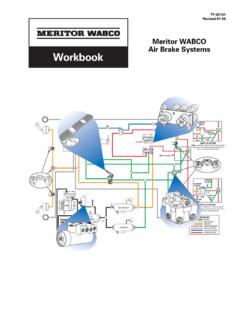
Meritor WABCO Air Brake Systems Workbook
cumberland-companies.comworkbook meritor wabco air brake systems secondary 472 500 30. 0 made in germany 001 20/98 xxxxxx xxxxx x xxxxx xxxxxx color key supply secondary primary park/emergency abs electrical trailer control trailer supply secondary control primary tank from park valve inset (a) option prior to march 1, 1998 fmvss-121 regulations inversion valve and ...