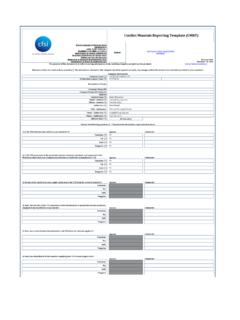
Transcription of Help Completing a Conflict Mineral Request
1 help Completing a Conflict Mineral Request As a supplier, you are being asked to complete one or more 3E Connect forms. The information is for product you sell as indicated by your customer. Your customer uses the 3E Connect solution to obtain and manage information regarding environmental regulations throughout their supply chain. The overall purpose is to ensure compliance in your shared supply chain. This help document covers Completing a Conflict Mineral Request using the Verisk 3E Supplier Portal. This approach is similar to Completing a Conflict Minerals reporting template (CMRT). In fact the process allows for the upload of a completed CMRT if you choose. Below please find an example of the Verisk 3E Supplier Portal.
2 You can access this portal by clicking the link to submit your documents provided in the email notices sent by Verisk 3E. At this time, please be sure that all Product and Contact information is completed per Step 1 of the Instructions to Complete this form banner highlighted in blue in the screenshot above. Please note additional help is available at Product Information & Contact Information. Note the single product you are responding to will be shown in the top left banner of the screen. If you wish to respond to multiple products at one time, please Return to All Products to use our Multi-Product Response Form . To respond to the Conflict Minerals Request , highlight Conflict Minerals on the left under listed Requests.
3 You will then be Completing a Conflict Mineral response for the product indicated. Please see the additional help document for Supplier Level responses and requests. Continued onto next page If you are having difficulty Completing the form, or need assistance, please contact Verisk 3E help Completing a Conflict Mineral Request Verisk 3E's Supplier Portal will follow a similar format as the Conflict Minerals reporting template ( CMRT ). Please note if your company has already authored a CMRT please upload it using the I want to import a CMRT function. If you do not wish to upload an existing CMRT please fill in all the information as you would in the excel version of the standard template , including smelter information.
4 You may save your work by clicking the Save button on the bottom right of the form. NOTE: the save feature is not available when using the Multi- Product Response Form You must answer all questions for a given topic in one sitting. Once you click Submit and a green check mark appears next to the Request , you will no longer be able to change your response without additional help . If you have updates, please contact Verisk 3E to submit changes. To import a CMRT use the I want to import a CMRT check box. In order for a CMRT to be successfully uploaded, it must be in .xls file format. CMRTs in .xlsx format will not be accepted. Please review the Instructions tab of the CMRT form itself before uploading the file.
5 First verify that your CMRT file follows the guidelines on the next page. Failure to do so may cause the upload to fail. Once ready simply hit Select files and browse to where your CMRT is saved. Complete Contact and Authorizer Information in the space provided. The Contact Name is the person who can be reached if further information is required. The Authorizer is the person approving submission of this information. Please be sure both contacts are provided. If the Contact person is the same as the Authorizer please complete the information in both fields. The effective date should be current for the reporting Year in question and most often reflects the date the form was completed Continued onto next page If you are having difficulty Completing the form, or need assistance, please contact Verisk 3E help Completing a Conflict Mineral Request Requirements for Uploading a CMRT.
6 It is recommended to always upload the most recently published version of the CMRT. CFSI periodically makes updates and changes to its template . The most recent version of CMRT is always available at the bottom of our resource page here. If you are not uploading a completed CMRT you can proceed to the next page. Requirements continued below. Declaration tab: - All mandatory fields (indicated with an asterisk within the CMRT) must be completed and accurate. Please verify that the company name, representative, and authorizer information are completed. Invalid email address formats will not be accepted in the upload. - Enter the date in the required format specified in the CMRT. Do not copy and paste a date into this field.
7 - Answer all questions in the CMRT, including the company-level questions at the bottom of the declaration. - Use the Checker tab in the CMRT Excel to make sure your information is complete. Smelter List tab: - If you have responded with a Yes or Unknown to Question 7 about including all applicable smelters in the Declaration tab, ensure that at least 1 smelter is provided on the Smelter List tab. - Again, use the Checker tab to verify that the CMRT is complete before uploading. - Verify that a metal has been selected for each smelter listed. - Make sure that you have removed ALL duplicate smelter information from your smelter list. Duplicate smelters will cause the system to reject your CMRT during the upload process.
8 - Verify that valid countries have been selected using the available drop-down format. - For smelters that are not listed on the CMRT, select Smelter Not Listed or Smelter not yet identified as appropriate from the drop-down in the Smelter Reference List column. Do NOT leave this section blank. - All smelters need to be provided in consecutive lines. Leaving blank lines between smelters will cause the system to reject your CMRT during the upload process. - *Helpful Hint* It is recommended that you do not copy and paste smelter information received from multiple CMRTs or GeSIs directly into your CMRT. Smelters should be validated, duplicates removed, and formatted before populating the CMRT.
9 For convenience, the CMRT offers an auto-fill feature, where if a metal and smelter reference list are selected, the smelter name, country and ID will be auto-filled. For more information regarding Conflict Minerals regulations, current forms, and more help resources please visit Verisk 3E's Conflict Minerals resource page here. Continued onto next page If you are having difficulty Completing the form, or need assistance, please contact Verisk 3E help Completing a Conflict Mineral Request Guidance for filling in the Conflict Minerals info on the 3E Connect portal. The first question is about the scope or class. The question asks whether you are Completing the form for all products your company sells (Company).
10 Or only for the product you have named in Product Information or Product List. Please select the option that applies. If you are answering at a product level be sure that your have specified the part number your customer knows. Conflict Mineral Specific Questions 1 through 7 and A through I mirror those on the CMRT. Questions 1 through 7 ask about the presence and origin of Tin, Tantalum, Tungsten and Gold ( 3TG for short) in the parts and materials of the products you sell. If you feel Conflict Minerals are not present in your product or products answer No to question 1. THIS IS VERY IMPORTANT because questions 2-6 are conditionally required based on the answer to question 1. Questions A through I ask about your company's corporate policies and sourcing activities.