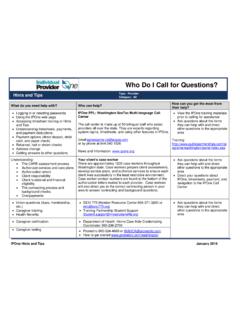
Transcription of Hints and Tips Type - IPOne
1 Electronic Timesheet Payment Process Type: Provider Hints and tips Category: Timesheet Individual Providers can look up their timesheet status and find payment information in IPOne . Refer to the IP. training packet for step-by-step instructions are found at: On the Timesheet menu in IPOne you can view the status of your timesheet. This will tell you if there is any action needed on your timesheet, or if your timesheet is ready to be paid in the next payroll cycle. Timesheet processing happens in three steps after the provider saves and selects the submit button. A. timesheet cannot be paid unless the timesheet is submitted. Each step below shows a timesheet status and the related action for a provider to correct a timesheet with a Pending or Denied status. NOTE: To learn the status of your timesheet you can also contact the call center. STEP #1. If you call from the number listed in your IPOne profile, the system will report Status: APPROVED.
2 The status of the last timesheet submitted. Timesheet received waiting You do not have to speak to a for processing call center agent. Action: Check status online or contact call center in 24 hours STEP #2. Validation Status: DENIED Status: PENDING. Timesheet cannot be paid Timesheet has errors Status: GOOD TO PAY. Action: Correct the errors Timesheet does not have Action: Fix the errors or or contact call center for errors contact call center for next next steps to correct steps to correct No action required STEP #3. CAUTION: Do not go back and edit your Status: PAID. timesheet in GOOD TO PAY status. Payment has been issued If you select the edit button and hit submit, Receive payment by debit, between the submit deadline and pay day, direct deposit, or paper the IPOne system will think you want to check reprocess your timesheet and delay your payment to the next pay period. IPOne Hints and tips 4-15-2016. For additional questions please contact the call center 1-844-240-1526.