Transcription of INSTALL AND ACTIVATE DRAGON - Nuance
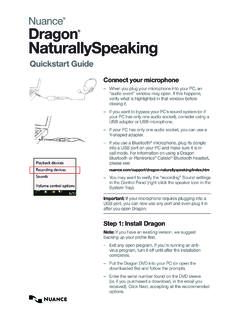
1 Welcome to DRAGON NaturallySpeaking the latest version of the User s Guide and other resources, please see: User s Guide is also available on your installation disk,in the directory: \documentation\enx\User AND ACTIVATE DRAGON Exit any open applications. If you're running an anti-virus program, turn it off until after the installation completes. There can only be one version of DRAGON installed on your computer at a time. 1) Put the DRAGON DVD into your DVD drive and follow the on-screen ) Enter the serial number that is printed on the DVD ) Choose a Setup type. We recommend Typical/Complete. Click ) Continue to click Next, taking all the recommended options. To start DRAGON , double-click the DRAGON desktop icon. You will be prompted to ACTIVATE your software. When prompted, first click ACTIVATE Now and then ACTIVATE Automatically. You must be connected to the Internet to ACTIVATE . For more information see: OR UPGRADING A USER PROFILEIF YOU ARE NEW TO you can use DRAGON , you will need to plug in your microphone into either the mic-in jack or a USB port, depending on the model.
2 The first time you start DRAGON , a series of screens will walk you through the process of creating the best possible User Profile for your situation. Don t rush through it. It s very important, since it will determine your initial accuracy!2 One of the screens will offer to perform a basic personalization of thevocabulary based on your email and documents, to help DRAGON prepare to recognize the particular words and phrases you use. DRAGON offers many other ways to refine your profile so that it can work better and bet-ter for you - be sure to take advantage of you USED DRAGON 9 OR first time you start DRAGON 11, the software will automatically detect any version 9 or 10 User Profiles on your computer and start the User Profile Upgrade Wizard. Upgrading one profile can take 10-15 minutes. If you do not want to upgrade your Profiles now, you can close the wizard and launch it later from the Windows Start menu: Start>All Programs> DRAGON NaturallySpeaking 11> DRAGON NaturallySpeaking Tools>Upgrade Users1.
3 The first screen of the wizard lists the User Profile(s) that were found. Modify the list as needed so it contains only the profile(s) you want to upgrade now. Click Choose the destination for your up-graded User Profile(s). Nuance recom-mends that you use the default location. Click On the Upgrade User Profiles page click Begin to start the upgrade process. For more information about upgrading from a previous version, click the Help button on the dialog box. You can also check the User s YOU START creating or upgrading your User Profile, please view the Tutorial to get started with the basics of using DRAGON We also recommend you take a look at the What s New section in the DRAGON YOUR VOCABULARYD ragon has knowledge of a large number of words and abbreviations, but in order to dictate efficiently, you should let it learn what you use, in-cluding nicknames, jargon, capitalized phrases, the name of your street, your vocabulary will prevent many recognition are several ways of doing this, including using DRAGON to analyze documents that are similar to what you plan to tools for this are available from the DragonBar menus and gathered in the Accuracy Center.
4 For example, see Improve my accura-cy in the DragonBar s Help menu. THE DRAGON SIDEBARThe DRAGON Sidebar displays a selection of popular commands, including commands that are available at any time, called Global top pane contains several tabs that list commands with clickable links to the relevant Help topics. The lower pane contains tips. DRAGON offers several options for the Sidebar. Right-clicking the Sidebar displays a menu in which you can choose to print the content, hide the Mouse tab, hide the Tips pane, and can bring up the Sidebar from the Help menu, or by saying com-mands such as Open DRAGON Sidebar or What Can I Say? 4 CONTROLLING THE MICROPHONEAn important habit to practice: turn ON DRAGON s microphone when you want DRAGON to hear you, and turn it OFF when you don can control DRAGON s microphone by: Pressing its hotkey (by default the plus (+) key on the numeric keypad.) Clicking the microphone icon in the Windows system tray.
5 Clicking the microphone icon on the : DRAGON is ready to accept dictation and commandsOff: No dictation availableYOUR FIRST DICTATIONS tart a word processor and make sure that your cursor is within the doc-ument, then turn on the microphone and start dictating in a clear and natural voice, neither yelling nor whispering; remember to say punctua-tion period , open quote and commands like new paragraph. As you dictate, a small DRAGON icon indicates that the software is processing your speech. There is no need to wait for DRAGON to catch up with you. Just dictate at a natural pace. Aim to dictate in longer phrases and full sentences, since this gives DRAGON some context and leads to much better results than slow, halting briefly before and after commands and remember to turn the microphone off when you don t want DRAGON to FORMATTING AND CAPITALIZATIONYou will see that DRAGON automatically handles a lot of formatting, including prices, dates, times, phone numbers and percentages (see Autoformatting Options in the DragonBar s Tools menu.)
6 If you want to capitalize a particular word, just say cap or all caps just before ERRORSP ersonalizing the vocabulary using the tools mentioned earlier will prevent many recognition errors, however, some errors are inevitable. By properly correcting DRAGON s errors, you can help it learn from them, so errors are less likely to happen again. You can experiment with when to correct and how to correct. DRAGON lets you do it entirely by voice, but also allows typing over, pressing the Correction hotkey, and more. Explore the Correction tab of DRAGON s Option dialog (found under the Tools menu of the DragonBar) to see what you prefer for a given situation. Also see the CORRECTION MENUWhen DRAGON misrecognizes some-thing you dictate you can correct it by saying the command Correct That . You can also say Correct <xyz> where <xyz> stands for the text you want to will display the Correction Menu, which shows a list of alternatives.
7 If what you intended to say is on the list say choose followed by the corresponding number: for instance Choose 1. You can also say Spell that to open the Spelling window, where you can spell out or type what DRAGON should have the Help for details on the Correction menu and the Spelling MORE AND GETTING HELP At first, you should focus on getting used to dictating fluently and on refining the vocabulary. Over time, you can learn to do more and more by anytime, you can search the Help with a direct command such as Search DRAGON Help for symbols. You can also get to the help from DRAGON s Help Nuance website contains many resourc-es, including the latest documentation, FAQs, tips, instructional videos, lists of compatible microphones and recorders, partners who provide customization services, as well as contact and policy information for Technical Support.
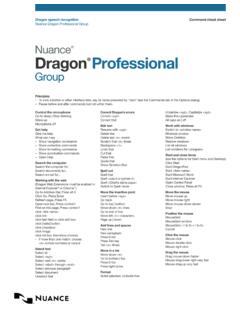
8 DOWN THE PROGRAMIt s best to exit DRAGON at least once a day. One way to do this is to open the DragonBar s Profile menu and choose Exit a message asks whether you want to save the changes to your profile, say yes - that way you will preserve the refinements you made during your session, such as adding some words to the Vocabulary, correcting an error, changing an option, COMMANDSG lobal Commands (available no matter what is active)Control the Mic Get Help Go to sleep Give me help Wake up Search DRAGON Help for <xyz> Microphone off Show DRAGON Sidebar Help Search the Web Search the Computer Search the web for <xyz> (requires a desktop search engine) Find a website about <xyz> Search the computer for <xyz> Search Amazon for <xyz> Search documents for <xyz> Search videos for <xyz> Search email for <xyz> Search news for <xyz> Search maps for <xyz> (Note: The Search commands are not available in the Basics Edition.)
9 Select Text Edit Text Select that Resume with Select <xyz> Delete line Select next <n> words Delete last <n> words Select again Delete that Select previous paragraph Backspace <n> Select document Undo that Select all Cut that Unselect that Copy that Paste that Scratch that Move the cursor Add lines and spaces Move left <n> characters New line Move down <n> lines New paragraph Go to end [of line] Press Enter Go to top | bottom Press Tab key Page up | down Tab <n> times Insert before <xyz> Correcting text Spelling Out Correct <xyz> Spell that Correct that Spell <cap a b t hyphen 5> 7 Move and Select Format Go to end of line Bullet selection Go to top of document Make this uppercase Select the next <number>words Bold the previous <number>words Cap that, All caps on Capitalize the previous line Underline this word Work with windows Switch to previous window Switch to next window List windows List all windows Maximize window Minimize window Show Desktop Restore windows List windows for <program name> Move the mouse Position the mouse Move mouse up MouseGrid (full screen) Move mouse right MouseGrid Window (active window)
10 Move mouse up faster MouseGrid <1 to 9> Move mouse down slower Cancel Stop Click the mouse Drag the mouse Mouse click Drag mouse down faster Mouse double click Mouse drag lower right very fast Mouse right click Mouse drag up very fastStart and exit programs Start <program name> Start Microsoft Word Start OpenOffice Writer Start Internet Explorer Start Firefox Start Mail Close Window Punctuation and symbolsTo | point | period | full stop,comma!exclamation point | exclamation mark(open paren sapostrophe ess close quote@at sign8To $dollar sign | dollar | dollars+plus sign_underscore-hyphen;semi colon?question mark;-)winky faceNUMBERS, DATES, TIMESYou can change the way DRAGON formats numbers, dates, and time by setting the options on the the Auto-formatting dialog box. To open this, click Tools>Auto-Formatting Options in the four23 twenty three179 one hundred seventy nine5423 five thousand four hundred twenty three5,423 five comma thousand four twenty zero point zero three11/32eleven over thirty two781-565-5000seven eight one five six five five thousand$ nine dollars and fifty cents8:30 thirty pm200 kg200 kilograms5 3 five feet 3 inches50 mm50 millimetersMay 15, 2003 May fifteen comma two thousand three (note: saying comma is optional)MMIVR oman numeral two thousand fourBoston, MA 02460 Boston Massachusetts 024601 Wayside Wayside DriveCopyright 2010 Nuance Communications, Inc.