Example: quiz answers
Installing UCL Unicode Phonetic Keyboard on Windows 10
7. Select “Options” – you should see “Unicode Phonetic Keyboard” listed. 8. Click back-arrow to get back to Region and Language 9. Select “Advanced keyboard settings” 10. Check that “Use the desktop language bar” is enabled. 11. Click “Language bar options” 12. Check “Language bar Docked in taskbar” is enabled 13.
Tags:
Information
Domain:
Source:
Link to this page:
Documents from same domain

Relevance Theory - University College London
www.phon.ucl.ac.uk1995, 1998, 2002, Wilson & Sperber 2002), an inferential approach to pragmatics. Relevance theory is based on a definition of relevance and two principles of relevance: a Cognitive Principle (that human cognition is geared to the maximisation of relevance), and a Communicative Principle (that utterances create expectations of optimal relevance).

Lecture 1-10: Spectrograms
www.phon.ucl.ac.ukLecture 1-10: Spectrograms Overview 1. Spectra of dynamic signals: like many real world signals, speech changes in quality with time. But so far the only spectral analysis we have performed has assumed that the signal is stationary: that it has constant quality. We need a new kind of analysis for dynamic signals.
Related documents
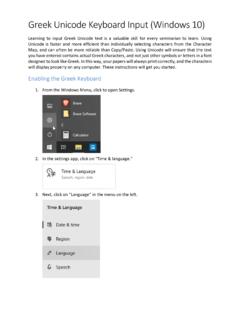
Greek Unicode Keyboard Input (Windows 10)
www.ctsfw.eduGreek Unicode Keyboard Input (Windows 10) Learning to input Greek Unicode text is a valuable skill for every seminarian to learn. Using ... enabled, using this key sequence again will return the keyboard to English. If more languages are enable, each time the key sequences used, the keyboard will move to the ...

ATS Online Client Computers Settings
www.litmuslink.comLanguage for non-Unicode must be set to Arabic For Windows XP: ... program in compatibility mode for' option if you get the drop down list enabled, then choose 'Windows XP (Service Pack 3)', otherwise keep it to the default option.-Install the latest support files. After installing the Support files through the Administrator login, you

MASTER GUIDE - Razer Inc.
dl.razerzone.comRazer Synapse 3 enabled Fully programmable keys with on-the-fly macro recording 10 key roll-over with anti-ghosting Gaming mode option ... function has full Unicode support and you can also insert special symbols from character maps. Disable

PanelView 800 Graphic Terminals - Rockwell Automation
literature.rockwellautomation.comEnabled for Remote Monitoring • Minimizes downtime by allowing operators to remotely monitor and configure terminals via Virtual Network Computing (VNC) ... • Configure terminal languages with ease through Unicode language switching • Program terminal to keep operators updated with machine status

ZT410 Industrial Printer Tech Specs - Zebra Technologies
www.zebra.com• (W × L)Unicode: For multi-language printing • Web View: Connect and control Zebra barcode printers via the printer’s Web interface using a common Web browser • Alert: Printers equipped with ZebraNet print servers provide alerts via any email-enabled, wired, or wireless device to minimize downtime LINK-OS SOFTWARE TOOLS
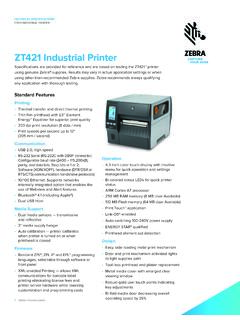
ZT421 Industrial Printer - Zebra Technologies
www.zebra.com• Unicode — For multi-language printing • Web View — Connect and control Zebra barcode printers via the printer’s Web interface using a common Web browser • Alert — Printers equipped with network connected printers provide alerts via any email-enabled, wired, or wireless device to minimize downtime Link-OS Software Tools

Beginner’s Essential CSS CHEAT SHEET - WebsiteSetup
websitesetup.org:enabled an element while the element is enabled :checked an element that is checked :selection an element that is currently selected or highlighted by the user :lang allows the author to specify a language to use in a specified element :nth-child(n) an element that is the n-th sibling
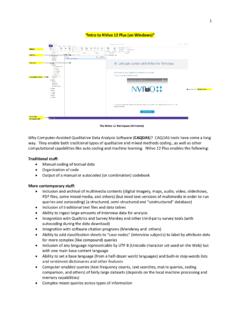
“Intro to NVivo 12 Plus (on Windows)”
idme-test.ome.ksu.edu• Computer-enabled queries (text frequency counts, text searches, matrix queries, coding comparison, and others) of fairly large datasets (depends on the local machine processing and memory capabilities) • Complex mixed queries across types of information
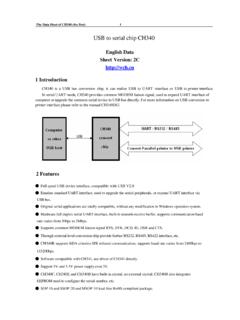
USB to serial chip CH340 - MPJA.COM
www.mpja.comFor CH340G/C/T/R chip, If R232 pin is driven high, assistant RS232 function will be enabled, an internal inverter will automatically insert to the RXD pin , and the pin becomes low by default. When UART transmission is idle, the TXD pin of CH340G/C/B/T keeps high, while CH340R keeps low.