Transcription of INSTRUCTIONS FOR SCANNER SETUP AND SOFTWARE …
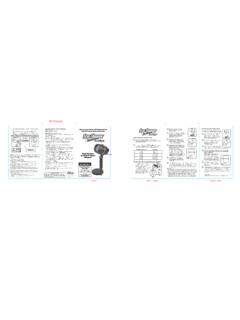
1 INSTRUCTIONS FOR SCANNER SETUPAND SOFTWARE INSTALLATIONC ontinue with SETUP and installationThe NeatDesk box contains everything you need to begin using the Neat ADF SCANNER with Neat SOFTWARE . Just follow these installation INSTRUCTIONS and you ll be scanning in no time!To begin, you ll need the following items:Before you BeginYou must install the Neat SOFTWARE prior to connecting your SCANNER to your computer. We recommend temporarily disabling any security or anti-virus SOFTWARE before proceeding. And that s it! You are now ready to say goodbye to paper clutter, and hello to an organized, digital sure to check out the back cover of your Welcome Kit for additional resources and Help scanned items will be processed in a Queue in the SOFTWARE . This may take a few seconds. Once complete, the items will appear in the selected folder. Double-click on the item to review the image and extracted by creating a folder with the +New Folder button on the left of your screen, under the Scan button.
2 Your items will go into the folder that you have selected when you : Set up your folders in a way that works for you. For example, Home, Business, by year, family member, etc. Folders can be rearranged or renamed at any time. Adjust your Settings to specify B&W vs. Color scanning, 1 or 2-sided scanning, combine pages into a single item, and your first item(s)NDF5 INSTRUCTIONS FOR SCANNER SETUPAND SOFTWARE INSTALLATIONThe NeatDesk box contains everything you need to begin using the Neat ADF SCANNER with Neat SOFTWARE . Just follow these installation INSTRUCTIONS and you ll be scanning in no time!To begin, you ll need the following items:Scanning your first item(s)And that s it! You are now ready to say goodbye to paper clutter, and hello to an organized, digital sure to check out the back cover of your Welcome Kit for additional resources and Help scanned items will be processed in a Queue in the SOFTWARE .
3 This may take a few seconds. Once complete, the items will appear in the selected folder. Double-click on the item to review the image and extracted with SETUP and installationBefore you BeginYou must install the Neat SOFTWARE prior to connecting your SCANNER to your computer. We recommend temporarily disabling any security or anti-virus SOFTWARE before are now ready to say goodbye to paper clutter, and Be sure to check out the back cover of your Welcome Kit for additional Your scanned items will be processed in the SOFTWARE . This may Once complete, the items will appear in the selected folder. Double-click on AABBI nsert your items FACE UP into any slot that best fits your items. Each slot will hold up to 15 items. To scan up to 50 documents, you can remove the paper input tray by grabbing the business card slot and pulling it up. CCEEP ress the SCAN button, in your SOFTWARE or on the SCANNER CD USB CABLEPOWER CORDNEAT ADF SCANNERTMTML aunching Neat SOFTWARE (continued)When Neat is launched for the first time you will be prompted to set up your Neat SoftwareThe Neat SOFTWARE will launch automatically after installation is complete.
4 You can also double-click the shortcut that was created on your desktop to launch the Neat SoftwareContinueConnecting your ScannerUse the provided USB cable to connect your SCANNER to any USB port on your computer. Connect the SCANNER directly to your computer do not use a USB hub or USB port on your keyboard. Use the supplied power cord to plug your SCANNER into an electrical connecting your SCANNER , it may take a minute while the drivers finish installing and the device is the installation Completed screen displays, click take a moment to re-enable your security and anti-virus the installation Wizard screen displays, click to follow the on-screen : You may be prompted several times to allow Neat to make changes to your computer. Click Yes .Insert the installation CD into your CD-ROM t have a CD-ROM drive? You can download the latest version of Neat SOFTWARE your email you don t have a Neat account, you ll create one here by choosing a password and security you already have a Neat account, you will be prompted to enter your the last step of SOFTWARE SETUP , you will be asked to create your cabinet.
5 Your cabinet is your Neat database, where all of your files are your cabinet, then select the country where you file taxes. This information will be used to set the display of tax installation DISC Neat 5