Transcription of INSTRUCTIONS - Shepherd University
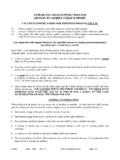
1 Registration for myApps on the West Virginia State Auditor's website is required in order to view your pay stubs and W-2. When wvOASIS/Kronos goes live it also will be required for leave management and time keeping. Please register now! INSTRUCTIONS State employees may view their pay stubs and W-2 forms at any time. To view your pay stub and/or your W-2 form, please go to the West Virginia State Auditor's website ( ). You will be on a screen that looks like the one below. Click on "myApps" and it will take you to the following screen. Click on the blue words "Sign Up!" which are next to "New to myApps." The following screen will appear. After you have read the terms of the contract, click on the box before the statement "I understand and agree to the terms of this contract as stated above" and click "Next." After you click "Next," the following screen will appear. Click on the "State Employees" button and you will be taken to the next screen.
2 This screen allows you to enter information required in order to complete the sign up process. The required information includes: First Name Last Name Address City State (select from drop down box) Zip Social Security Number (with no dashes) Confirm Social Security Number (with no dashes) You will then type in the code shown in the box and click the "Sign Up" button. A confirmation page should appear. You will be sent an email message from the Auditor's Office with your temporary password. (Be sure to check your junk email folder if the email is not in your In box.) If you have not received an email from the Auditor's Office within a half-hour, call the Help desk at 304-340-4850 or 304-340-4854. Once you receive your temporary password, go to the West Virginia State Auditor's website ( ) and click on MyApps. The following screen will appear. This time you will enter your email address and your temporary password.
3 Once you have logged in, the following screen will appear. From this screen you can change your password. (You should change your password from the temporary password to a password you will easily remember.) To change your password, click on "Change Password" in the "myAccount" box at the top of the screen. The following screen will appear. Enter your temporary password in the box labeled "Old Password." Enter your new password on the next line. Enter your new password again in the box labeled "Confirm Password" and then click "Change Password." Your new password will be saved. You will now be back at this screen. To view your pay stub (or electronic deposit), click on "eNODS/E-Paystub" in the "Employee" box. The following screen should then appear. You will then be able to view your electronic deposits (pay stub ) by clicking on the links that are blue. You also can print your pay stubs from that screen.
4 You will notice that some of the dates are in black and some are in blue. The dates in black are the dates your pay stub is loaded into the payroll system. You will not have access to those funds until the date shown in blue. If you wish to view your W-2 form, click on the word "W-2s" in the "Employee" box. The following screen will appear. Click on the year you wish to view your W-2. You can print your W-2 form from this screen. When you have finished viewing all the information that you want to see, be sure to click on the words "Sign Out" at the top of the screen. This will sign you out of the State Auditor's website and ensure that no one else will be able to view your information. 09-2014