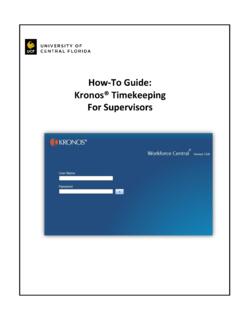
Transcription of Kronos User Guide - Pepperdine Community
1 Kronos user Guide Supervisor 1. What is Kronos ? 2. Accessing Kronos 3. How often do I need to access Kronos ? 4. Navigate Through the System 5. Navigation Bar 6. Links 7. Timecard o Totals & Schedule o Accruals o Audits o Sign-offs & Approvals 8. How do I view my employee s timecard? 9. What are the critical things I should be looking for on the employee s timecard? o Timecard Exceptions for Employees 10. How do I make corrections in the timecard? 11. Transfers 12. How do I approve my employee s timecard? 13. I have more than one employee. How do I approve all timecards at once? 14. What should I do if a correction needs to be made after I already approved? 15. Make-up time 16. Sending an email to an employee about their timecard 17. Scheduling Employees 18. HyperFind Queries 19. How do I log out of the system? 20.
2 Timecard Indicator Key 1. What is Kronos ? Kronos timekeeper is a web-based time and attendance system that helps ensure accurate recording of your time worked. After reading the following information, you will be able to login to the system, review the time cards of employees you supervise, approve their timecards, set up schedules for them, create genies to retrieve information and run reports. 2. Accessing Kronos Using Internet Explorer, go to Save this link in your favorites for future use. Use the same username and password that you use to login to your computer (your network ID) Kronos can also be accessed by signing into Wavenet and clicking the Timesheet link at the top. Kronos user Guide Supervisor Last Revised: Sept 6, 2012 Page 2 of 18 3.
3 How often do I need to access Kronos ? Ideally, you as a manager will login at least once per day to review your employee s timesheet for the prior day. You will definitely need to access Kronos at the end of each pay period in order to approve your employee s timesheet. 4. Navigate Through the System Never use your Internet Explorer browser buttons to navigate through the system. Instead, use the navigation buttons within Kronos . Always remember to hit Save to save your work. Your session will time out after a certain period of inactivity, so remember to logout properly when you are finished. 5. Navigation Bar QuickFind lets you search for specific employees by using part of last name or ID and the asterisk (*) wildcard character. Reconcile Timecard a genie showing employee exceptions, total hours, overtime, and approvals.
4 Shift Start a genie showing absence, employees on premises, unscheduled hours, hire date and home phone numbers. Reports used to generate standard or custom reports. Schedule Editor timeline view of employee s schedule; also the primary place to set or edit an employee s schedule. My Timecard a link to your timecard. My Reports a link to reports on your schedule and time detail. Kronos user Guide Supervisor Last Revised: Sept 6, 2012 Page 3 of 18 6. Links Access the timecard. Employees use the Timecard component to enter, review, edit, and approve their time. You can then review, edit, or approve employee timecards. This can be used for a single employee or multiple employees by highlighting employee or employees.
5 Access the schedule editor showing employee schedule hours for a week. This can be used for a single employee or multiple employees by highlighting employee or employees. Access employment status, contact information and Kronos licenses. Generates standard or custom reports; can run reports that summarize employee, people or user data in a variety of ways. My Links links to Pepperdine University resources. Kronos user Guide Supervisor Last Revised: Sept 6, 2012 Page 4 of 18 7. Timecard Menu Options Totals Accruals Audit Sign-offs Approvals Schedule Totals & Schedule Allows you to view all time that belongs to the employee of the visible timecard, view a shift selected or view a daily schedule.
6 When you edit a timecard, the system adds a red flag to the Totals & Schedule tab if the totals displayed in the timecard are out of synch with the data displayed in the timecard. Save your work to update the totals. Accruals Allows you to view accrued time that belongs to the employee of the visible timecard. Kronos user Guide Supervisor Last Revised: Sept 6, 2012 Page 5 of 18 Audits Allows you to view edits that belong to the employee of the visible timecard. For example: Add Punch or Edit Punch. Sign-offs & Approvals Allows you to view who approved or signed-off a timecard for the employee of the visible timecard and when the approval took place. 8. How do I view my employee s timecard?
7 The QuickFind genie allows you to search for an employee by last name or their ID number. Kronos user Guide Supervisor Last Revised: Sept 6, 2012 Page 6 of 18 To view all employees, select Reconcile Timecard from the navigation bar. Click the down arrow for the Show box and select All Home or All Home and Transferred-in. Selecting All Home and Transferred-in will bring up all Primary employees as well as all employees with a transfer to the job in your department. Select the appropriate period of time from the Time Period drop-down list. If there are Missed Punches checked, this is a critical error that must be corrected prior to approving the timesheet. When the employee s name appears in the display window, double click on the name to view the timecard.
8 Review it and make the appropriate edits. 9. What are the critical things I should be looking for on the employee s timecard? On the timesheet, you will see the time in and the time out at the end of the day. The Transfer columns are to allocate work time to a job. If the employee has multiple jobs, verify that transfer codes are entered and correct hours are being charged to your department. Kronos user Guide Supervisor Last Revised: Sept 6, 2012 Page 7 of 18 Timecard Exceptions for Employees In the example below, there are 3 exceptions where there is a red box around the cell. Exceptions are simply red flags that alert you to time that is not consistent with the employee s work day. When you move your mouse over the highlighted cell, you will see the exception error.
9 For instance, Tuesday s exception is an Early Out since the employee only worked 7 hours. A solid red box is a critical exception that you must fix prior to approving the timesheet. In the example below, there is a missed punch exception for Wednesday. The employee did not record his or her leaving time for the day. Consult with the employee as to what time they left work for the day and input the missing time entry to remove this critical exception. 10. How do I make corrections in the timecard? If a correction needs to be made, you need to access the employee s timecard, review, edit and save. IMPORTANT NOTE: When entering time, Kronos defaults to AM unless otherwise specified except for the time range of 12 Noon to 12:59. This time range is always considered PM. To type 5:00PM, you could either enter military time (17) or type in 5p.
10 For a normal 40 hour work week, simply complete the 4 columns indicated below (In/Out/In/Out). Hit Save to show cumulative totals in right column. Kronos user Guide Supervisor Last Revised: Sept 6, 2012 Page 8 of 18 If you need to add a Pay Code to show time away from work: Example: If the employee took 4 hours of vacation on Wednesday, you would take the following steps in Kronos : Click the Insert Row icon next to Wednesday. In the new row that appears, select the appropriate Pay Code from the drop-down selection, then enter the # of hours for that pay code in the Amount column. The red box will alert you that an exception to regular time took place. Allow your mouse pointer to hover over the red box to display a message.