Transcription of LabelManager User Guide - DYMO
1 User GuideLabelManager 280 Copyright 2019 Newell Rubbermaid Europe, LLC. All rights reserved. Rev. 12/2019No part of this document or the software may be reproduced or transmitted in any form or by any means or translated into another language without the prior written consent of Newell Rubbermaid Europe, and LabelManager are registered marks in the US and other countries. All other trademarks are the property of their respective StatementCaution: The user is cautioned that changes or modifications not expressly approved by the party responsible for compliance could void the user's authority to operate the : This equipment has been tested and found to comply with the limits for a Class B digital device, pursuant to part 15 of the FCC Rules.
2 These limits are designed to provide reasonable protection against harmful interference in a residential installation. This equipment generates, uses and can radiate radio frequency energy and, if not installed and used in accordance with the instructions, may cause harmful interference to radio communications. However, there is no guarantee that interference will not occur in a particular installation. If this equipment does cause harmful interference to radio or television reception, which can be determined by turning the equipment off and on, the user is encouraged to try to correct the interference by one or more of the following measures: Reorient or relocate the receiving antenna.
3 Increase the separation between the equipment and receiver. Connect the equipment into an outlet on a circuit different from that to which the receiver is connected. Consult the dealer or an experienced radio/TV technician for Your New Label Maker .. 5 Product Registration ..5 Getting Started .. 5 Connecting the Power ..5 Inserting the Battery Pack ..5 Recharging the Battery Pack ..5 Removing the Battery ..5 Inserting the Label Cassette ..6 Using the Label Maker for the First Time .. 6 Getting to Know the Label Maker .. 6 Power ..6 LCD Display ..7 Navigation Keys ..7 Cancel ..7 Backspace ..7 Caps Mode ..7 New Label/Clear.
4 7 Text Size ..7 Format Keys ..7 vertical Text ..7 Menu ..7 Formatting Your Label .. 7 Changing the Font Type ..7 Changing the Text Size ..8 Changing the Text Style ..8 Adding Borders ..8 Using Mirror Text ..8 Creating vertical Labels ..8 Creating Fixed-Length Labels ..9 Aligning the Text ..9 Creating Two-Line Labels ..9 Using Clip Art, Symbols, and Special Characters .. 9 Adding Symbols ..9 Adding Clip Art ..10 Adding Accented Characters ..10 Inserting the Date and Time ..10 Using Auto-Numbering ..11 Deleting Auto-Numbering ..11 Changing the Settings .. 11 Changing the Language ..11 Setting the Label Width ..11 Setting the Units of Measure.
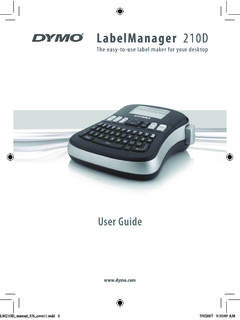
5 11 Printing Options .. 11 Previewing Your Label Layout ..11 Printing Multiple Labels ..11 Using the Label Maker Memory .. 11 Saving a Label ..11 Opening Saved Labels ..12 Inserting Saved Text ..12 Caring for Your Label Maker .. 12 Using the Label Maker with YourComputer .. 13 Installing the Desktop Software ..13 Connecting the Label Maker to your Computer ..13 Troubleshooting .. 14 Safety Precautions for Lithium-Ion Rechargeable Battery Pack .. 15 Environmental Information .. 154 Figure 1 LabelManager 280 Label Maker1 USB port9 Back17 Accented characters2 Power port10 Save/Open18 Navigation3 LCD display11 Numeric keys19OK4 Cutter12 Symbols20 New label/Clear5 Italics13 Backspace21 Menu6 Underline14 Return22On/Off7 vertical text15 Space bar23 Text size8 Print/Copies16 Caps24 Bold123456781011914161718192012132122232 4154 About Your New Label MakerWith the DYMO LabelManager 280 electronic label maker, you can create a wide variety of high-quality, self-adhesive labels.
6 You can choose to print your labels in several different fonts, text sizes, and text styles. The label maker uses DYMO D1 label cassettes in widths of 6 mm (1/4 ), 9mm (3/8 ), or 12mm (1/2 ). These label cassettes are available in a wide range of for information on obtaining labels and accessories for your label RegistrationVisit to register your label maker online. During the registration process, you will need the serial number, which is located inside the back cover of the label your label maker to receive these benefits: Notification of software upgrades by email Special offers and new product announcementsGetting StartedFollow the steps in this section to print your first the PowerThe label maker is powered by a rechargeable, lithium-ion (Li-ion) battery pack.
7 To save power, the label maker automatically turns off after two minutes of the battery pack if the label maker will not be used for a long period of the Battery PackThe battery pack included with your label maker comes partially charged. For best performance, fully charge the battery as soon as sure the charging adapter is disconnected before handling the Li-ion battery pack. To insert the battery pack1 Slide the battery compartment cover away from the label maker. See the battery pack into the battery the battery compartment sure to read the Li-ion Safety Precautions found on page14 .Recharging the Battery PackA charging adapter is included with your label maker for recharging the battery pack.
8 Charging the battery pack will take approximately three hours; however, after charging for about 10 minutes, the label maker can be used to print only the power adapter listed in this user Guide :Adapter model DSA-6 PFG-12 Fc 120050 (note: c can be EU, UP, UK, US, UJ, JP, CH, IN, AU, KA, KR, AN, AR, BZ, SA, AF or CA) from Dee Van Enterprise Co., charging adapter is only used for recharging the battery pack; the charging adapter cannot be used to power the recharge the battery pack1 Plug the charging adapter into the power connector on the top of the label the other end of the charging adapter into a power outlet. See sure to read the Li-ion Safety Precautions found on page14.
9 Removing the BatteryRemove the battery pack if the label maker will not be used for a long period of sure the charging adapter is disconnected before handling the Li-ion battery remove the battery1 Unplug the charging the battery compartment cover away from the labelmaker. SeeFigure the battery from the battery sure to read the Li-ion Safety Precautions found on page14 .Figure 1 Figure 2 5 Inserting the Label CassetteYour label maker comes with a starter label cassette. The label maker uses DYMO D1 label cassettes in widths of6 mm (1/4 ), 9mm (3/8 ), or 12mm (1/2 ). Visit for information about purchasing additional label : Cutter blade is extremely sharp.
10 While replacing the label cassette, keep fingers and other body parts away from cutter blade and do not press the cutter insert the label cassette1 Lift the label cassette cover to open the label compartment. See sure the tape and ribbon are taut across the mouth of the cassette and that the tape passes between the label guides. See Figure necessary, turn the ribbon rewind spool clockwise to tighten the the cassette and press firmly until cassette clicks into place. See Figure the label cassette the Label Maker for the First TimeThe first time you turn on the power, you are asked to select the language, units of measure, and label width.